Obsidian Kanban: Native Bases View vs the Kanban Plugin
Table of contents
For six years, "Obsidian Kanban" meant one thing: a community plugin that turned a Markdown file into a drag-and-drop board. It was downloaded 2.8 million times and became one of the reasons people moved their project tracking into their notes. Then two things happened at once. Obsidian 1.14 shipped a native Kanban view inside Bases, and the original plugin, last updated two years ago, now carries a banner saying it is looking for new maintainers.
So the question people actually search for has changed. It is no longer "how do I install the Kanban plugin." It is "which Obsidian Kanban should I use now, and will the one I pick still work next year?" This guide answers that: how each approach stores your data, what each is genuinely better at, step-by-step setup for both, and a decision table for the common workflows. If you are new to the app itself, start with the guide to using Obsidian and come back once you have a vault.
What is Obsidian Kanban?
Obsidian Kanban is a way to see notes or tasks as cards arranged in columns, usually stages like "To do", "Doing" and "Done", that you move by dragging. In 2026 there are two different things behind that name:
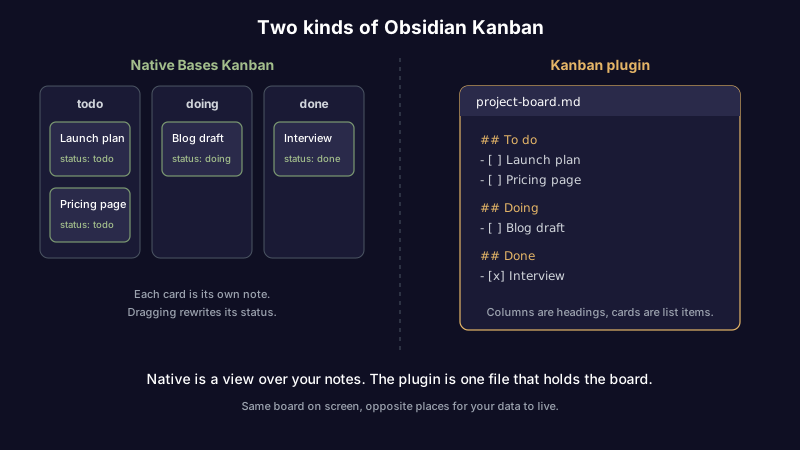
- The native Kanban view in Bases. A built-in layout, added in Obsidian 1.14 in October 2026. Each card is a note in your vault, each column is a value of a property you choose, and dragging a card between columns changes that note's property.
- The Kanban community plugin. The original plugin, now listed under the Obsidian Community Archive. A whole board lives in a single Markdown file: columns are headings, cards are list items, and a card only becomes its own note if you choose to make it one.
They look alike on screen. Underneath they are opposite designs, and that difference decides almost everything else.
Native Bases Kanban vs the Kanban plugin
Here is the short comparison. The rows that matter most are the first two: where the data lives, and whether anyone is still maintaining the code.
| Native Bases Kanban | Kanban plugin | |
|---|---|---|
| Where the board lives | A view over notes already in your vault (a .base file or an embedded base) | One Markdown file per board |
| What a card is | A full note with its own properties | A list item, optionally linked to or converted into a note |
| What a column is | A value of the property you group by | A heading in the board file |
| Moving a card changes | The note's property value | The position of the list item in the file |
| Quick cards without a note | No, every card is a file | Yes, type a line and it is a card |
| Maintenance | Core feature, shipped by the Obsidian team | Archived; last release 2.0.51, about two years old |
| Needs | Obsidian 1.14 or later | Any Obsidian 1.0+ |
| Works on mobile | Yes | Yes |
| Best for | Projects, content pipelines, anything where each item deserves a note | A single lightweight task board for one project |
The pattern in that table is the whole decision. The native view is a lens: it does not store anything itself, it just arranges notes you already have by a property they already carry. The plugin is a container: the board is the data, and cards live inside it. Lenses are robust and composable, because the same notes can show up in a table, a list and a board at once. Containers are fast to start, because you do not need a note per card, but everything is trapped in one file shaped the way one plugin expects.
How the native Obsidian Kanban view works
The native Kanban is a layout inside Bases, Obsidian's core database feature. If you have used a Bases table, you already know most of it. The official help page is short and worth reading once, but the working model is this:
- A base gathers notes using filters, for example every note in a
Projectsfolder or every note tagged#task. - The Kanban layout needs one property to group by. Each distinct value of that property becomes a column.
- Each matching note becomes a card in the column for its value. Notes with no value for that property land in a None column.
- Dragging a card to another column rewrites that property on the note. Move a card from
doingtodoneand the note's frontmatter now saysstatus: done.
Two limits are worth knowing before you build anything. First, if you group by a formula, or by a file property other than file.folder, the board becomes read-only: you can still reorder and hide columns, but you cannot drag cards or create notes from a column. Group by a normal note property such as status if you want to drag. Second, a card is always a file. There is no "type a quick line" card; adding a card means creating a note.
Display options are deliberately few: column width, plus an optional cover image per card taken from an image property, with cover-or-contain fit and an adjustable aspect ratio. The new Group menu that came with it also works in the table, cards and list layouts, so you can reorder, hide and collapse groups everywhere, not only on the board.
Set up a native Kanban board in five minutes
- Update to Obsidian 1.14 or later (the version and update button are under Settings, then General).
- Pick or create a property for the stage. A text property named
statuswith values liketodo,doing,reviewanddoneis the common choice. Add it to two or three existing notes so the board has something to show. - Create a new base (command palette, "Create new base") and add a filter, such as notes in your
Projectsfolder or notes wherestatusis not empty. - In the view menu, switch the layout to Kanban.
- Open Group in the toolbar (on phones, Display then Group) and choose
statusunder Group by. Reorder the columns into your workflow order and hide any you do not need.
That is the entire setup. Because the board is just a view, you can add a second view to the same base, say a table sorted by due date, and both stay in sync automatically, since both read the same notes.
How the Kanban plugin works
The plugin takes the opposite approach. You create a board from the command palette, and the plugin writes a Markdown file where each column is a heading and each card is a list item underneath it. Open that file in the plugin's view and you get the board; open it as plain text and you get a readable outline. That plain-text fallback is the best thing about it: even if the plugin stops working entirely, your board is still a legible Markdown file.
What the plugin does well is speed. You can type a card in a second without creating a note, link cards to existing notes, turn a card into a full note when it grows, set work-in-progress limits on columns, and archive finished cards. For a single personal to-do board, it is still the quickest way to get going.
The catch is the banner at the top of its page. The plugin moved to the Obsidian Community Archive, its last release is roughly two years old, and the README asks for new maintainers. It still installs and still works on current Obsidian today. The risk is not that it breaks tomorrow; it is that when a future Obsidian release does break something, nobody is assigned to fix it. Forks such as Kanban Plus exist and have their followings, but a fork is a bet on another single maintainer.
If you rely on the plugin now, you do not need to panic-migrate. You do want to know your exit, and the good news is that the Markdown file makes the exit easy: the content is already plain text you own. For more on why that matters, see why plain Markdown files are the format that survives the tools built on top of it.
Which Obsidian Kanban should you use?
Pick by the shape of the work, not by which board looks nicer.
| Your workflow | Use | Why |
|---|---|---|
| Content pipeline (ideas, drafting, editing, published) | Native | Each piece is already a note; the board just shows its stage |
| Projects with notes, links and history | Native | The card is the project note, so nothing is duplicated |
| Reading list or research queue | Native | Notes carry author, source and status; a table view sits beside the board |
| One quick personal to-do board | Plugin | Typing a line is faster than creating a note per task |
| Sprint-style board with WIP limits | Plugin | Native has no WIP limits |
| Board you want to share as a single file | Plugin | One self-contained Markdown file |
| Anything you expect to keep for years | Native | Core feature, maintained by the Obsidian team |
The default for most people starting today is the native view. It treats your notes as the source of truth, which is the whole reason to keep work in a note-taking app instead of a separate task tool. The plugin is the right call when what you actually want is a scratchpad board of short items that do not deserve their own notes.
Moving from the plugin to the native view
There is no one-click converter, and you do not need one for most boards. The practical migration is:
- Open the plugin board as plain Markdown so you can see every card as a list item.
- For each card worth keeping as a real item, create a note, or use the plugin's option to create a note from a card, and give it a
statusproperty matching its old column. - Point a base at those notes and group by
status. - Leave short, throwaway cards behind in the old file. Not every line deserves a note.
Most people find that step 2 is where they discover half the cards were stale anyway. That is a feature of migrating, not a cost.
Making an Obsidian Kanban board actually last
Both versions fail the same way, and it is not a technical failure. A board is a snapshot of what you believed about your work on the day you last updated it. The cards in "Doing" from three weeks ago are not being done. The "Review" column quietly turns into a graveyard. A Kanban board does not decay loudly; it just stops being true.
A few habits keep it honest:
- Keep the column count small. Three or four stages. Every extra column is another place for cards to hide.
- Add a date property such as
updatedordue, and keep a table view of the same base sorted by it. The board shows the stage; the table shows what has gone stale. - Review weekly. Five minutes moving or deleting cards beats an hour of rebuilding the board in a month. The same discipline that keeps an Obsidian vault from going stale applies to the board inside it.
- Do not track the same task in two places. If a task lives in a meeting note and on a board, one of them is wrong by Friday.
If you want more structure on top, the wider roundup of the best Obsidian plugins covers the task and calendar plugins people pair with a board. And if you are still deciding whether Obsidian is the right home for this kind of work at all, the honest breakdown of Obsidian alternatives covers what you would gain and lose elsewhere.
Tasks that stay inside your notes
Step back from the boards for a moment. The reason the native Kanban is the better default is the same reason people put work in Obsidian in the first place: tasks belong next to the notes they came from. A board is one way to look at that. It is not the only way, and for a lot of people it is more ceremony than the work needs.
Scribelet takes the lighter path. You write a checkbox task in any note, in the middle of meeting notes or a project page, and it shows up in one Tasks view across all your notes, with an optional due date written right in the line. Unfinished tasks carry over onto today's daily note so nothing silently drops off the end of the week. There is no board to maintain and no property schema to design, and the notes themselves are stored as Markdown rather than a proprietary format. If that is closer to how you actually work, try Scribelet free.
If you do want a board, use the native Obsidian Kanban, group by a status property, keep a dated table next to it, and review it weekly. That gets you most of what the old plugin offered on a foundation that will still be maintained next year. And if you are weighing whether the visual features in Obsidian earn their keep, the same honest question applies to the Obsidian graph view: useful when it answers a question you are actually asking, decoration when it does not. Want your notes and tasks to stay current without the upkeep? Start with Scribelet free.
Share this article