The Best Obsidian Plugins in 2026 (and Which to Skip)
Table of contents
Obsidian does not have a plugin problem. It has a plugin abundance problem. There are more than two thousand community plugins, and the moment you discover that, the temptation is to install twenty of them in an afternoon and turn your vault into a dashboard you spend more time configuring than writing in.
So the useful question is not "what are all the best Obsidian plugins." It is "which handful actually earns a permanent place in my vault, and which ones look impressive for a week and then sit there as dead weight." Because every plugin you install is one more thing that can break after an app update, go unmaintained when its author moves on, or quietly change behavior in a way you only notice when a note looks wrong.
This guide covers the plugins worth keeping, grouped by what you are actually trying to do, with an honest note on what each one costs you in upkeep. Start with the core plugins, then add community ones deliberately, not by the dozen.
What are the best Obsidian plugins?
The best Obsidian plugins are the few that change how you work rather than how your vault looks. For most people that is a short list: Dataview to turn notes into queryable data, Templater to automate repetitive note creation, Obsidian Tasks for task management across your vault, and the built-in Backlinks, Daily notes, and Bases core plugins before you install anything from the community at all.
The right set depends on the job. The table below is the quick version; the rest of this guide is the reasoning, including what each plugin is bad at.
| Plugin | Type | What it does | Watch out for |
|---|---|---|---|
| Bases | Core (built-in) | Database-like views over note properties | Newer, no relational links between tables |
| Dataview | Community | Queries notes, tasks, and metadata as a live database | A query language to learn; heavy vaults slow down |
| Templater | Community | Scriptable templates and automated note creation | Scripting power invites over-engineering |
| Obsidian Tasks | Community | Due dates, recurrence, and a global task query | Only sees tasks you format its way |
| Calendar + Periodic Notes | Community | Sidebar calendar and weekly/monthly notes | Two plugins to keep in sync |
| Omnisearch | Community | Fuzzy, full-text search across the whole vault | Duplicates some native search |
| Obsidian Git | Community | Version history and backup via Git | Assumes you are comfortable with Git |
| Excalidraw | Community | Hand-drawn diagrams and sketches inside notes | Drawings live in their own file format |
If you already suspect the real issue is not which plugins to add but keeping what is in your notes accurate over time, you can try Scribelet free and come back. Otherwise, start where every vault should: the core plugins.
Turn on the core plugins first
Before you open the community directory, go to Settings and look at the core plugins. These ship with Obsidian, are maintained by the Obsidian team, and will never be abandoned by a solo developer. They cover more than most people realize (Obsidian Help).
- Backlinks and Outgoing links are the whole point of a linked notes system. Turn them on and every note shows what references it. This is what people install graph plugins to approximate, and it is already built in.
- Daily notes gives you a dated note on demand, the backbone of journaling and meeting capture.
- Templates handles the common case of inserting a boilerplate structure. Only reach for Templater (below) when you need logic the core plugin cannot do.
- Bases is now a core plugin, not a community add-on. It gives you database-like table, card, and list views over the properties in your notes, which closes a lot of the gap people used to fill with Dataview. It is newer, so it does not yet do relational links between tables the way a true database does.
- Canvas is an infinite spatial board for arranging notes visually, also built in.
The lesson of the core plugins is the lesson of the whole ecosystem: add capability only when the built-in tool genuinely falls short. If you want the longer version of that argument, Obsidian's whole premise is that a folder of plain Markdown files should outlive any one app, and every plugin you bolt on is a small bet against that portability.
The essential community plugins
If you install nothing else from the community, install these. They are mature, widely used, and solve problems the core plugins leave open.
Dataview
Dataview turns your vault into a database. You write a query in a code block and it renders a live table or list of notes matching your criteria: every book note with a rating above four, every task due this week, every meeting that mentions a project. It is the single most powerful thing you can add to Obsidian (Dataview).
Watch out for: it is a query language, so there is a learning curve, and on a very large vault complex queries can slow rendering. With Bases now built in, try the core plugin first for simple table views and reach for Dataview when you need real querying. This is the same database versus a folder of files question that separates Obsidian from Notion, except here you get to choose how far down the database road you go.
Templater
Templater is the scriptable version of the core Templates plugin. It can insert the current date, prompt you for input, run small scripts, file a new note into the right folder automatically, and chain all of that into one command. If you create the same kind of note often, Templater removes the friction.
Watch out for: the power to script invites over-engineering. A template that calls three functions and prompts for four fields is a template you will eventually stop using because capturing a thought should not feel like filling in a form.
Obsidian Tasks
Obsidian Tasks adds real task management on top of Markdown checkboxes: due dates, scheduled dates, recurring rules, priorities, and a global query that pulls every open task across your vault into one view. For people who keep tasks next to the notes that spawned them, it is close to essential.
Watch out for: it only recognizes tasks written in its format, so the discipline has to be yours. A checkbox you typed quickly without the right emoji syntax will not show up in the query.
QuickAdd, Calendar, Periodic Notes, and Omnisearch
Four more that routinely make "essential" lists for good reason. QuickAdd turns multi-step captures into one keyboard shortcut. Calendar adds a clickable month view tied to your daily notes, and Periodic Notes extends that to weekly, monthly, and yearly notes. Omnisearch gives you fuzzy, full-text search that many people find faster than the native search.
Watch out for: Calendar and Periodic Notes are two plugins doing one job, so you have two update streams to track, and Omnisearch overlaps the built-in search enough that you should confirm you actually prefer it before keeping both.
The best Obsidian plugins for developers
If you live in a terminal, a few plugins make Obsidian feel like part of your toolchain.
- Obsidian Git commits your vault to a Git repository on a schedule, giving you real version history and an off-device backup. It is the most reliable backup story for a local vault, as long as you are comfortable with Git conflicts when you edit from two machines.
- Advanced Tables makes Markdown tables bearable to edit, auto-formatting columns as you type and adding spreadsheet-style navigation.
- Excalidraw embeds hand-drawn diagrams and sketches directly in notes. Architecture sketches, flow diagrams, and whiteboard thinking all live inside the vault instead of in a separate app. The drawings save in their own file format, so they are a little less portable than the rest of your Markdown.
For anything involving diagrams you want to keep in version control rather than as exported images, the same instinct that makes developers reach for these plugins is why diagrams-as-text approaches exist at all.
The best Obsidian plugins for students and research
For reading-heavy work, two categories matter.
- Citations and Zotero integration plugins pull references from your Zotero library into notes, so a literature note links back to its source with a proper citation. This is the backbone of a research vault.
- Spaced Repetition turns notes into flashcards and schedules reviews, bringing active recall into the same app you take notes in. If you are a student choosing a tool for the first time, it is worth seeing how Obsidian stacks up against the dedicated options in a broader roundup of the best note-taking apps for students before you commit to building a plugin stack.
Watch out for: research plugins are often maintained by one person, and a Zotero connector that breaks after a Zotero update can strand your workflow mid-semester. Keep the plain citation text in the note, not only the plugin-rendered version.
The best Obsidian plugins for writers
Long-form writers have their own shortlist. Longform organizes scenes and chapters into a single compiled manuscript, so a novel or a dissertation lives as linked notes but exports as one document. Focus and typewriter-style plugins dim everything except the active line and keep your cursor centered, which some writers find removes the friction of a busy interface.
Watch out for: a manuscript spread across dozens of plugin-managed files is only as recoverable as the plugin that assembles it. Export a plain copy periodically so a chapter is never trapped inside a tool.
Plugins for mobile and sync
Not every plugin works on the Obsidian mobile app, and the ones that do can drain battery or slow startup on a large vault. Check a plugin's mobile support before you rely on it away from your desk. Sync is its own decision: Obsidian's official Sync is the simplest, Obsidian Git works if you are technical, and third-party options exist with their own tradeoffs.
This is also where the plugin model shows its edges. A vault that depends on ten plugins to be usable is a vault that behaves differently on every device, which is the opposite of what you want from a note app that works everywhere.
A note on AI plugins
AI in Obsidian is its own topic, with several routes that each send a different share of your vault to a model. Rather than squeeze it into this list, we wrote it up separately: here are the AI plugins for Obsidian, with a verdict on each, including the privacy tradeoff of each approach.
Which plugins should you actually install?
Here is the short answer by what you do. Install the core plugins in every case; add from this list only what your actual work calls for.
| If you mostly | Install |
|---|---|
| Want structure without a learning curve | Bases (core), Templates (core) |
| Query and track things across notes | Dataview, Obsidian Tasks |
| Automate repetitive capture | Templater, QuickAdd |
| Write code or keep backups | Obsidian Git, Advanced Tables |
| Do reading-heavy research | Citations, Spaced Repetition |
| Write long-form | Longform, a focus plugin |
| Draw and diagram | Excalidraw, Canvas (core) |
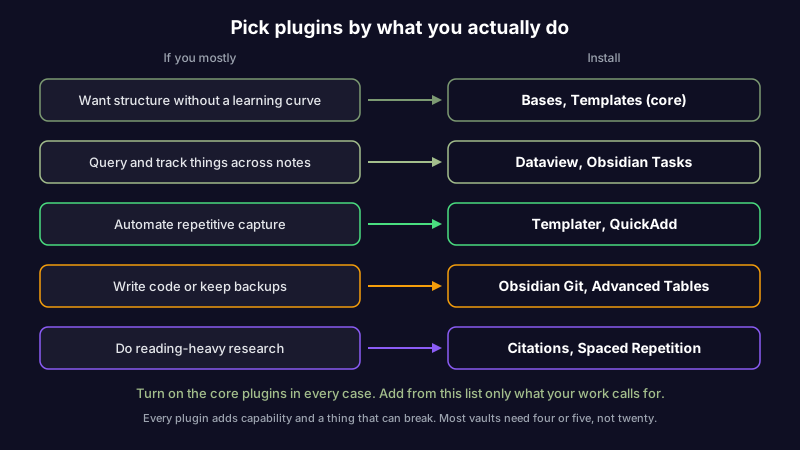
The honest version of this table is a number: most people are well served by four or five plugins, and the difference between a vault that helps and a vault that fights you is usually restraint, not coverage.
When the plugin stack becomes the maintenance problem
Here is the pattern worth naming. You install plugins to make your notes do more. Each one adds capability. Each one also adds a thing that can break, an author who can disappear, and a format that may not survive the next migration. Past a certain point, the plugins stop being tools and become the maintenance burden they were supposed to remove.
And none of them address the quieter problem underneath. A plugin can query, format, link, and schedule your notes beautifully, and every one of those notes can still be wrong. The React pattern you documented got deprecated. The pricing you noted changed. The link you saved rotted. No plugin on this list checks whether what you wrote is still true.
That is the gap Scribelet is built around. Scribelet is not an Obsidian plugin; it is a notes app whose AI runs background checks against the web on a schedule you set and shows you a diff when something you wrote has gone out of date, with the source. You bring your own API key if you want provider control, or use the included AI out of the box. If the real reason you keep adding plugins is that your notes feel like they need looking after, you may want an Obsidian alternative that maintains your notes rather than one more plugin to maintain.
Either way, the principle holds across every PKM system: capturing and organizing are solved problems, and the maintenance step every framework skips is where notes quietly go stale. Plugins make Obsidian more capable. They do not make your notes more trustworthy.
The short list
If you take one thing from this guide, make it restraint. Turn on the core plugins, especially Backlinks, Daily notes, and Bases. Add Dataview and Templater when you have a real use for them. Add the rest only when your work asks for it, and remove anything you have not touched in a month. A lean vault is faster, more portable, and far less likely to break the week you need it most.
And when the thing you actually want is not more capability but more confidence that your notes are still accurate, that is a different tool. Try Scribelet free and see your first diff.
Share this article