How to Use Obsidian in 2026: A Practical Beginner's Guide
Table of contents
Most guides on how to use Obsidian show you everything the app can do. That is the problem. Obsidian can do so much that a beginner ends up installing plugins, tweaking themes, and building an elaborate folder system before they have written a single real note. Two weeks later the vault is a project in itself, and the notes it was supposed to hold never arrived.
This guide takes the opposite approach. It covers the shortest path to a vault you will actually keep using: the handful of steps that matter, a starter structure you will not regret, and the few features worth turning on before any of the fancy ones. It also covers the part the quick tutorials skip, which is when Obsidian stops being the right tool and what to do about it.
If you want to see the interface move while you read, the official Obsidian help docs are the canonical reference. Everything below is the opinionated version: what to do first, and what to ignore until you need it.
What is Obsidian, and how does it work?
Obsidian is a free, local-first note-taking app that stores every note as a plain-text Markdown file inside a normal folder on your computer. That folder is called a vault. There is no database and no proprietary file format: a note is a .md file you could open in any text editor, which is the whole reason people trust it with years of writing.
So learning how to use Obsidian is really learning three things: how to get text into those files, how to link the files to each other, and how to find your way back to what you wrote. The app adds a graph, a search, and an ecosystem of plugins on top, but the foundation is just a folder of text you own. Keep that in mind and the rest stops feeling complicated.
Before you tweak anything, it is worth being honest about why you are here. If you are choosing a tool for the long haul, see how Obsidian compares in a head-to-head like Notion versus Obsidian first, because the database-versus-files distinction decides more than any plugin will. If the thing pulling you toward a new app is really that your current notes have quietly gone out of date, you can try Scribelet free and come back. If you already know Obsidian is your pick, read on.
How to use Obsidian: the five steps that matter
Ignore everything else until these five are done. This is the path the official docs and every decent video cover, compressed to what you actually touch.
| Step | What you do | Why it matters |
|---|---|---|
| 1. Install | Download Obsidian for desktop or mobile and launch it | The app is free; no account is required to start |
| 2. Create a vault | Click "Create new vault," name it, pick a folder | The vault is just that folder; your notes live there as files |
| 3. Write a note | Click the new-note icon and type in Markdown | # for headings, - for lists, **bold**, no special app needed |
| 4. Link notes | Type [[ and start a note's name to connect two notes | Links, not folders, are what make Obsidian worth using |
| 5. Sync | Put the vault folder in a cloud service, or use Obsidian Sync | Your notes follow you to other devices |
1. Install and open it
Download Obsidian from the official site, run the installer, and open the app. There is no sign-up wall and no cloud account to create, which is part of the point: the app runs on your machine and reads files on your disk.
2. Create your first vault
On first launch, Obsidian asks you to create or open a vault. Click "Create new vault," give it a name, and choose where to store it, such as a folder in your Documents. That folder is now your vault. Everything you write lands inside it as a .md file you can back up, move, or open elsewhere at any time. You can have more than one vault, but resist the urge: one vault for everything is almost always the right call for a beginner.
3. Write and format a note
Click the new-note icon in the top-left, type a title, and start writing in the editor. Formatting is plain Markdown: # for a heading, - for a bullet, 1. for a numbered list, **text** for bold, and *text* for italics. You can drag an image straight into the note and Obsidian files it for you. That is the entire writing experience, and it is deliberately boring so the text, not the tool, is what you fuss over.
4. Link your notes with double brackets
This is the step that separates Obsidian from a folder of text files. Type [[ anywhere in a note and start typing another note's name; Obsidian offers to link to it, and if the note does not exist yet, clicking the link creates it. Every link is two-way: open any note and the backlinks panel shows you everything that points at it. Do this a few dozen times and you have a web of connected ideas instead of a filing cabinet of isolated pages.
The graph view visualizes that web, and it looks impressive in screenshots. Be warned that it is mostly a toy for the first few months; the backlinks panel is where the real value sits. Links are the habit; the graph is the decoration.
5. Sync across your devices
Because your vault is just a folder of files, you can sync it the cheap way by putting it inside iCloud Drive, Dropbox, or Google Drive and pointing Obsidian at the same folder on each device. The official Obsidian Sync add-on does it with end-to-end encryption for a monthly fee and fewer conflicts. Both work. If you want notes that follow you without any of this setup, that is the job of a note app that works everywhere by default, and it is worth knowing the tradeoff before you commit to a sync chain of your own.
Set up a vault structure you will not regret
Here is the question most tutorials dodge, including the AI answer at the top of the search results: what folder structure should a beginner actually use? The honest answer is that Obsidian works best with very few folders, because links do the organizing that folders do in other apps.
A starter structure that holds up:
| Folder | What goes in it |
|---|---|
Inbox | Every new note lands here first, unsorted, so capture is never blocked |
Notes | Permanent notes once you have processed them from the inbox |
Daily | One dated note per day for journaling, logs, and meeting capture |
Attachments | Images and files, kept out of the way (set this as the default in Settings) |
Templates | Reusable note skeletons once you have a repeated format |
That is it. Five folders, and two of them (Attachments and Templates) are plumbing you rarely open. Resist deep nesting. The moment you find yourself debating whether a note belongs in Projects/Work/2026/Q4 or Areas/Career, you have recreated the filing problem Obsidian is supposed to dissolve. Link the note to the project and the topic instead, and let search and backlinks find it. If you want the deeper version, with the single-vault-or-several question and the main structure frameworks compared, see the full guide to organizing an Obsidian vault.
Which features to turn on first, and which to skip
Obsidian ships with core plugins, and there are more than two thousand community plugins on top. The beginner mistake is to treat that as a shopping list. The right move is to turn on a few core features, write for a week, and only then add anything.
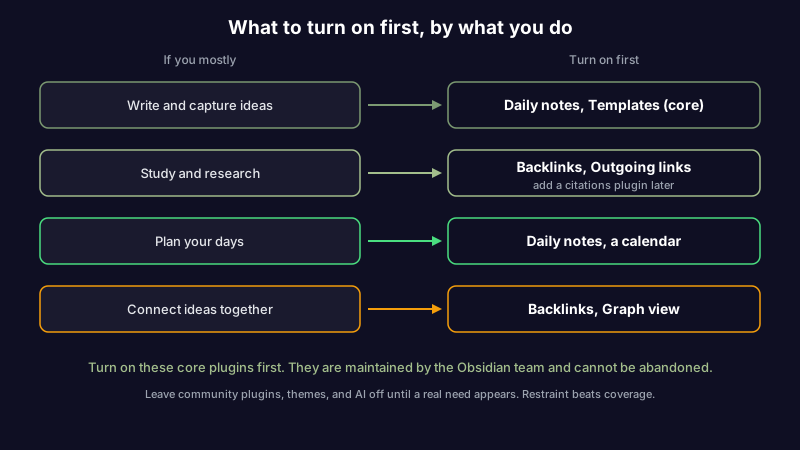
Turn these on now, in Settings under Core plugins:
- Backlinks and Outgoing links. The entire reason to use a linked system. Every note shows what references it and what it references.
- Daily notes. A dated note on demand, the backbone of journaling and meeting capture.
- Templates. Insert a boilerplate structure with one command. Enough for most people without any scripting plugin.
Leave these for later, when you have a concrete need:
- Community plugins like Dataview and Templater. They are genuinely powerful, but each one is a thing that can break after an app update or go unmaintained. When you do reach that point, a shortlist of the Obsidian plugins actually worth installing saves you from installing twenty and keeping three.
- Themes. Making the app look good is satisfying and produces exactly zero notes. If you must, pick an Obsidian theme once and move on.
- AI inside the vault. There are several ways to use AI in Obsidian, each sending a different share of your notes to a model. Worth doing deliberately, not on day one.
How to use Obsidian for writing, studying, and daily notes
The three things people most often search for after the basics map cleanly onto the setup above.
For writing, keep one Inbox note open for raw ideas and promote the good ones into permanent notes you link together. Draft long pieces as a set of linked notes, then assemble them. The friction is low enough that you capture thoughts you would otherwise lose.
For studying and research, lean on backlinks. Make one note per concept, link lecture notes and readings to those concept notes, and your understanding of a topic assembles itself from the links pointing at it. A citations plugin helps once your reading volume grows, but the linking habit matters more than any plugin.
For daily notes, turn on the Daily notes core plugin and write one dated note each morning: tasks, meeting notes, and a log of what happened. Link out to project and person notes as they come up. Over a few months the daily notes become a searchable record of your work, which is often the single most useful thing Obsidian gives you.
Where Obsidian stops fitting
Obsidian is excellent at capturing, linking, and keeping your notes in a format that will outlive any app. It is worth saying plainly where it stops, because knowing that is part of using it well.
Two gaps show up for most people. The first is that the plugin-and-theme road has no end, and it is easy to spend more time configuring the vault than writing in it. The fix is restraint: the structure and three core plugins above are enough for the first few months. The second gap is quieter and no plugin on the community list closes it. A note can be perfectly captured, linked, and formatted, and still be wrong. The pricing you wrote down changed. The library you documented got deprecated. The link you saved rotted. Obsidian will faithfully preserve that stale note forever, because checking whether a note is still true is simply not what it does. This is the same reason personal knowledge management systems quietly go stale: every framework solves capture and organization and skips maintenance.
That gap is what Scribelet is built around. Scribelet is not an Obsidian plugin; it is a notes app whose AI runs background checks against the web on a schedule you set and shows you a diff when something you wrote has gone out of date, with the source. You bring your own API key for provider control, or use the included AI out of the box. If you find that the real reason you keep tinkering with Obsidian is that your notes feel like they need looking after, the honest move is an Obsidian alternative that maintains your notes rather than one more plugin to maintain. You can try Scribelet free and see your first diff before you decide.
The short version
How to use Obsidian, compressed: install it, create one vault, write notes in plain Markdown, link them with double brackets, and sync the folder however you like. Keep the folder structure shallow, turn on backlinks, daily notes, and templates, and add nothing else until a real need shows up. The vault that helps you is the lean one you write in every day, not the elaborate one you spend your evenings maintaining.
And when the thing you want is not more features but more confidence that what you wrote is still true, that is a different tool. Try Scribelet free and let your notes check themselves.
Share this article