How to Use OneNote in 2026: A Practical Beginner's Guide
Table of contents
If you searched how to use OneNote and the first guide you opened walks you through OneNote for Windows 10, close it. Microsoft ended support for that app on October 14, 2025, and it is now read-only on the machines that still have it. The tutorials, the screenshots, and the AI answer at the top of the results have not all caught up, which is why learning OneNote in 2026 starts with one question nobody answers clearly: which OneNote are you even supposed to use?
This guide settles that first, then walks the parts that earn their keep: the few moves to get a notebook running, a layout that will not buckle as it grows, what the AI costs before it does anything, and the chapter most tutorials never write, which is the point where OneNote stops being the right tool. Microsoft's OneNote help is the exhaustive button-by-button reference. Treat this as the editor's cut: what to reach for early, and what to leave alone.
What is OneNote, and how does it work?
OneNote is Microsoft's free digital notebook app. Instead of separate files, it gives you one endless three-level container: notebooks hold sections, sections hold pages, and each page is a free-form canvas where you can click anywhere and start typing, drawing, or pasting. Your notebooks sync to your Microsoft account through OneDrive, so the same notes show up on every device you sign in on.
Get those three levels and you've got OneNote: drop content onto a page, file pages into sections, and search your way back later. Handwriting, tags, and sharing all sit on top of that skeleton. The notebook-section-page model is the whole thing, and once it clicks the app stops feeling busy.
A quick sanity check before you commit years to it. If this is a long-term home, put OneNote beside the apps people actually weigh it against, as in Notion versus OneNote or Obsidian compared with OneNote; the proprietary-notebook-versus-open-files split settles more than any single feature. And if the thing pushing you to switch apps is really a nagging sense that your notes have drifted out of date, Scribelet is free to try and will still be here afterward. Set on OneNote? Keep going.
Which OneNote should you actually use in 2026?
This is the step the old guides get wrong. For years there were two OneNote apps on Windows that looked almost identical: the desktop OneNote that ships with Microsoft 365, and OneNote for Windows 10. Microsoft retired OneNote for Windows 10 and consolidated everything into a single OneNote on Windows. If you install OneNote today, you get the right one by default. The only trap is an old machine that still has the Windows 10 version sitting in the Start menu.
On every other platform there has only ever been one app. Here is the current map.
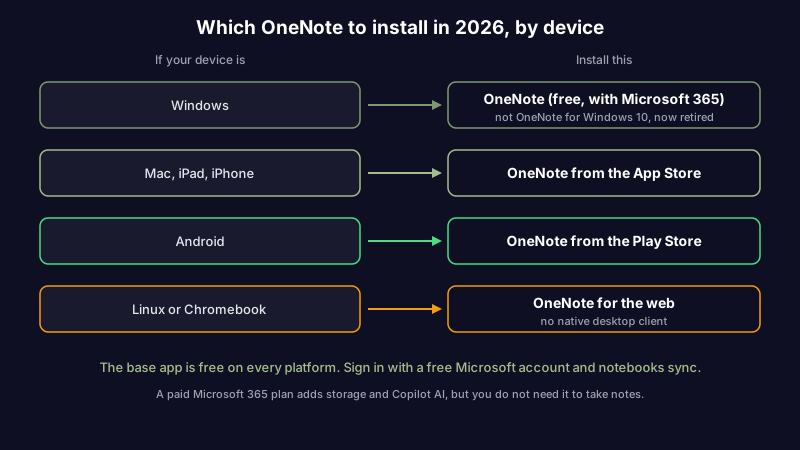
| Device | What to install | Note |
|---|---|---|
| Windows | OneNote (free, with Microsoft 365 or standalone) | Not "OneNote for Windows 10," which is retired and read-only |
| Mac, iPad, iPhone | OneNote from the App Store | One app, same account |
| Android | OneNote from the Play Store | Phone and tablet |
| Linux or Chromebook | OneNote for the web | No native desktop client; the browser is the way in |
The base app is free on all of them. You sign in with a free Microsoft account and your notebooks sync everywhere. A paid Microsoft 365 subscription adds cloud storage and the Copilot AI features, which we come back to below, but you do not need it to take notes.
How to use OneNote: the five steps that matter
Do these five, skip everything else for now. Every decent tutorial eventually lands here; this is that path with the sightseeing cut out, down to what you actually touch on day one.
| Step | What you do | Why it matters |
|---|---|---|
| 1. Create a notebook | Make a new notebook, name it, pick where it is stored | The notebook is the top container; one or two is plenty to start |
| 2. Add sections and pages | Use the tabs for sections, the page list for pages | This is OneNote's whole organizing system |
| 3. Write and insert | Click anywhere and type; use Insert for files and media | Pages are free-form, so content goes wherever you put it |
| 4. Tag and search | Mark items with tags; use search to find anything | Search is how you survive a big notebook |
| 5. Sync and share | Sign in on another device, or hit Share | Notebooks follow your account automatically |
1. Create your first notebook
Open OneNote, sign in with your Microsoft account, and create a new notebook, choosing where it lives (OneDrive keeps it synced across devices). Give it a name that describes a whole area of your life, such as Work, School, or Personal. Resist making ten notebooks on the first day. One or two broad notebooks, organized well inside, beats a shelf of half-empty ones you forget to open.
2. Add sections and pages
Inside a notebook, sections are the tabs along the top or side, and pages are the list within each section. Think of a notebook as a binder, sections as its dividers, and pages as the sheets behind each divider. A Work notebook might have sections for Meetings, Projects, and Reference, with a page per meeting or per project. You can nest further with section groups and subpages later, but a flat notebook, section, page setup carries you a long way.
3. Write, draw, and insert content
Click anywhere on a page and start typing. Unlike a word processor, text lands in a box exactly where you click, so a page can hold notes, a sketch, and a pasted table side by side. The Draw tab lets you write or highlight by hand with a stylus, finger, or mouse, and Ink to Text converts handwriting into typed text. The Insert tab adds pictures, tables, files, and screen clippings, and you can attach documents or record an audio note right on the page. OneNote saves everything automatically as you go, so there's no save button to remember.
4. Tag what matters and lean on search
OneNote's tags are small labels like To Do, Important, and Question that you attach to any line. The To Do tag gives you a checkbox; the others mark things you want to find again. Tagging is optional, but it pays off the moment a notebook grows past a few dozen pages, because you can round up every To Do or every Important note at once. The bigger survival tool is search. OneNote searches across every notebook, including the text inside images and handwriting, so you rarely need a perfect folder structure to find something.
5. Sync across devices and share
Because your notebooks live in your Microsoft account, syncing is automatic: sign in on your phone or another computer and the same notes appear, usually within seconds. To work with someone else, open a notebook and click Share to invite them by email with view or edit access. If you would rather your notes follow you without being chained to one company's account, that is a real tradeoff to weigh now, and it is the whole premise of a note app that runs the same on every device.
Set up a notebook structure you will not regret
Most tutorials, and the AI answer at the top of the results, skip the thing beginners actually get stuck on: how do you organize a notebook in the first place? OneNote's free-form canvas is a gift and a trap in equal measure. Nothing stops you from making a hundred sections, and the Reddit threads about OneNote are full of people who did exactly that and can no longer find anything.
Here is a layout that survives contact with a real year of notes:
| Section | What goes in it |
|---|---|
| Inbox | New pages land here first, no sorting required, so capturing is never a decision |
| Current | The handful of projects or topics you are actively working on |
| Reference | Things you look up but rarely change, like checklists and notes-to-self |
| Archive | Finished projects, moved here instead of deleted |
Four sections, not forty. Create pages freely inside them, and let search do the heavy lifting rather than building a deep tree of section groups you have to navigate by hand. The moment you are stuck deciding which of six nested sections a page belongs in, you have rebuilt the exact filing headache OneNote was meant to spare you. Capture first, tidy lightly, and let the search box do the finding.
OneNote's AI: what Copilot does and what it needs
OneNote has Copilot, Microsoft's AI assistant, built into the app, where it can summarize a page, draft text, and reshape rough notes like it does across the rest of Microsoft 365. The catch is the paywall, not the features. Copilot in OneNote is not in the free app. By Microsoft's own breakdown of the Copilot tiers, it comes with a paid Microsoft 365 subscription (Personal, Family, or Premium), for the subscription owner, with AI usage limits. Share someone else's plan and the in-app Copilot stays with them.
It is also worth being clear about what this AI does and does not do. Copilot is a reactive assistant: it acts when you ask it to, on the page in front of you. It will happily summarize a note that is three years out of date without ever hinting that the thing you wrote down has since changed. The distance between an AI that drafts and an AI that checks whether your notes are still true is exactly where this guide ends up, so hold that thought.
How to use OneNote for work, school, and personal notes
Once the basics are in place, the three jobs people most often want OneNote for fall straight out of that same setup.
For work, give each recurring thing a home: a Meetings section with one page per meeting, a Projects section with a page per project, and the To Do tag on anything you need to act on. Clip the occasional email or document into the relevant page with the Insert tab so the context lives next to your notes rather than in your inbox.
For school, a notebook per subject or a section per class works well, with one page per lecture. This is where OneNote's handwriting shines on a tablet: write or diagram by hand, then use Ink to Text or search to find it later. Tag anything that will be on an exam so you can round it all up when you revise. If you are weighing OneNote against the field for coursework, our roundup of the best note-taking apps for students covers the tradeoffs.
For personal notes, keep it loose. One Personal notebook, a few sections like Home, Health, and Ideas, and the Inbox-first habit so capturing a thought never means deciding where it goes. Over a few months the search box becomes the real interface, and the structure matters less than the habit of writing things down at all.
Where OneNote stops fitting
OneNote is genuinely good at quick capture, free-form pages, handwriting, and syncing across Microsoft devices. It is only fair to name where that strength runs out, because spotting the edge early saves you a migration later.
Two limits catch up with most people. The first is portability. OneNote notebooks live in a proprietary format tied to your Microsoft account and OneDrive, and getting them out cleanly is genuinely hard, which is why there is a whole guide to picking a OneNote alternative sorted by why you are leaving. If keeping your notes in an open format you own matters to you, plain-text Markdown note apps sit at the opposite end of that spectrum. The retirement of OneNote for Windows 10 is a small lesson in exactly this: when the app you relied on goes read-only, you want your notes somewhere you control.
The second limit is quieter, and nothing on Microsoft's roadmap touches it. A note can be captured cleanly, tagged, synced to every device, and still be flat wrong. The API you documented shipped a breaking change. The policy you summarized was rewritten. The tutorial you saved now points at a dead page. OneNote keeps that stale note exactly as you left it, forever, because judging whether a note is still true was never in its job description. It is the reason a tidy notebook still rots: every note app, OneNote included, is built to capture and organize but never to maintain.
That is the one thing Scribelet is built to do. It re-checks your notes against the web on whatever cadence you choose and flags the spots that have gone out of date, each with the source that changed. Provider control is yours (plug in your own API key) or you can run on the AI it ships with. So if you ever notice that the real reason you keep rearranging OneNote is that you no longer quite believe your own notes, the fix is notes that keep themselves current, not one more section. Scribelet is free to start, and the first stale-note diff usually lands before you have decided anything.
The short version
How to use OneNote in 2026, compressed: install the single current OneNote app, not the retired Windows 10 one, sign in with a free Microsoft account, and make one or two notebooks. Organize with a few sections and pages, write and paste anywhere on the page, tag what matters, and trust search over a deep folder tree. Copilot is handy but rides on a paid Microsoft 365 subscription, not the free app. The notebook that helps you is the one you write in daily, not the ornate one that eats your weekends.
And the day the problem is not a missing feature but a quiet doubt that half your notes are out of date, no amount of OneNote tuning reaches it. That is a job for a different kind of tool. Start with Scribelet free and let the notes raise their own hand when they go stale.
Share this article