Obsidian Tasks: 4 Ways to Manage Tasks in Obsidian (2026)
Table of contents
Every Obsidian vault eventually grows tasks. A checkbox at the bottom of a meeting note, a "follow up with Dana" buried in a project page, a reading list that is half done. At first that feels like the whole point: the task sits right next to the thinking that produced it. Then one Monday you realize you have no idea how many open tasks you have, or where they are, and the vault that was supposed to hold your work has quietly started hiding it.
That is the moment people search for "Obsidian tasks". The search results are mostly one person's setup or one plugin's documentation, which is useful once you know which approach you want and not much help before. This guide lays out the decision instead. There are four real ways to manage tasks in Obsidian, and they differ in one thing that matters more than any feature list: where a task lives. Pick that first and the plugin choice mostly makes itself.
If you are new to the app itself, start with the guide to using Obsidian and come back once you have a vault and a few notes in it.
How do you manage tasks in Obsidian?
You manage tasks in Obsidian in one of four ways:
- Plain checkboxes plus core search. Write
- [ ]lines in any note and use Obsidian's built-intask-todo:search to find them. No plugins. - Inline tasks with the Tasks plugin. Still checkboxes in your notes, but with due dates, recurrence and priorities written into the line, and query blocks that collect them across the vault.
- One note per task. Each task is its own Markdown file with properties, viewed through Bases tables, boards and calendars. TaskNotes is the plugin built for this.
- An external task app. Things, Todoist or similar holds the tasks; Obsidian holds the notes and links to them.
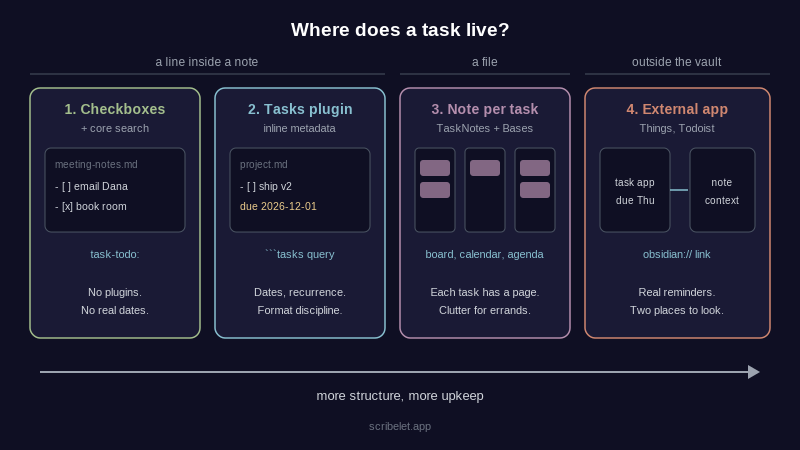
The first two keep a task as a line inside a note. The third makes a task a file. The fourth moves the task out of the vault. Each step to the right buys more structure and costs more upkeep. (If you would rather have dated tasks and reminders inside plain notes without assembling any of this, that is what Scribelet does; you can try Scribelet free and compare.)
The four approaches compared
| Plain checkboxes | Tasks plugin | TaskNotes on Bases | External app | |
|---|---|---|---|---|
| What a task is | A - [ ] line in any note | A - [ ] line with emoji metadata | A separate note with YAML properties | A record in another app |
| Due dates | Text only, not understood | Yes, 📅 2026-12-01 | Yes, a property | Yes |
| Recurrence | No | Yes, 🔁 every week | Yes, RRULE strings | Yes |
| Vault-wide list | Core search, task-todo: | tasks query blocks | Bases views: list, Kanban, calendar, agenda | In the other app |
| Quick capture | Type a line anywhere | Type a line anywhere | Creates a note per task | The app's own capture |
| Reminders | No | No (out of scope by design) | Check the plugin's current release | Yes, native |
| Upkeep | None | Format discipline | Property schema | Two places to look |
| Best for | Light, note-first task use | Most people with many dated tasks | Projects where each task deserves notes of its own | Heavy task loads, teams, phone reminders |
The pattern in the table is the decision. If your tasks are mostly small and born inside notes, keep them as lines. If each task carries its own context, research, or a conversation, make it a file. If you need dependable reminders on your phone, accept that the task may belong outside the vault.
Option 1: a plain Obsidian to do list with checkboxes and core search
This is the approach most people underrate, and for a simple Obsidian todo list it is often all you need. Obsidian already understands Markdown tasks. Type - [ ] Email the contractor anywhere and you get a working checkbox. Tick it and the line becomes - [x].
What turns that into a system is the core Search plugin. According to the Obsidian search documentation, three operators work on tasks specifically: task: matches inside any task, task-todo: matches only in uncompleted tasks, and task-done: matches only in completed ones. You can also embed a search directly in a note with a query code block, so an "Open calls" note can always show every unfinished task that mentions a call:
task-todo:callCombine operators to narrow it, for example path:Projects task-todo:review for open review tasks in one folder, or task-todo:(call OR email) for both kinds of follow-up at once. One saved query per kind of follow-up gets you surprisingly far.
Where it falls short: there are no real dates. You can write "by Friday" in the line, but nothing understands it, so you cannot ask "what is due this week". If your tasks are mostly undated follow-ups, that is fine. If deadlines matter, move to option 2.
Option 2: inline tasks with the Tasks plugin
The Obsidian Tasks plugin is the most common answer to "how do I do tasks in Obsidian", and for good reason. It keeps tasks as ordinary checkbox lines in your notes, but lets you write metadata into the line with short emoji signifiers, then query them from anywhere.
The syntax that matters
A task with a due date, a recurrence rule and a high priority looks like this:
- [ ] Send the weekly status update 🔁 every week ⏫ 📅 2026-11-27The signifiers you will actually use, from the plugin's documentation:
| Signifier | Meaning | Example |
|---|---|---|
| 📅 | Due date | 📅 2026-12-01 |
| ⏳ | Scheduled date (when you plan to work on it) | ⏳ 2026-11-28 |
| 🛫 | Start date (lets a query hide it until then) | 🛫 2026-12-01 |
| ✅ | Done date, added when you tick it | ✅ 2026-11-25 |
| 🔁 | Recurrence, always starts with "every" | 🔁 every 2 weeks |
| 🔺 ⏫ 🔼 🔽 ⏬ | Priority, highest to lowest | ⏫ for high |
Two details trip people up. Dates must be written as YYYY-MM-DD; the documentation is explicit that "today" after the calendar emoji is not understood. And a recurring rule can end in "when done", as in 🔁 every week when done, so the next occurrence counts from the day you finished rather than the original due date.
You do not have to type emoji by hand. The plugin's Tasks: Create or edit command opens a form where you can pick dates in words like "tomorrow" or "next week", and most people bind it to a hotkey.
Queries: the part that makes it worth installing
A tasks code block in any note collects matching tasks from the whole vault. This one lists every open task due today or earlier, overdue ones included, under a heading per due date with the newest date first:
not done
due before tomorrow
group by due reverse
Filters combine one per line, and every line must match. A few that cover most needs:
not done
path includes Projects
due before next week
group by filename
done after 2026-11-17
group by folderThe first is a per-area "what is coming" list. The second is a "what did I actually finish this week" log, which is the most useful query almost nobody writes. Grouping by filename or folder keeps the context: you see each task under the note it came from, which is the whole reason to keep tasks in notes at all.
Where it falls short: the plugin only recognizes tasks written in its format, so a checkbox typed in a hurry with "due Friday" in plain words never shows up in a date query. The discipline has to be yours. The plugin's own documentation also says notifications, time tracking and pomodoros are out of scope, so there are no reminders. And because tasks are lines, a task cannot carry much context of its own beyond the note around it.
Task Genius is the main alternative in this lane. Its repository describes list, Kanban, calendar and Gantt views, recurring tasks, habit tracking and quick capture. It is a heavier, more visual take on the same "tasks are lines in notes" idea; choose it if you want those views and are happy with a larger plugin.
Option 3: one note per task with TaskNotes and Bases
Bases, Obsidian's core database feature, changed what is possible here. Per the Bases help page, a base lets you view, edit, sort and filter files and their properties, where "each row is a file". That last part is the key constraint: Bases works on notes, not on checkbox lines inside notes. A - [ ] buried in your meeting notes will never be a row in a base.
So if you want database-style task views, each task has to become its own note. TaskNotes is the plugin built for exactly that. Each task is a separate Markdown note with its status, dates and projects stored in YAML frontmatter, and its task list, Kanban, calendar and agenda views are Bases views stored as .base files. It also adds time tracking and a Pomodoro timer, the features the Tasks plugin leaves out. It needs a recent Obsidian (1.13.1 or later).
A TaskNotes task is just a note like this:
---
status: in-progress
due: 2026-12-03
projects:
  - "[[Website relaunch]]"
---

Draft the migration plan. Notes from the call with hosting:
...
Where it shines: tasks that deserve a page. A bug investigation, a hiring loop, a piece of writing. The task note holds the work, and the Bases board or calendar is just a view over many such notes. This is the same design as the native board covered in Obsidian Kanban: native Bases view vs the plugin: the board is a lens over notes, not a container.
Where it falls short: small tasks. "Buy printer paper" does not need its own file, and a vault with three hundred one-line task notes is clutter. Many people run options 2 and 3 together: inline tasks for small things, task notes for real projects.
Option 4: an external task app, linked from notes
Sometimes the honest answer is that the tasks do not belong in Obsidian. If you need reliable reminders on your phone, share tasks with a team, or have a task list measured in hundreds, a dedicated task manager does those jobs better than any plugin.
The pattern that works is a clean split. The task app holds the commitment ("Review Q4 budget, due Thursday") with a link back to the Obsidian note that holds the thinking. Obsidian supports obsidian:// URIs, so most task apps can store a link that opens the exact note. The Obsidian forum has long-running threads on Things 3 and Todoist setups built this way.
Where it falls short: two places to look. Every task now has a copy of its context in one app and a pointer in the other, and the two drift. If you choose this path, keep the rule strict: tasks live only in the task app, never as checkboxes in notes as well.
Which Obsidian task management setup should you use?
| If you mostly... | Use |
|---|---|
| Jot follow-ups in notes and rarely have hard deadlines | Plain checkboxes + task-todo: search |
| Have many dated or recurring tasks spread across notes | Tasks plugin with a few saved queries |
| Want visual views and habit tracking on inline tasks | Task Genius |
| Run projects where each task needs its own notes | TaskNotes on Bases (plus Tasks for small items) |
| Need phone reminders, sharing, or a big task load | An external task app, linked to notes |
If you are unsure, start with option 1 for a week. Count how often you wished you could ask "what is due this week". If it is more than twice, install the Tasks plugin. It works on the same checkbox lines, so nothing you wrote in week one is wasted. The best Obsidian plugins roundup covers what else is worth pairing with it.
A weekly review query that keeps tasks honest
The failure mode of every approach above is the same: tasks go stale. A task due three weeks ago that is still open is not going to be done; it is a decision you have not made yet. One note, reviewed weekly, fixes most of that. With the Tasks plugin, a "Weekly review" note can hold three blocks:
not done
due before today
group by filename
not done
no due date
path includes Projectsdone after 2026-11-17The first is the overdue list: reschedule each item, finish it, or delete it. The second catches project tasks with no date at all, which is where commitments go to hide. The third is the satisfying part, what you actually finished. Update the date in the last block each week. Ten minutes on Friday keeps the whole system trustworthy, the same habit that keeps an Obsidian vault from going stale more generally.
Common mistakes with Obsidian tasks
- Mixing formats. Half your tasks written with
📅dates and half with "due Friday" means half of them are invisible to your queries. Pick one format and use the plugin's create-task command so it stays consistent. - Tracking the same task twice. A checkbox in the meeting note and a card on a board and an item in Todoist: by Friday, two of them are wrong.
- Turning every task into a note. One-note-per-task is powerful for projects and exhausting for errands.
- Never reviewing completed tasks. The done list is the evidence that the system works. Without it, people abandon setups that were actually fine.
- Expecting reminders from Obsidian. Neither core Obsidian nor the Tasks plugin will notify you. If a task needs to interrupt you at 9:30 on Tuesday, it needs something that can send a notification.
Meeting notes are the biggest source of orphaned tasks for most people. The guide on how to take meeting notes covers capturing action items so they end up in your task system instead of dying at the bottom of a page.
Tasks that stay in your notes, with reminders built in
The reason people put tasks in Obsidian at all is that a task belongs next to the note it came from. The friction is everything around that: learning a syntax, maintaining queries, and still not getting a reminder.
Scribelet takes the note-first idea and builds the rest in. You write a checkbox task in any note, add a due date in the line with @due(2026-12-01), and it appears in one Tasks view across all your notes. Write - [ ] Call the landlord @remind(2026-12-02 09:30) and you get a reminder at that local time. Unfinished tasks carry over onto today's daily note, so nothing silently drops off the end of the week, and the notes themselves stay plain Markdown. Scribelet is native on iPhone and runs in the browser everywhere else. If that is closer to how you want tasks to work, try Scribelet free.
If you are staying in Obsidian, the short version is: start with checkboxes and task-todo:, move to the Tasks plugin when dates matter, use TaskNotes only for tasks that deserve their own page, and review weekly whatever you pick. And if you are reconsidering where your notes live at all, the honest breakdown of Obsidian alternatives and the guide to Markdown note-taking apps cover what you would gain and lose. Want tasks that keep themselves current? Start with Scribelet free.
Share this article