Best Note-Taking Apps for Chromebook (2026): 10 Rated
Table of contents
A Chromebook is a browser with a keyboard attached, and that one fact decides which note apps actually work on it. The question is not really "which note-taking app is best," the way it would be on a Mac. It is "which of these runs in a Chrome tab, which needs the Play Store your school may have locked, and which quietly assumes a desktop you do not have."
Most roundups skip that entirely. They hand you the same list of twenty apps they would give an iPad owner and leave you to find out, one install at a time, that half of them never shipped a Chrome OS version and the other half want an Android app your managed Chromebook refuses to sideload. On a locked-down school device the field narrows fast, and the apps that survive are the ones built for the browser in the first place.
This guide takes 10 note apps that genuinely hold up on a Chromebook and sorts them by how they get onto the machine and what you reach for them to do. If you want the short version, Scribelet's Free plan opens in any Chrome tab, needs nothing from the Play Store, and keeps the same notes on every other device you own.
What actually matters in a Chromebook note app
Any of these can catch a thought. That is the floor, and on Chrome OS it is a lower floor than you might expect, because the browser already does a lot. Four questions decide whether an app is worth committing to.
Does it run in the browser, or does it need the Play Store? This is the Chromebook question the other platforms never ask. A web app opens in a Chrome tab on every Chromebook ever made, including the managed ones handed out at school where the Play Store and the Linux container are switched off. An Android-only app depends on your specific model supporting Google Play and on nobody having disabled it. Before you fall for a feature list, check how the app reaches Chrome OS at all.
Does it work when the Wi-Fi drops? Chromebooks spend their lives one flaky connection away from useless, so offline behavior matters more here than on a desktop. Some of these apps cache your work and sync when you reconnect; others are a blank screen the moment the signal dies. If you write on a bus or in a lecture hall with patchy coverage, weight this heavily.
Do you want a stylus, and does your Chromebook even have one? A convertible Chromebook with a USI pen turns into a sketchpad, and a handful of these apps are built around that. But most Chromebooks are keyboards, not tablets, so if yours does not fold flat and take a pen, you can ignore the handwriting column entirely and pick on typing alone.
Will the notes still be true later? Whatever you save is accurate only for as long as the world holds still, which is not long. A setup guide you wrote in spring points at a menu that moved by autumn, a figure you copied has already changed, a link quietly dies. One app in this lineup treats that decay as its own job rather than leaving it to you, and the Scribelet section explains how.
Quick picks for Chromebook (2026)
Short on time? Match yourself to a line below and skip to that app.
- Best free default: Google Keep, already signed in and built into Chrome OS.
- Best for long documents: Google Docs, the full editor that works offline in the browser.
- Best stylus app: Google Cursive, the handwriting web app made for pen Chromebooks.
- Best for marking up PDFs at school: Kami, a browser tool wired into Google Classroom.
- Best free cross-platform notebook: Microsoft OneNote, strong and free in the browser and beyond.
- Best all-in-one workspace: Notion, for notes, tasks, and databases under one roof.
- Best for notes you own as files: Obsidian, if your Chromebook runs Android or Linux apps.
- Best for privacy: Standard Notes, end-to-end encrypted and open source in the browser.
- Best for notes that travel and stay trustworthy: Scribelet, a web app that opens in any Chromebook browser, native on iPhone, that flags notes which have drifted into being wrong.
Every pick below comes with its argument, judged on the two measures Chromebook lists tend to drop: how the app actually reaches Chrome OS, and whether your notes stay correct as the months pass.
The 10 best note-taking apps for Chromebook at a glance
| App | How it runs on Chrome OS | Stylus | Offline | Price | Best for |
|---|---|---|---|---|---|
| Google Keep | Browser, built in | Basic | Partial | Free | Fast free capture |
| Google Docs | Browser, built in | None | Yes | Free | Long documents |
| Google Cursive | Browser (pen models) | Excellent | Yes | Free | Handwriting |
| Kami | Browser / extension | Good | Partial | Free tier; paid | PDF annotation at school |
| OneNote | Browser or Android | Good | Partial | Free | Free cross-platform notebook |
| Notion | Browser or Android | None | Partial | Free personal; paid | All-in-one workspace |
| Obsidian | Android or Linux only | Thin | Yes | Free; Sync add-on | Local Markdown you own |
| Standard Notes | Browser or Android | None | Yes | Free; paid upgrade | Private, encrypted notes |
| Squid | Android only | Excellent | Yes | Free tier; paid | Handwriting on a pen model |
| Scribelet | Browser, any Chromebook | Typing | Yes | Free plan; paid upgrades | Cross-platform, accurate notes |
Prices and app availability move, and Chrome OS support in particular has a habit of changing, so treat the table as a starting point and confirm the current state on your own device before you commit.
The browser-native defaults
Google Keep
If your Chromebook is signed into a Google account, which it is, nothing catches a passing thought faster than Google Keep. It is free, built into Chrome OS, opens instantly in a tab or the shelf, and arranges notes as colored cards with voice capture, reminders, and labels. It syncs across the web, Android, and iOS without you thinking about it, and for the ten-second job it is genuinely hard to beat on a Chromebook.
Where it runs out of room is organization. Keep gives you no nested folders, little formatting beyond lists and checkboxes, and a clumsy path for pulling everything out at once, so a library you mean to keep and arrange outgrows it quickly. That ceiling is what sends people looking for a Google Keep alternative with somewhere a serious pile of notes can actually live.
Google Docs
It is easy to forget that the best long-form note tool on a Chromebook ships with the machine. Google Docs is a full word processor that runs in the browser, works offline once you enable it, and saves straight to Drive, so a lecture transcript or a meeting write-up has room to breathe in a way a Keep card never will. For anything longer than a few lines, it is the default worth reaching for before you install anything.
What it is not is a note system. Docs has no quick-capture surface, no linking between notes, and no structure beyond folders in Drive, so a hundred loose documents become their own kind of mess. It is the right tool for the single long note and the wrong one for the running collection, which is the gap the apps below are built to fill.
Handwriting on a pen Chromebook
Google Cursive
If your Chromebook folds flat and takes a USI stylus, Google Cursive is the handwriting app Google built for exactly that. It is a web app, so it opens in the browser with nothing to install, and the ink feels smooth and paper-like, with notebooks you can organize and the ability to drop in images or sketches. On a pen-enabled Chromebook it is the most native handwriting experience available.
The catch is reach. Cursive was rolled out to select Chromebook models rather than all of them, and it lives on Chrome OS alone, so the notebook you fill on your Chromebook does not follow you to a phone or a Windows laptop. Confirm it is available on your device before you lean on it, and treat it as a Chromebook-only tool rather than a cross-platform home.
Squid
Squid is the handwriting app that pen-toting Chromebook owners reach for when Cursive is not on their model. It runs as an Android app, so it needs a Chromebook that supports Google Play, and it treats the whole screen as paper: write, sketch, import and mark up PDFs, and export clean documents. On a convertible with an active pen it is one of the better inking experiences Chrome OS can offer.
The limits are the Play Store dependency and the ceiling on the free tier. If your Chromebook cannot install Android apps, as many managed school devices cannot, Squid is simply off the table, and the fuller feature set sits behind a paid upgrade. For a personal pen Chromebook, though, it is a strong, focused choice.
Kami
Kami earns its place because so much Chromebook note-taking is really annotation, especially in classrooms. It runs in the browser and as a Chrome extension, hooks into Google Classroom and Drive, and turns a PDF or worksheet into something you can highlight, write on, and hand back. For students marking up assigned readings on a school Chromebook, it is close to a standard.
Its focus is also its boundary. Kami is a document-annotation tool rather than a place to keep a running set of personal notes, and the generous features are split between a free tier and paid school or individual plans. If your day is spent on top of PDFs the teacher sent, it fits; if you want a notebook of your own thoughts, look to the typing apps instead.
Cross-platform typing and workspaces
OneNote
Microsoft OneNote is the strongest free cross-platform notebook you can run on a Chromebook. OneNote for the web opens in a browser tab with no install, there is an Android app if your model supports it, and it puts no ceiling on how many notes you keep, sorting everything into notebooks and sections that sync through a Microsoft account across every device you touch. For one free app that behaves the same on your Chromebook and your other machines, it is hard to argue with.
The price is paid in ownership. Those notebooks live in a proprietary format locked inside your Microsoft account and OneDrive, with no tidy way to carry your notes out as plain files, and the web version trails the desktop app on a few features. That lock-in is usually what prompts people to start weighing a OneNote alternative once they would rather own their notes than rent the account that holds them.
Notion
Notion is less a note app than a workspace that happens to take notes, folding documents, tasks, and databases into one structured place. It runs well in a Chromebook browser and has an Android app for models that support it, and for people who want a single home for a whole project rather than a pile of loose notes, the structure earns its keep.
Two things temper it on Chrome OS. It leans heavily on the cloud, and its offline mode, while improved, still trails local-first apps, so a Chromebook on flaky Wi-Fi feels it. The depth that makes Notion powerful also makes it heavy for a two-line to-do list. When the structure starts to feel like overhead rather than help, that is the moment people begin comparing a Notion alternative built for faster capture.
Notes you own, and notes you keep private
Obsidian
Obsidian keeps your notes as plain Markdown files in a vault on the device, which is the whole pitch: your writing is yours, in a format that will still open in a decade. The linking and plugin ecosystem is deep, and nothing lives in someone else's cloud unless you choose to put it there.
The Chromebook catch is real, though. Obsidian has no web app, so on Chrome OS it runs only as the Android app or inside the Linux container, both of which your Chromebook has to support and neither of which exists on a locked-down school machine. Syncing a vault also means paying for the Obsidian Sync add-on or stitching together your own cloud folder. The upside is permanence: a vault is nothing but Markdown, so your writing stays portable whatever happens to the app. The cost is that Obsidian was never built for the browser a Chromebook lives in.
Standard Notes
Standard Notes is the pick when privacy is the point. It runs in the browser and as an Android app, stores everything under end-to-end encryption, and is open source, so a note you write on your Chromebook is sealed before it leaves the tab and no one, the company included, can read it. The free tier covers plain, encrypted notes across every device.
The trade is reach and richness. The free plan is deliberately spare, with rich text, themes, and some sync features reserved for the paid tier, and the focus on security means fewer frills than a workspace app. If keeping your notes genuinely private matters more than formatting, that restraint is exactly the appeal, and it pairs naturally with wanting a secure note-taking app rather than a feature pile.
The note app that keeps your notes honest
Scribelet
Scribelet takes the bet that a Chromebook should not need the Play Store to take a decent note. It loads in any Chromebook browser as a full web app, with a proper sidebar, search, and offline support that queues your edits when the Wi-Fi drops and syncs them the moment it returns, so it works on a managed school Chromebook exactly as it does on a personal one. It is native on iPhone, with the identical notebook waiting in a browser on Windows, Mac, and Android. What you are trading away is a dedicated binary and real pen support; what you get back is a note that is never tied to the one device it was born on, and never blocked by an IT policy that kills Android apps.
The reason it belongs on a Chromebook list has nothing to do with ink. Scribelet runs AI agents in the background that compare what you wrote against the live web and raise a hand over any note that has quietly gone stale or wrong, handing you a corrected version to accept with one tap. The whole vault sits behind AES-256-GCM envelope encryption, and there is a genuine free plan that includes a monthly set of those verifications. If the worry is not which app draws the prettiest handwriting but whether the note you trusted last January is still accurate, that is the gap it fills.
The question the AI overview skips
Type "note-taking apps for Chromebook" into Google and a tidy shortlist appears above the results, bucketed into quick capture, handwriting, and privacy. Every one of those apps, and all ten above, answers the same question: where does the text go on Chrome OS? Not one of them answers the harder follow-up: once it is saved, how do I know it is still correct?
A note is a photograph of what was true the moment you took it, and moments pass. The setup you captured in March runs into a redesigned screen by October. The app prices on this very page were the first thing we had to hedge, because several of these tools have quietly changed theirs this year. Repeat that across a couple hundred entries and a tidy board of Keep cards slowly fills with claims stated with confidence that are simply no longer true, and no app on this list so much as blinks.
That steady erosion is what we mean by knowledge decay, and it is why Scribelet treats accuracy as a first-class feature rather than your weekend chore. For anyone picking a Chromebook note app to keep for years rather than weeks, "will it tell me when a note goes wrong" belongs on the checklist next to how it runs and what it costs.
How to choose your Chromebook note app
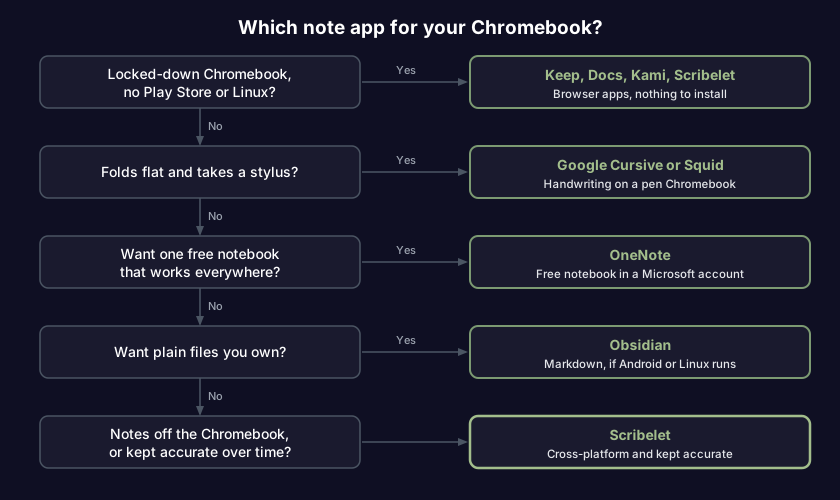
Work down the list and stop at the first yes:
- Is your Chromebook locked down, with no Play Store or Linux? Stay in the browser: Google Keep for quick capture, Google Docs for long writing, Kami for marking up PDFs, Standard Notes for privacy, or Scribelet for notes that reach every device.
- Does it fold flat and take a stylus? Google Cursive if the model supports it, or Squid if you can install Android apps and want PDFs under your pen.
- Do you want one free notebook that works everywhere? OneNote in the browser, accepting that your notes live inside a Microsoft account.
- Do you want your notes as plain files you own? Obsidian, but only if your Chromebook runs Android or Linux apps, and expect to set up your own sync.
- Do your notes have to leave the Chromebook, or stay reliably correct? Scribelet, opened in the browser on Chrome OS, native on your iPhone, watching for notes that have gone out of date.
Moving between more than one machine? Our broader guide to cross-platform note-taking apps weighs the same field on sync and offline behavior for people who switch between a Chromebook, a phone, and a laptop. If your other device is an Android phone, the companion piece is our best note-taking app for Android roundup.
Frequently asked questions
What is the best free note-taking app for a Chromebook? For quick capture, Google Keep, which is already built in. For long documents, Google Docs, also built in and able to work offline. For a structured cross-platform notebook, OneNote for the web is free with no storage cap, and Standard Notes is free if you want encrypted notes. In practice the best free app is whichever one you actually leave open in a tab.
Can I take handwritten notes on a Chromebook? Only if your Chromebook is a convertible or tablet that supports a USI stylus. On those, Google Cursive is the built-for-Chrome-OS web app, and Squid is the stronger choice if you can install Android apps and work with PDFs. A standard clamshell Chromebook with no pen should pick a typing app and skip handwriting entirely.
Which note apps work on a school or managed Chromebook? The ones that run in the browser, because managed Chromebooks usually disable the Play Store and the Linux container. That means Google Keep, Google Docs, Kami, OneNote for the web, Standard Notes, Notion, and Scribelet all work, while Android-only apps like Squid and desktop-only apps like the Obsidian vault often do not. When in doubt, pick a web app.
Do Chromebook note apps work offline? Some do and some do not, and it matters more on a Chromebook than a desktop. Google Docs, Standard Notes, Obsidian, Squid, and Scribelet hold up without a connection, while cloud-heavy apps like Notion feel every dropped signal. If you work on patchy Wi-Fi, confirm the offline story before you depend on the app.
Almost every app here is good at the thing it set out to do. The real Chromebook decision is which tradeoff you accept: the built-in convenience of Keep and Docs, a pen app that lives on Chrome OS alone, a Microsoft account that holds your notebooks, or notes that reach every screen and quietly correct themselves when the facts move. If that last one is the problem you keep hitting, try Scribelet free and keep your Chromebook notes honest wherever you open them.
Share this article