How to Use Google Keep in 2026: A Practical Beginner's Guide
Table of contents
If you searched how to use Google Keep, you already sense the appeal: it is the fastest place on the internet to catch a thought before it escapes. Open a tab, type, close it, and the note is on every device you own. There is almost nothing to learn, which is the whole point, and also why most tutorials pad the subject out to twenty features you will never touch.
This guide does the opposite. It covers the handful of moves that matter, a labeling habit that holds up once you have a few hundred notes, what Keep's Gemini AI actually does (it is narrower than you would guess), the one change in 2026 that the old guides and the AI answer at the top of the results have not caught up to, and the chapter nobody writes: the point where Keep quietly stops being enough. Google's Keep help pages are the button-by-button reference. Treat this as the editor's cut.
What is Google Keep, and how does it work?
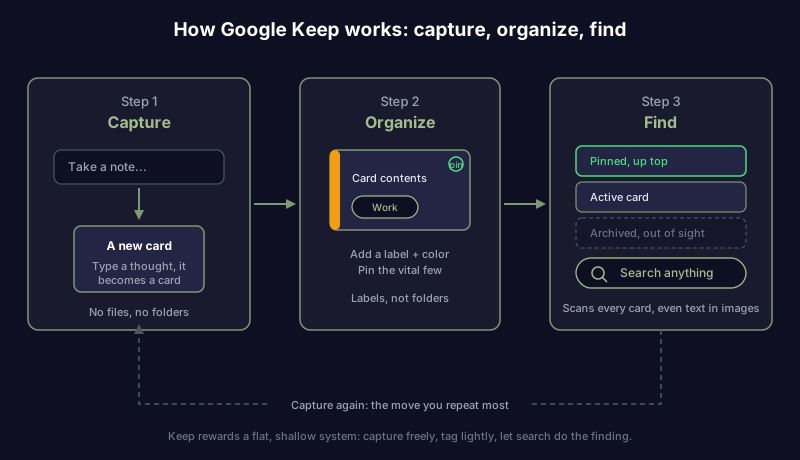
Google Keep is Google's free note-taking app, built around a single idea: every note is a card. You type a note, it becomes a colored card on a board, and new cards pile up newest-first like sticky notes on a wall. There are no files to name and no folders to file them in. You tag cards with labels and colors, pin the ones you need often to the top, and archive the rest out of sight. Everything syncs to your Google account, so the same board appears wherever you sign in.
That card-and-label model is the entire app. Get it and you have Keep: capture a card, give it a label or a color, pin or archive it, and trust search to pull it back later. Checklists, images, voice notes, and sharing all sit on top of that one skeleton. The simplicity is a genuine strength for quick capture, and, as we will get to, the same flatness is where Keep runs out of room.
A quick sanity check before you lean on it for years. If you are choosing Keep against the field rather than just learning it, it helps to know its real limits up front: the flat wall of cards that will not nest, and notes that live inside your Google account rather than somewhere you own, which is the whole case for a more private, self-owned notes setup. And if the quiet worry pushing you is really that your notes drift out of date, Scribelet is free to try and is built for exactly that. Set on Keep? Keep going.
Where you can actually use Google Keep
Keep meets you wherever you already are, which is most of its charm. There is no desktop app to install; the browser is the main home.
| Where | How you get in |
|---|---|
| Web | Go to keep.google.com and sign in with your Google account |
| Phone and tablet | The Google Keep app from the Play Store or App Store |
| Chrome | The Google Keep Chrome extension, to clip a page into a note |
| Gmail, Docs, Calendar | The yellow Keep lightbulb in the right-hand side panel |
The side panel is the underrated one. While you are reading an email or drafting a document, the Keep icon on the right opens your notes next to your work, so you can drop a card in or drag one out without leaving the page.
How to use Google Keep: the five moves that matter
Do these five and skip the rest for now. Every thorough tutorial eventually lands here; this is that path with the sightseeing cut out.
| Move | What you do | Why it matters |
|---|---|---|
| 1. Take a note | Click "Take a note," type, click Done | The whole app starts here; capture first, sort never |
| 2. Make a checklist | Turn any note into tickable items | Keep's best-loved feature, and what its AI touches |
| 3. Label, color, pin | Tag a card, color it, pin the vital few | This is Keep's entire organizing system |
| 4. Set a reminder | Add a time or place prompt (now via Tasks) | The one step that changed in 2026, see below |
| 5. Share and collaborate | Invite someone to edit the card live | Real-time shared lists with no extra app |
1. Take a note
On the web, click the "Take a note" box at the top, type a title and body, and click Done. That is the move you will make a hundred times more than any other, so make it frictionless: do not stop to label or categorize while you are capturing. The card lands on the board, and sorting can wait until you have a reason to sort.
2. Make a checklist
Click the checkbox icon to turn a note into a list where each line gets a tickable box. Checked items drop to the bottom and can be hidden, which makes Keep a fast grocery or packing list you share with someone in real time. This is also the one spot Keep's AI reaches, which we come to shortly.
3. Label, color, and pin
Keep has no folders. Instead you give cards labels (think "Work," "Shopping," "Ideas") from the left menu, change a card's background color to spot it at a glance, and pin the few cards you touch daily so they stay at the top of the board. Labels are the closest thing Keep has to structure, and a card can carry several at once. Lean on them lightly; a wall of forty labels is as lost as no labels at all.
4. Set a reminder, which now runs through Google Tasks
You can still add a time-based or location-based reminder to a card, but where that reminder lives changed in 2026, and it is the single thing the old tutorials get wrong. More on that in its own section below, because it trips up almost everyone following a guide written before the switch.
5. Share and collaborate
Open a card, click the collaborator icon, and enter someone's email to let them view and edit it live. Two people can tick items off the same shopping list from different phones, and a note can be copied straight into Google Docs from the three-dot menu when a rough capture needs to grow into a real document.
A label system that actually scales
Here is the part beginners get stuck on, and the part the AI answer at the top of the results skips: Keep has no folders, so how do you keep a growing board from becoming a junk drawer? The honest answer is that you keep the system small on purpose, because Keep rewards a flat, shallow structure and punishes an elaborate one.
A setup that survives a real year of notes:
| Habit | What it does |
|---|---|
| A short label set | Five or six labels for the areas of your life, not thirty for every topic |
| Pin the live few | Only the cards you act on this week sit pinned at the top |
| Archive, do not delete | Finished notes go to Archive, out of the board but still searchable |
| Trust search | Keep searches inside images and handwriting, so you rarely need the "perfect" label |
The instinct to build a tidy taxonomy is the wrong instinct in Keep. Capture freely, tag with a light hand, pin what is live, archive what is done, and let the search box do the finding. The moment you are agonizing over which of a dozen labels a card belongs to, you have rebuilt the filing headache Keep was meant to spare you.
Google Keep's AI: what "Help me create a list" does
Keep has a Gemini-powered feature called "Help me create a list". You describe what you want, a packing list for a weekend trip, a grocery list for pasta for four, and it generates the checklist for you, then takes follow-up commands like adding items. It is handy for a cold start when you are staring at an empty note.
Two honest caveats keep it in proportion. First, access is uneven: the feature rolled out on Android first (the iPhone app has not had it), began in English and the US, and the plan requirements have shifted around, so whether it appears for you depends on your device and Google plan. Second, and more important, it only makes lists. Unlike Notion's AI or OneNote's Copilot, Keep's Gemini does not summarize a long note, draft prose, or reshape what you already wrote. It is a list starter, not a research assistant, and it certainly does not check whether anything in your notes is still true. Hold that last point; it is where this guide ends up.
The 2026 change nobody mentions: reminders moved to Google Tasks
If you follow an older tutorial, you will set a reminder in Keep and then wonder why it never alerts you. Here is why. Over late 2025 and into 2026, Google moved Keep's reminders into Google Tasks, as Google's own Workspace announcement spells out. Keep no longer fires its own reminder notifications; your prompts surface in Google Tasks and Google Calendar instead. One catch worth knowing: Tasks does not support location-based reminders, so the old "remind me when I reach the store" trick in Keep did not survive the move. Keep itself is not going away and your notes stay put, but the reminder engine now lives next door. If you depend on due dates and nudges, learn Tasks alongside Keep, because that is where the alarm actually rings now. It is a small illustration of a bigger truth about any app you rent rather than own: the pieces can move without asking you.
How to use Google Keep for work, shopping, and quick capture
Once the basics are in place, the jobs people most want Keep for fall straight out of them.
For quick capture, this is Keep at its best. A stray idea, a confirmation number, a book someone recommended: open the app or the side panel, type it, and move on. The habit of catching thoughts beats any amount of organizing, and Keep's near-zero friction is built for precisely that.
For shopping and errands, make a checklist, share it with whoever you live with, and tick items off from either phone in real time. Checked items sink to the bottom, so the list keeps shrinking as you move through the aisles.
For work, use the Gmail and Docs side panel to park a note next to the thing it relates to, label cards by project, and pin the two or three you are actively working. Keep clean and shallow and it stays fast. For anything heavier than that, like a durable knowledge base you will search for years, it is worth knowing where Keep's edge is, which is the next section. If you want your notes to work the same on every device without being chained to one account, that is the premise of a proper cross-platform note app.
Where Google Keep stops fitting
Keep is genuinely excellent at one thing: catching a thought in seconds and syncing it everywhere. It is only fair to name where that strength runs out, because spotting the edge early saves you a painful migration later.
Three limits catch up with most people. The first is structure. The flat board of cards and labels is perfect for a few dozen notes and a maze at a few thousand; there are no folders, no note-to-note links, and no outline, so a Keep board does not grow into a knowledge base. When you feel that ceiling, people usually move to a structured app, and the honest map of options lives in our guide to Google Keep alternatives. The second is ownership and format: notes are plain and basic by design, with little rich formatting, and they live inside your Google account rather than in a file you hold, which is why plain-text Markdown apps sit at the far opposite end of that spectrum.
The third limit is the quiet one, and nothing Google has shipped touches it. A card can be captured in a second, labeled, synced to every device, and still be flat wrong. The price you jotted down changed. The link you saved now points at a dead page. The plan you noted was revised. Keep holds that stale card exactly as you left it, forever, because deciding whether a note is still true was never part of its job. It is why a tidy board still rots: every note app, Keep included, is built to capture and organize but never to maintain.
That last gap is the one thing Scribelet is built to close. It re-checks your notes against the web on whatever cadence you set and flags the ones that have gone out of date, each with the source that changed. You can plug in your own AI key or run on the model it ships with. So if you ever notice that the real reason you keep reorganizing Keep is that you no longer quite trust your own notes, the fix is notes that keep themselves current, not one more label. Scribelet is free to start, and the first stale-note flag usually lands before you have decided anything.
The short version
How to use Google Keep in 2026, compressed: open keep.google.com or the app, click Take a note, and capture first without sorting. Turn notes into checklists, organize with a small set of labels plus pinning and archiving rather than folders you do not have, and let search do the finding. Reminders now run through Google Tasks, so learn that alongside Keep. The Gemini "Help me create a list" feature is a handy list starter on Android, nothing more. Keep is superb at catching thoughts and weak at holding a growing library, so use it for speed and reach for something sturdier when a board turns into a knowledge base.
And the day the problem is not a missing feature but a nagging doubt that half your notes are out of date, no amount of Keep tidying reaches it. That is a job for a different kind of tool. Start with Scribelet free and let the notes raise their own hand when they go stale.
Share this article