How to Use Notion in 2026: A Simple Beginner's Guide
Table of contents
Most people do not quit Notion because it is hard. They quit because the first thing they see is a blank page blinking next to a gallery of maximalist templates built by someone with a color-coded life, and the gap between that and their own empty workspace feels like a second job. If you came here looking for how to use Notion, the problem is not you and it is not the app. The advice is. Nearly every Notion tutorial teaches it like a flight simulator when what you need on day one is a bicycle.
This guide does the opposite. It starts with the single idea that makes the whole app make sense, walks only the moves you will actually use in your first week, and gives you a starter setup deliberately small enough that you will still be using it in a month. Notion's own help center is the complete button-by-button reference when you need it. Treat this as the part a reference cannot give you: what to build first, and what to leave alone until you miss it.
What is Notion, and how does it work?
Notion is an all-in-one workspace where notes, documents, tasks, and simple databases live in the same place instead of scattered across separate apps. You write in pages, pages can hold other pages, and anything you type is made of small movable units called blocks. That is the entire foundation. Everything that looks complicated in Notion is just those three things stacked in a different order.
The move that unlocks it is the slash command. On any blank line, type / and a menu appears offering every kind of block: a heading, a to-do checkbox, a table, an image, a toggle, a whole embedded database. You never hunt through toolbars. You type /todo and get a checklist, /database and get a database, /page and get a nested page. Learn that one keystroke and most of Notion stops being a mystery.
Before you pour a year of your life into it, it is worth knowing it is a choice and not a default. If you want to see how it stacks up against the apps people most often weigh it against, Notion compared with Obsidian and Notion versus OneNote lay out the tradeoffs that outlast any single feature. And if the real reason you are app-shopping is a creeping doubt that your notes have quietly gone out of date, Scribelet is free to try and solves a different problem than Notion does. Still want Notion? Good, keep going.
The one idea that makes Notion click: pages, blocks, and databases
Hold three words and the rest follows: block, page, database.
A block is the smallest unit. A line of text is a block. So is a heading, a checkbox, an image, a bookmark, or a bullet. You can grab any block by the handle on its left and drag it anywhere, which is why Notion feels more like arranging cards than typing into a document.
A page is a container for blocks, and a page can sit inside another page. Instead of folders, Notion nests pages inside pages as deep as you like. A "Work" page can hold a "Meetings" page, which holds a page per meeting. The nesting is the filing system.
A database is a special kind of page where every entry is itself a page with a few shared fields, like status, date, or owner. Create one by typing /database; plain /table gives you a static simple table instead, which is not a real database. Once the database exists you add views to it, so the same entries can be shown as a table, a board, a calendar, or a gallery, and you can filter and sort them without touching the underlying data. A task list, a reading log, and a content calendar are all the same database wearing different clothes.
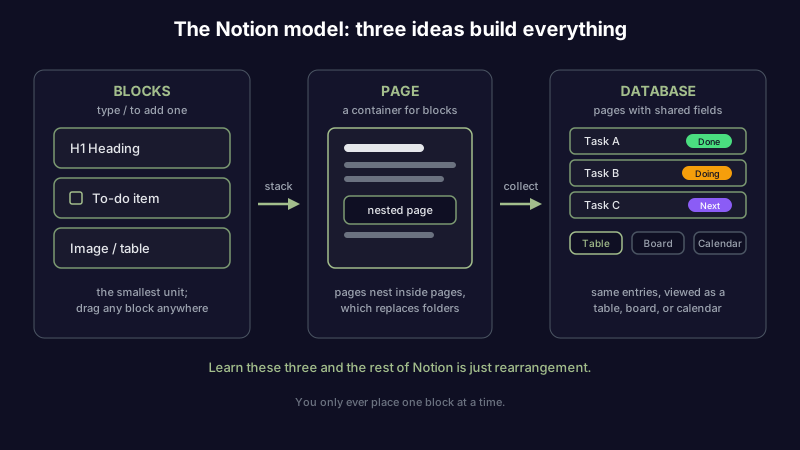
That is the whole engine. Beginners get overwhelmed because tutorials show the finished cathedral; you only ever have to place one block at a time.
How to use Notion: the moves worth learning first
You do not need to learn Notion. You need to learn about six things and let the rest arrive when you actually need it. Here is the short list, in the order you will meet them.
| Move | How you do it | Why it earns its place |
|---|---|---|
| Make a page | Use the New page button in the sidebar, give it a title | Pages are where everything lives |
| Use the slash command | Type / on any line, pick a block | The one shortcut that replaces every menu |
| Nest a page | Add a sub-page inside a page, or drag one page onto another | Nesting is Notion's folders |
| Turn notes into a database | Type /database, add a few entries | Structure for anything you track repeatedly |
| Switch and filter views | Add a view to a database, filter by a field | See the same data as a list, board, or calendar |
| Share or sync | Hit Share, or just sign in elsewhere | Your workspace follows your account |
Start with one page, not a system
Use the New page button in the sidebar, name it something broad like Work or Life, and start typing. Do not design an architecture first. The single most common beginner mistake is building an elaborate structure before you have a single real note in it, then abandoning the whole thing because maintaining the scaffold is more work than the notes were worth. Write first. Shape later.
Let the slash command do the heavy lifting
Inside your page, type / and try a few blocks: /h1 for a heading, /todo for a checklist, /divider for a line, /callout for a highlighted box. Each one drops in exactly where your cursor sits. This is the core skill, and ten minutes of poking at the slash menu teaches you more than an hour of watching someone else's setup.
Add a database only when you are repeating yourself
The moment you notice you are writing the same kind of thing over and over, a meeting note, a task, a book you read, that is the signal to make a database. Type /database on a new line, give it a couple of fields like Status and Date, and add your entries. Each row opens as its own full page, so a task can hold its own notes, links, and sub-tasks. Resist making a database for things you only write once. A plain page is faster and never guilt-trips you.
Learn views and filters, skip the rest
A database's real payoff is views. The same entries can appear as a table today and a calendar tomorrow, and a filter can hide everything except what is due this week or still in progress. That is 90 percent of what people build "Notion systems" to do. You can ignore formulas, relations, and rollups entirely until you hit a wall that genuinely needs them, which for most people is never.
Start small: a Notion setup you will not abandon
Here is the layout that survives a real year, and it is deliberately boring:
| Page | What goes in it |
|---|---|
| Inbox | A single page where every new thought lands first, no sorting required |
| Projects | One database of things you are actively working on, with a Status field |
| Notes | Nested pages for reference you consult often and edit rarely |
| Archive | Where finished projects go instead of getting deleted |
Four homes, one database. That is it. Notion rewards restraint in a way its template marketplace actively hides from you. The elaborate dashboards you see online are someone's hobby, not a starting point, and copying one in before you understand why each piece exists is how you end up with a beautiful workspace you are faintly afraid to open. Build the smallest thing that holds your notes, use it for two weeks, and only add a piece when you feel its specific absence. The PARA approach adapted for AI-era notes is a good next step once the basics are habit, but it is a second move, not a first one.
Notion AI: what it does and what it costs
Notion has AI built straight into the editor. Highlight any text and choose Ask AI, or open Notion AI from the sidebar, and it will condense a long page, generate a rough draft, shift the tone of what you wrote, or lift the action items out of a wall of meeting notes. Its newer features can also search across your whole workspace and answer questions about what you have already written.
What to understand before you rely on it is the meter. Per Notion's pricing, AI comes bundled to try on the Free and Plus plans but the usage is capped; steady daily use nudges you toward a paid plan, with the Business tier built around heavier AI work. So spend the in-editor AI like it has a budget, which it does, rather than treating it as a bottomless assistant.
It also pays to be clear about what this AI is and is not. Notion AI only ever responds. You prompt it, and it works on whatever is open at that moment. Ask it to clean up a note that has quietly been wrong for a year and it will oblige without hesitation, because noticing that the facts underneath have shifted is not part of what it was asked to watch. The distance between an AI that writes for you and one that verifies whether what you saved is still correct is a real one, and it is where this guide is headed, so keep it in mind.
How to use Notion for work, study, and personal projects
Once the basics are habit, the three things people most want Notion for fall out of the same small setup.
For work, make a Projects database with a Status field and a Meetings page that holds one sub-page per meeting. Keep each task on its own project page so the surrounding detail sits with the work instead of in a disconnected to-do app. A board view of that Projects database, grouped by status, hands you a lightweight kanban without installing a single thing.
For study, a page per subject with nested pages per lecture works cleanly, and a single Readings database tracks what you still owe a review. Notion is strongest here for text-heavy, structured material, though if you want to see it against the rest of the field, our rundown of the best note-taking apps for students weighs the options. Coming from another app, remember that moving your material in and out cleanly counts for as much as any feature.
For personal projects, stay loose. One Life page, a handful of sub-pages for the areas that matter to you (money, home, health, someday-maybe), and the same drop-it-in-the-Inbox reflex so jotting a thought down never turns into a filing decision. What matters is writing things down at all; the structure can stay thin for a long while.
Where Notion stops fitting
Notion is genuinely good at flexible, all-in-one workspaces: notes, docs, and light databases in one connected place, shareable with a click. What matters is being honest about where that flexibility hits a ceiling, because recognizing the limit early is what spares you a messy move down the line.
The first is ownership, and it is structural. Everything you build sits on Notion's servers in a shape only Notion fully understands. You can export to Markdown or HTML, but it is a lossy approximation: your databases come out as flat CSV and Markdown files, and the relations, views, and formulas that made them useful do not survive the trip, so what you get back is a folder of files, not the working system you spent months arranging. People who want their material in a format they can carry anywhere usually end up weighing a Notion replacement chosen by whatever actually pushed them out, or moving to plain-text Markdown note apps where the files are just files. A workspace you cannot cleanly leave is worth noticing before it holds five years of your thinking.
The second limit is slower to show up and has nothing to do with features. Content decays. The pricing you pasted into a client page was renegotiated two quarters ago. The setup steps you wrote assume a dashboard that has since been redesigned. The reference link sitting in a database row quietly started returning a 404. Notion preserves all of it faithfully, word for word, because confirming that a saved fact is still accurate simply is not something it was built to do. A beautiful workspace can be entirely up to date on Monday and subtly wrong by the following month, and nothing in the app will tell you which pages slipped. That is the shared blind spot of the whole category: tools that are brilliant at capturing and organizing and completely absent at maintaining.
Closing that specific blind spot is Scribelet's entire reason to exist. On a schedule you set, it revisits what you have written, compares it against current sources, and surfaces the entries that no longer hold up, each one paired with the evidence that moved. Which model does the checking is your call: supply your own API key, or use the one it comes with. So when the thing nagging you is less "Notion is missing a feature" and more "I am not sure I believe my own pages anymore," the fix is not another database. It is a note system that keeps itself honest over time. Scribelet is free to start, and you will usually see the first out-of-date flag before you have finished importing.
In one paragraph
If you remember nothing else: open one page, press / to drop in blocks, and nest pages where other apps would make you dig folders. Reach for a database only when you catch yourself writing the same kind of entry repeatedly, then live inside its views and filters and leave formulas for the day you truly need them. Keep the whole workspace deliberately thin, an Inbox, a Projects database, a Notes area, an Archive, and grow it one piece at a time. Notion AI is useful but runs on a meter, so spend it like it costs something. The Notion that actually helps you is the plain one you reach for every day, never the showpiece you cloned from a screenshot and now tiptoe around.
And if the discomfort is not about any feature at all, but a low hum of doubt that a good share of your saved pages have gone stale, no amount of reorganizing touches that. It needs a different kind of tool entirely. Try Scribelet free and let your notes tell you themselves when they have drifted out of date.
Share this article