Obsidian Git: Back Up and Sync Your Vault with GitHub (2026)
Table of contents
Sooner or later every Obsidian user does the math. The vault is a folder of Markdown files, Obsidian Sync costs money every month, and Git is free, battle-tested, and already on most developers' laptops. Put the vault in a GitHub repo, install a plugin, and you get backup, sync and full version history for nothing. That is the promise behind "Obsidian Git".
Half of it is true. Git is an excellent backup and history tool for a vault, and the Obsidian Git plugin makes it nearly invisible on a desktop. The other half needs a warning label, and the plugin's own documentation puts it in bold: Git is not a syncing service. It moves changes in batches, it can conflict, and on a phone it is fragile enough that the plugin author tells mobile users to try something else.
This guide sets it up properly. It covers the one decision the search results skip (which setup path matches your operating system and your starting point), the settings and .gitignore worth having on day one, what to do when a merge conflict lands in a note, and where Git stops being the right tool. If you are new to Obsidian itself, the beginner's guide to using Obsidian is the better first stop.
What is Obsidian Git?
Obsidian Git is a free, open source community plugin, published simply as "Git" in the plugin browser and maintained by Vinzent03, that runs Git version control inside your vault. It can commit, pull and push automatically on a schedule, pull when Obsidian starts, and give you source control, history and diff views without opening a terminal. On desktop it drives the Git already installed on your machine; on Android and iOS it falls back to a JavaScript re-implementation of Git, which is where most of its problems live.
The short version of a desktop setup:
- Install Git on your computer (on Windows, Git 2.29 or newer).
- Create an empty private repository on GitHub or another Git host.
- Set up authentication once in a terminal, so Obsidian never has to ask.
- In Obsidian, go to Settings, Community plugins, Browse, search for "Git", install and enable it.
- Initialize or clone the repo, then turn on automatic commit-and-sync every few minutes and pull on startup.
The rest of this article is about getting each of those steps right for your situation, because the step that fails is almost always number 3 or number 5. (Or skip the plumbing entirely: Scribelet keeps versions and syncs your notes with nothing to configure.)
Git vs Obsidian Sync: which one should hold your vault?
Before installing anything, be honest about what you want. "Backup", "version history" and "sync across devices" are three different jobs, and Git is great at the first two and only fair at the third.
| Obsidian Git (plugin) | Obsidian Sync Standard | Obsidian Sync Plus | |
|---|---|---|---|
| Cost | Free (plugin and a private GitHub repo) | $4/month, billed annually | $8/month, billed annually |
| Version history | Every commit, forever | 1 month | 12 months |
| Storage | Your Git host's limits | 1 GB, 5 MB max file | 10 GB, 200 MB max file |
| Sync model | Batches on a timer or by hand | Continuous, in the background | Continuous, in the background |
| Encryption | Private repo, not end-to-end encrypted | End-to-end, AES-256 | End-to-end, AES-256 |
| Phones | Unstable; plugin author recommends alternatives | Native, supported | Native, supported |
| Merge conflicts | You resolve them | Merged for you | Merged for you |
| Best for | Desktop backup and history, developers | One vault, light use | Several vaults, attachments |
Prices and limits are from the Obsidian Sync page as of November 2026.
The pattern is clear. If you mostly write on one or two computers and want a permanent, inspectable history of every note, Git is the better tool and it costs nothing. If you write on your phone every day, Git will cost you time instead of money. Plenty of people end up running both: Sync for live device-to-device updates, Git on one desktop as an independent off-site backup with unlimited history. (If you would rather have every note's history and offline sync built in without maintaining either, that is the problem Scribelet solves; you can try Scribelet free and compare.)
Pick your setup path: operating system and starting point
The AI answers for this query end by asking two questions: which operating system, and are you starting a new vault or connecting an existing one. Those two answers decide your whole setup, so here they are as one map.
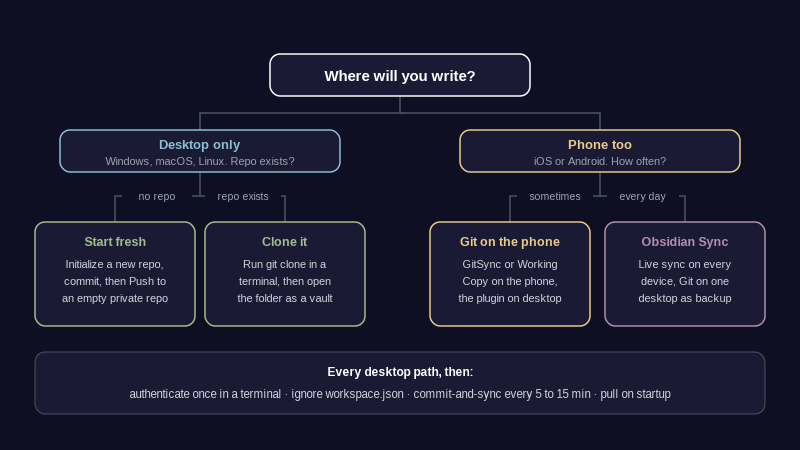
| Starting fresh (new vault or no repo yet) | Connecting an existing repo | |
|---|---|---|
| Windows | Install Git 2.29+ with Git Credential Manager, run the plugin's "Initialize a new repo" command, commit, then Push to an empty remote | Install Git, then run git clone where you want the vault and open that folder as a vault |
| macOS | Install Git, store credentials in the Keychain, then initialize and push | Same, then clone and open the folder |
| Linux | Use the AppImage or a full package install of Obsidian (not Snap), store credentials with libsecret, then initialize and push | Same, then clone and open the folder |
| Android / iOS | Not recommended; use GitSync, Working Copy (iOS) or Obsidian Sync | Possible with a personal access token, with real limits (see the mobile section) |
Windows
The plugin needs regular Git, and the docs are blunt that installing GitHub Desktop is not enough. Install Git from git-scm.com with the default options and make sure Git Credential Manager is enabled. To confirm the credential helper is set, run this in a terminal:
git config credential.helperIt should print manager. After that, the first push or pull opens a sign-in window, and Obsidian can authenticate silently from then on.
macOS
Install Git (the Xcode Command Line Tools are the quickest route), then tell Git to keep your credentials in the macOS Keychain:
git config --global credential.helper osxkeychainDo one authenticated push or pull in the terminal after setting the helper. That single action stores the credential, and the plugin works without prompts afterward.
Linux
Linux is where most "it does nothing" reports come from, and the cause is usually how Obsidian was installed. The plugin's installation guide says Snap is not supported because its sandbox blocks access to Git, and Flatpak is not recommended because it cannot reach all system files. Use the AppImage or a full-access package instead. For credentials, the docs recommend Git's libsecret helper, backed by GNOME Keyring or KDE Wallet:
git config credential.helper libsecretStarting fresh vs an existing repo
Fresh start. Open your vault, run the command "Initialize a new repo" from the command palette, then "Commit all changes with specific message" for your first commit. Create an empty repository on GitHub, run the plugin's Push command, and enter origin as the remote name and the repo URL when asked. If the remote already has files in it, do not push into it; clone it instead.
Existing repo. Git can only clone into a new folder, so the cleanest path is to run git clone in a terminal wherever you want the vault to live, then open that folder as a vault in Obsidian and install the plugin there. The plugin also has a "Clone an existing remote repo" command, but it clones into a subfolder, which means moving everything (including the hidden .git folder) up to the vault root afterward. The command line is less error-prone.
Whichever path you take, keep the repository private. A vault holds journal entries, meeting notes and half-formed ideas, and a GitHub repo, even a private one, is not end-to-end encrypted the way Obsidian Sync is. If that matters for your notes, the guide to secure note-taking apps covers what real encryption at rest looks like.
The settings and .gitignore to set on day one
Once the repo exists, two settings do most of the work. The plugin's documentation recommends running commit-and-sync automatically every few minutes; commit-and-sync means stage everything, commit, pull, then push. An interval of 5 to 15 minutes is a sensible middle: short enough that two devices rarely drift far apart, long enough that your history is not a wall of one-word commits. Then turn on pulling when Obsidian starts, so a laptop that sat closed for a week catches up before you type.
Next, keep the noisy files out of Git. Obsidian writes your window layout to a workspace file every time you open a pane, and committing it guarantees a conflict between any two devices. A common starting .gitignore looks like this:
.obsidian/workspace.json
.obsidian/workspace-mobile.json
.trash/
.DS_Store
The plugin has an "Edit .gitignore" command, so you never need to leave Obsidian to change it. Whether to commit the rest of the .obsidian folder (themes, plugin settings, hotkeys) is a choice: committing it gives every device the same setup, ignoring it lets each device keep its own. If your vault holds large attachments, consider ignoring the attachments folder too, since every version of a binary file lives in the repo forever. The guide to structuring an Obsidian vault covers how to lay out folders so that line is easy to draw.
Version history: the part Git does better than anything
This is the quiet reason to use Git even if you also pay for Sync. Every commit is a snapshot you can return to, with no retention limit. The plugin's History view lists commits with the files each one changed, and the Diff view shows a note's changes side by side, where you can stage or reset individual chunks. On desktop you can also turn on line signs in the editor, which mark added, modified and deleted lines as you write.
For browsing one note's past versions specifically, the plugin's author suggests pairing it with the Version History Diff community plugin. That combination is close to Google Docs-style "see what changed" for plain Markdown, and the best Obsidian plugins roundup has the rest of the plugins worth pairing it with.
Developers will recognize the deeper benefit: notes in Git behave like code. You can branch to restructure a vault without risk, review a month of changes in one diff, and keep project notes in the same repository as the project. It is the same reasoning behind docs-as-code, applied to your own thinking.
When a merge conflict lands in a note
Conflicts happen when the same note changes on two devices between syncs. Git cannot pick a winner, so it writes both versions into the file between conflict markers and stops. Recent versions of the plugin make this far less scary: conflicted files are listed in the Source Control view, and inside the note you get highlighted sections with buttons to keep your version, the incoming version, or both, plus a bar to apply one choice to every conflict in the file.
The recovery routine:
- Open Source Control and click into each conflicted file.
- For each highlighted block, keep yours, theirs, or both. When in doubt, keep both and edit by hand.
- Mark the file as resolved in Source Control.
- Commit to finish the merge, then sync.
Prevention matters more than recovery. Pull before you start writing on a device you have not used in a while (pull on startup does this for you), keep the sync interval short, and avoid editing the same note on two machines at once. Git is built for asynchronous collaboration, not live co-editing; the docs say so directly.
Obsidian Git on iPhone and Android: read this first
The plugin runs on mobile, but its own README calls the mobile implementation highly unstable and recommends other syncing options. The reason is technical: an Obsidian plugin cannot use native Git on Android or iOS, so it uses isomorphic-git, a JavaScript re-implementation with real limits:
- No SSH authentication, so GitHub needs a personal access token (the docs list read access to metadata and read and write access to contents as the minimum).
- Limited repository size because of memory restrictions, and the app can crash on clone or pull, or run indefinitely, depending on free RAM.
- No rebase merge strategy, no submodules, and no symlinks.
- Filenames that are legal on macOS can be illegal on Android and block a pull.
If you still want Git on your phone, the plugin's documentation points to two better routes. GitSync, available on Android and iOS, handles the Git side outside Obsidian. On iOS, Working Copy (a paid app) can do the initial clone that often crashes inside Obsidian, after which the plugin handles routine syncing. On iOS, do not choose "Store in iCloud" when you create the vault for Git.
One more trap: if you sync a vault with iCloud and also use Git on a Mac, the whole .git folder syncs to your phone and slows Obsidian's startup. The documented fix is to put the Git repository one folder above the vault, so the vault is a subfolder of the repo.
If your phone is where most of your capture happens, this is the honest point to reconsider. Obsidian Sync is cheap next to the hours a flaky mobile Git setup can eat, and if you are weighing other apps entirely, the cross-platform note-taking app comparison rates how each one handles phone-to-laptop sync.
Alternatives to the Obsidian Git plugin
The plugin is the established option, but it is not the only way to put a vault in Git:
- The command line or a Git client. Nothing stops you from committing the vault folder yourself with a scheduled script, VS Code, or any desktop Git app. You lose the in-editor views, but nothing runs inside Obsidian.
- GitSync (Android and iOS) for phones, as the plugin's own docs suggest.
- Newer GitHub-sync plugins. Plugins such as Direct Git Sync and obsidian-easy-git-sync advertise syncing a vault with a GitHub repository on both desktop and mobile, and easy-git-sync says it runs entirely inside Obsidian with no separate Git install. They are young and less proven; read their issue trackers before trusting them with the only copy of your notes.
Where Scribelet fits
Obsidian Git exists because the vault is just files, and you are responsible for keeping them safe. That is a real strength, and it is also work: a credential helper per machine, a .gitignore, conflict resolution, and a mobile story the plugin's own author does not recommend.
Scribelet makes the opposite trade. Every change to a note is saved as a version snapshot you can roll back with one click, edits made offline queue and sync automatically when you reconnect (with conflict detection), and notes link to each other with [[wikilinks]] and backlinks, the way they do in Obsidian. It is native on iPhone and runs in the browser on Mac, Windows, Android and Chromebook, so there is no plugin to keep alive on any of them. If you want history and sync without running your own infrastructure, start with Scribelet free.
If you are staying in Obsidian, and for desktop-first users that is often the right call, the summary is short: install real Git, authenticate once in a terminal, ignore the workspace files, commit-and-sync every few minutes with pull on startup, keep the repo private, and do not rely on the plugin as your phone's only sync. If you are reconsidering the whole setup, the breakdown of Obsidian alternatives and the guide to Markdown note-taking apps are the next reads.
Frequently asked questions
Is Obsidian Git free?
Yes. The plugin is free and open source under the MIT license, and GitHub's free plan includes private repositories. The only cost is setup time and, on mobile, reliability.
Can Obsidian Git replace Obsidian Sync?
For desktop-only use, often yes: it backs up your vault and keeps unlimited history. It does not sync continuously, it does not merge conflicts for you, and it is unstable on phones, so it is a weaker replacement if you write on mobile every day.
How often should Obsidian Git commit?
Every 5 to 15 minutes is a good default, with pull on startup turned on. Shorter intervals reduce conflicts between devices; longer ones keep history readable.
Why does Obsidian Git not work on Linux?
Most often because Obsidian was installed with Snap, which the plugin does not support, or Flatpak, which it does not recommend. Reinstall Obsidian from the AppImage or a full package and try again.
Should I commit the .obsidian folder?
Commit it if you want the same themes, plugins and settings on every device; ignore it if each device should keep its own. Either way, ignore workspace.json and workspace-mobile.json, which change constantly and cause needless conflicts.
Share this article