Bring Your Own Key (BYOK)
Updated 2026-04-06
Table of contents
Scribelet's BYOK (Bring Your Own Key) feature lets you connect your own API key from OpenAI, Anthropic, or Google Gemini. All AI features, including Chat, Verification, Memory, Insights, and background tasks, route through the provider you choose, using your key, under your billing.
BYOK is available on every plan, including free, in Desk Settings > AI Providers. Because you pay your provider directly, it also removes Scribelet's AI limits.
Why use BYOK?
- Cost control: Pay your provider directly based on actual token usage instead of per-seat AI pricing. Light users save significantly.
- Model choice: Pick the model that fits your workflow. Use GPT-4o for fast responses, Claude for nuanced writing, or Gemini for cost efficiency.
- Data path transparency: Your content goes directly from Scribelet to the provider you selected, under the terms you agreed to with that provider.
- No vendor lock-in: Switch providers at any time by changing your key.
Setting up a provider
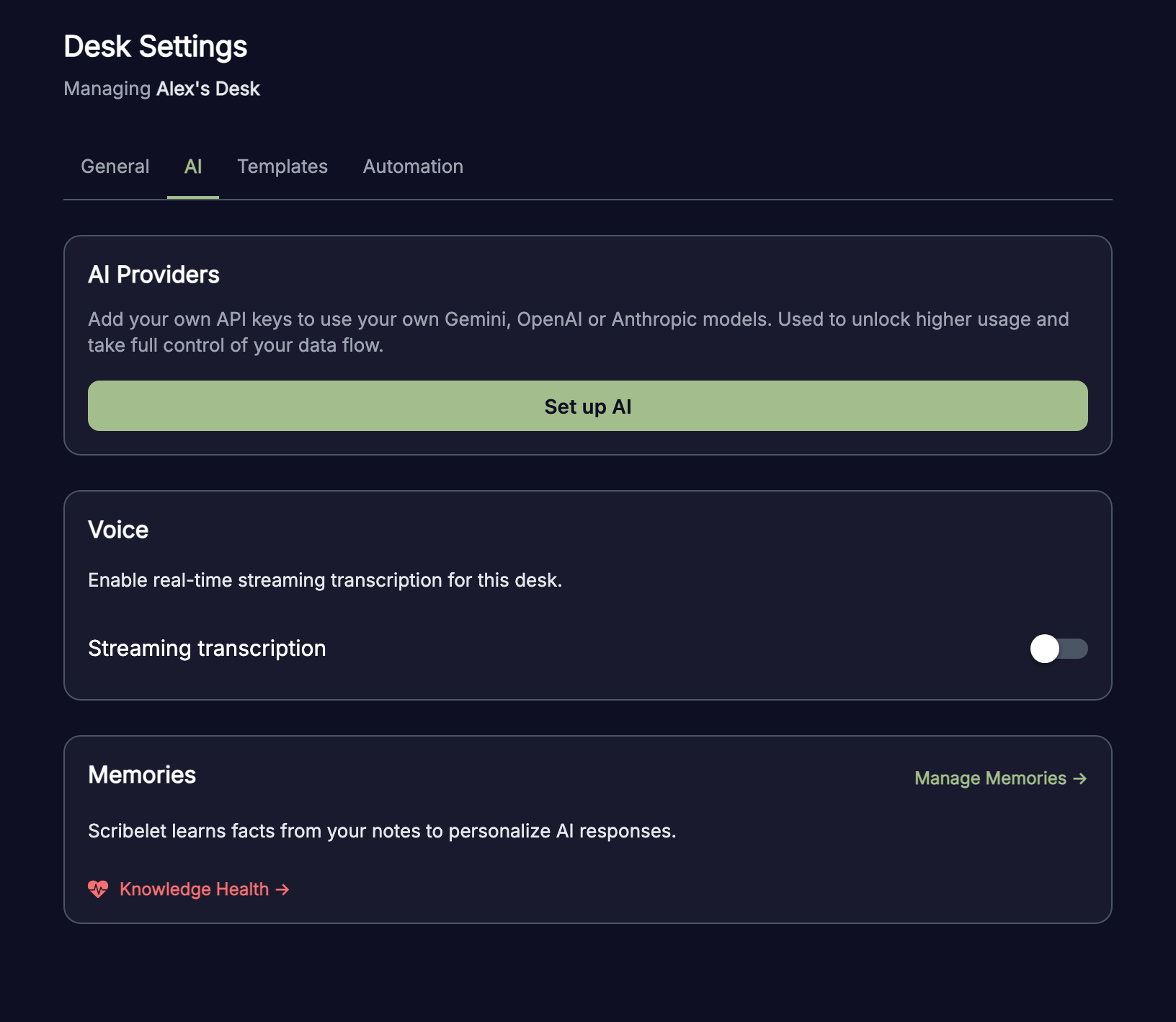
Open Desk Settings, select the AI tab, and find the AI Providers section. If no provider is configured, you'll see the setup prompt.
1. Choose a provider
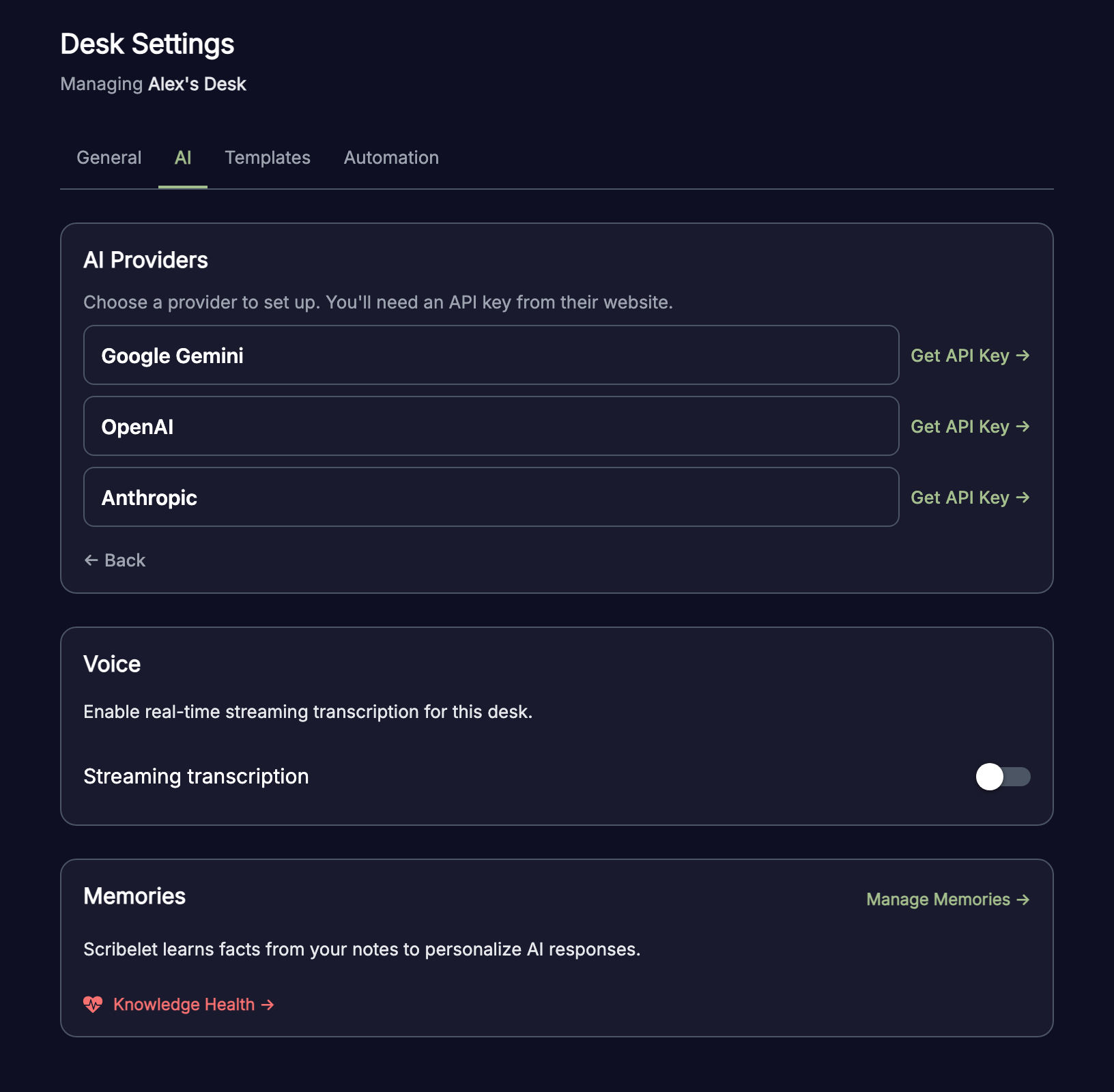
Tap Set up AI to see the available providers:
| Provider | Default model | Where to get a key |
|---|---|---|
| Google Gemini | gemini-2.5-flash | Google AI Studio |
| OpenAI | gpt-4o | OpenAI Platform |
| Anthropic | claude-sonnet-4-6 | Anthropic Console |
Each provider card has a Get API Key link that opens the provider's key management page in your browser.
2. Paste your API key
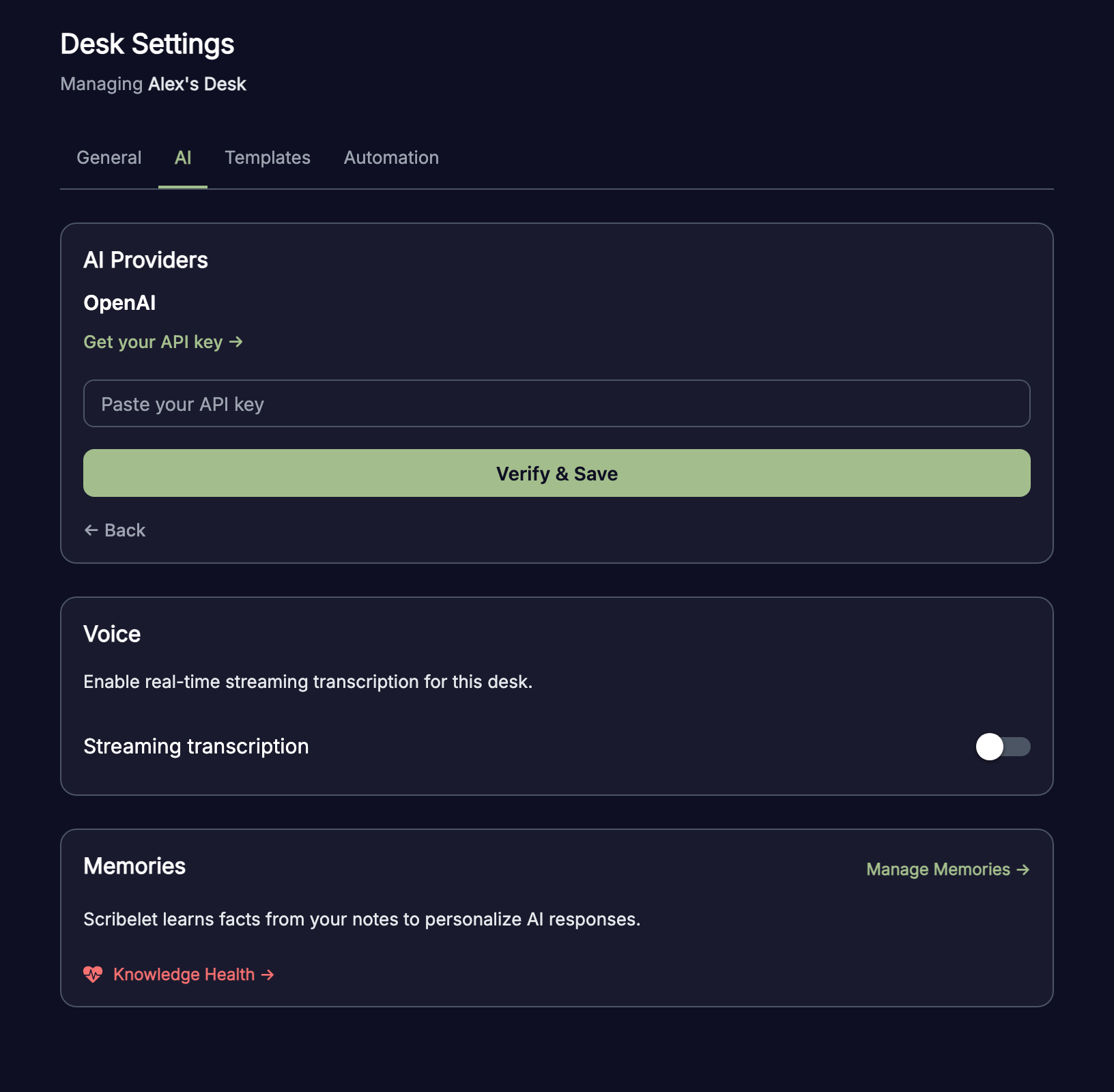
After selecting a provider, paste your API key into the input field and tap Verify & Save. Scribelet makes a lightweight test call to confirm the key works before saving it.
If the key is invalid or expired, you'll see a clear error message with options to try again or switch providers.
3. Done
Once verified, the key is encrypted and stored. Your configured provider appears in the AI Providers section with a masked key suffix (e.g., ····abc123) so you can identify which key is active.
How provider resolution works
When any AI feature runs, Scribelet resolves which provider to use in this order:
- Desk BYOK key: if you've configured a key for this desk, it's used first
- System fallback: if no BYOK key is set (or if decryption fails), Scribelet falls back to its own hosted AI
This means BYOK is purely additive. Your desk works with AI out of the box on every plan, and adding a BYOK key removes the AI limits and gives you control over which provider handles your data.
Key encryption
Your API key is never stored in plaintext. Scribelet uses AES-256-GCM envelope encryption:
- Each desk has its own Data Encryption Key (DEK)
- The DEK is wrapped by a Key Encryption Key (KEK) managed through AWS KMS in production
- Plaintext keys exist only in process memory during active use, with a short time-to-live cache
- Even a full database breach would not expose usable API keys
Budget controls
After adding a BYOK key, Scribelet shows a spending limit section. This tracks how much your BYOK key has been used and lets you set a monthly cap to prevent unexpected charges from your provider.
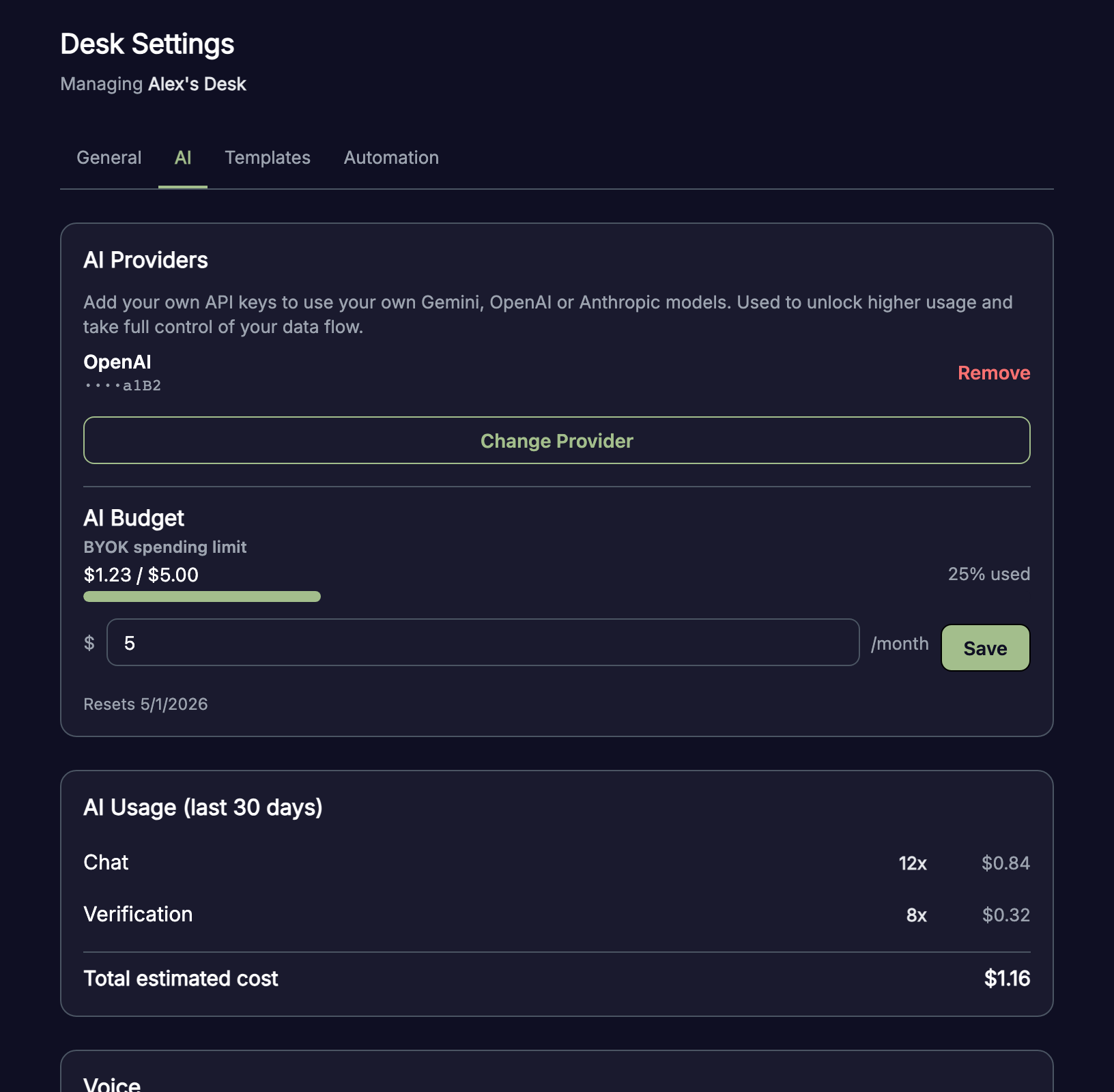
- The progress bar shows current spend vs. your limit
- When the limit is reached, AI features pause until the next billing cycle
- The reset date is shown below the bar
- On first setup, Scribelet suggests a $5/month default limit
Model selection in Chat
With BYOK configured, a model selector appears in AI Chat. You can choose from all available models for your configured provider on a per-conversation basis.
Available models vary by provider:
- Gemini: gemini-2.5-flash, gemini-2.5-pro
- OpenAI: gpt-4o, gpt-4o-mini, gpt-4-turbo
- Anthropic: claude-opus-4-6, claude-sonnet-4-6, claude-haiku-4-5
Changing or removing a provider
To switch providers, tap Change Provider in the AI Providers section and follow the same setup flow. The previous key is replaced.
To remove your BYOK key entirely, tap Remove next to the configured provider. Your desk will fall back to Scribelet's hosted AI.