Search Connectors
Updated 2026-04-16
Table of contents
By default, Scribelet's verification searches the open web to fact-check your notes. Connectors let you plug in additional sources so the AI also queries places you already trust, your own codebase, a language-specific Wikipedia, or a developer reference like Stack Exchange or MDN.
Connectors are configured once per desk, then linked to individual notes that should use them during verification.
Available connectors
| Connector | What it searches | Configuration |
|---|---|---|
| GitHub | Code in a specific repository | Install the GitHub App, pick an installation and repo. See GitHub Connector. |
| Wikipedia | Articles on a chosen language edition | Two-letter language code (en, de, ja, etc.) |
| Stack Exchange | Questions and answers on a specific site | Site slug (stackoverflow, serverfault, math, etc.) and an optional API key |
| MDN | Mozilla web documentation | Locale code (en-US, fr, etc.) |
Adding a connector
Connectors live at the desk level, so any note in that desk can use them.
- Open Desk Settings from the sidebar.
- Scroll to Search Connectors.
- For Wikipedia, Stack Exchange, or MDN, tap the chip for the connector type, give it a friendly name, fill in the required configuration (language, site, or locale), and tap Save Connector.
- For GitHub, tap Connect GitHub Repository and follow the GitHub connector setup guide.
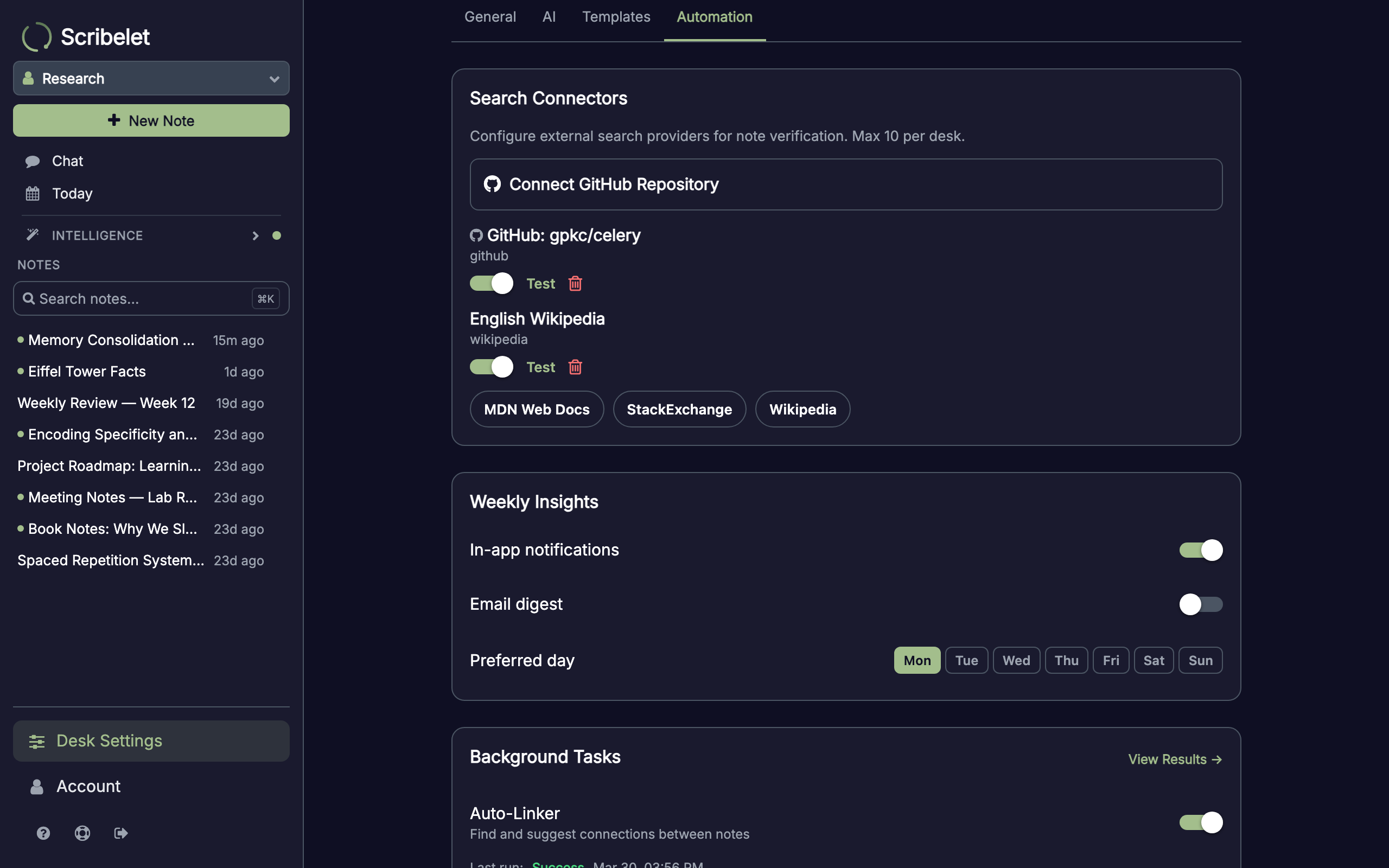
Each desk supports up to ten connectors. A desk owner or admin can disable a connector with its switch to pause it without deleting the configuration.
Testing a connector
Every connector has a Test action next to its enable switch. Tapping it runs a probe query and reports how many results came back. Use this to verify your configuration before editors start linking it to notes.
A zero-result test is not always a misconfiguration, the probe uses a generic query. For GitHub specifically, a zero-result test usually means the repository hasn't been indexed yet; the UI will offer a link to trigger indexing on github.com.
Linking a connector to a note
Connectors opt in per note, so you only pay the search cost for the notes that benefit.
- Open the note.
- Tap the kebab menu (three dots) and choose Settings.
- In Search Connectors, tap the + button next to any desk connector to link it.
- Toggle the switch to enable or disable the link, or tap the trash icon to unlink.
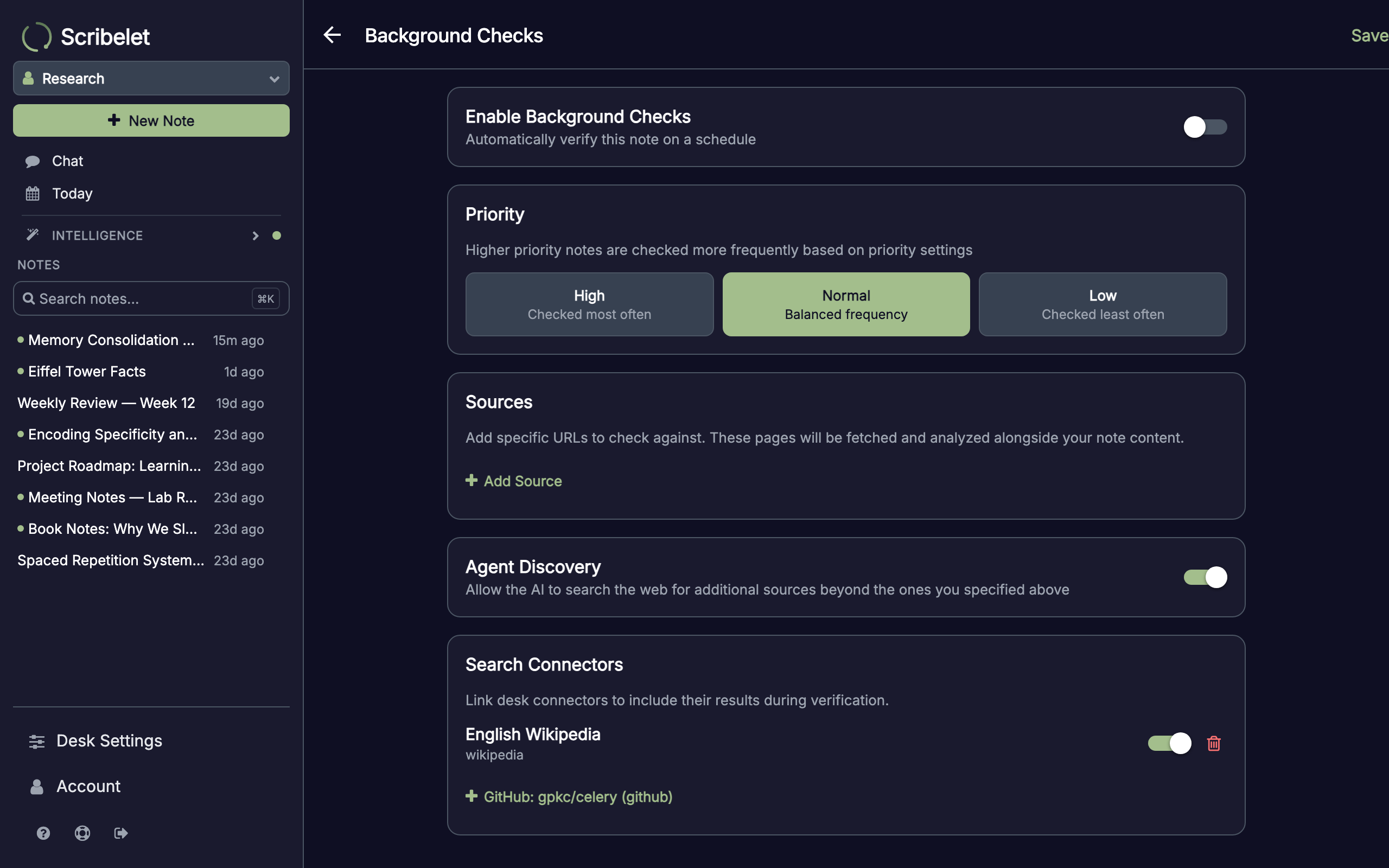
A note can link up to five connectors. During verification, their results are merged with any web search results and custom sources you've configured.
How connector results are used
When you run Verify on a note, Scribelet:
- Gathers context from linked notes and your desk's AI memory.
- Fetches any custom source URLs you've configured.
- Generates targeted search queries based on the note's factual claims.
- Runs each query against the open web and every enabled linked connector in parallel.
- Analyzes the combined evidence and proposes changes with citations.
The AI is told where each result came from, so a GitHub snippet from your own code is weighed differently than a generic web result. If a connector fails or times out, verification continues with the remaining sources rather than blocking.
Removing a connector
Deleting a connector from Desk Settings removes it from every note that linked it. No external data needs to be cleaned up, connectors don't copy content into Scribelet, they only fan out live searches at verification time.
For GitHub, deleting the connector doesn't uninstall the GitHub App from your account. To fully revoke access, also remove the app under github.com → Settings → Applications → Installed GitHub Apps.
Next steps
- Set up the GitHub connector, the full walkthrough for connecting a repository.
- Verification, how custom sources, web search, and background checks work together.
- Knowledge Health, the dashboard that summarizes verification activity across your desk.