Connect AI Agents via MCP
Updated 2026-04-12
Table of contents
Scribelet exposes an MCP server that lets AI assistants search, read, and write your notes and memories directly. Instead of copy-pasting context into a chat window, your agent can pull the information it needs from your knowledge base on its own.
What is MCP?
The Model Context Protocol (MCP) is an open standard that defines how AI agents connect to external data sources. Think of it as a USB-C port for AI tools: any agent that speaks MCP can plug into any MCP-compatible service without custom integration work.
Scribelet's MCP server supports:
- Streamable HTTP transport for remote connections (Claude Code, Cursor, Windsurf, and others)
- OAuth 2.1 authorization so you control which desks each agent can access
- API token fallback for agents or scripts that don't support OAuth
Connect with OAuth (recommended)
OAuth gives you fine-grained permission control and easy revocation. Most modern AI agents support it out of the box.
Step 1: Find your MCP server URL
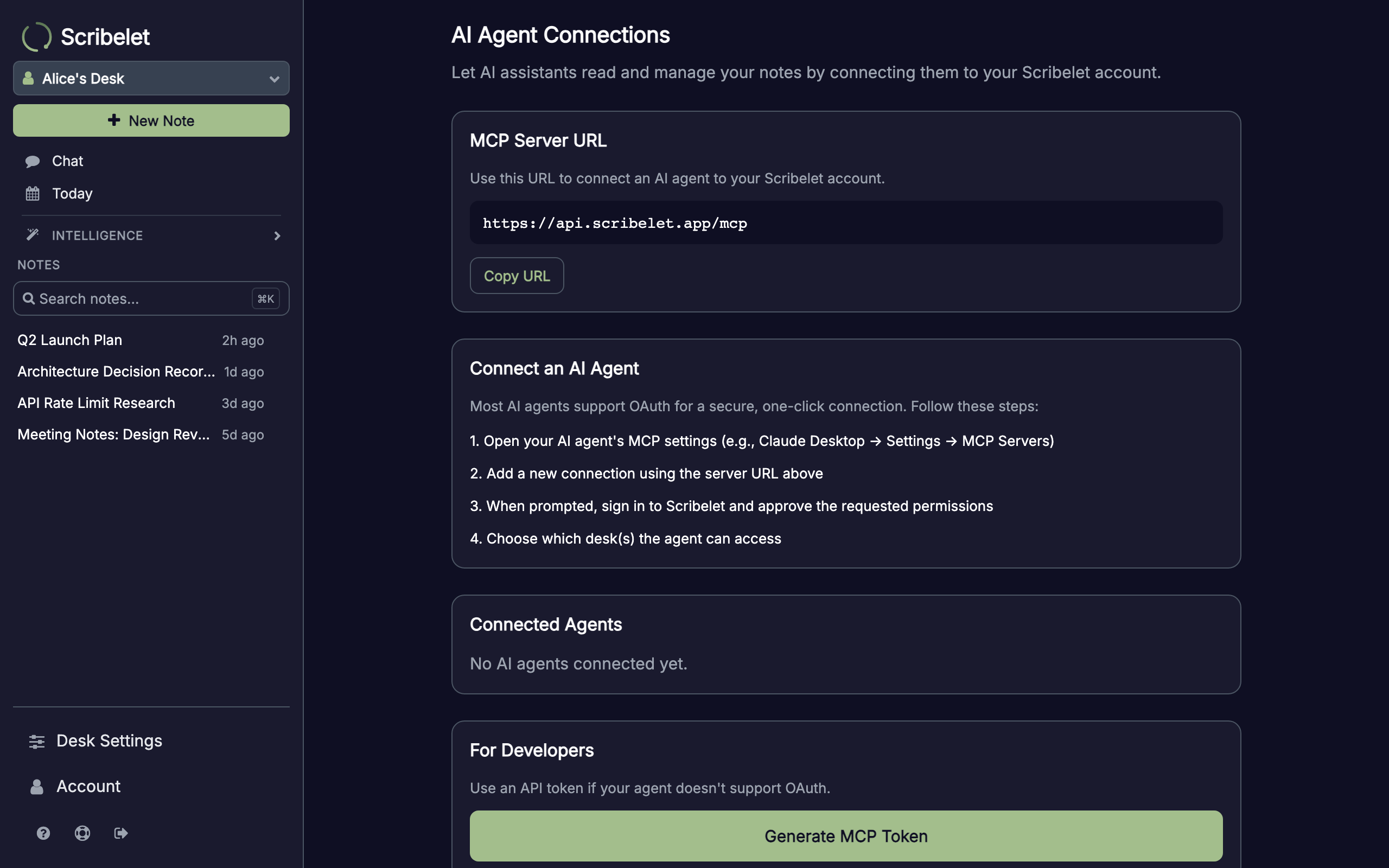
Open Account from the sidebar in the Scribelet web app, then open AI Agent Connections. Your MCP server URL is displayed at the top of the page. It looks like:
https://api.scribelet.app/mcp
Step 2: Add the server in your AI agent
The exact steps depend on your agent. Here are the most common ones:
Claude Code (CLI)
claude mcp add scribelet --transport streamable-http https://api.scribelet.app/mcpCursor
Open Settings, go to MCP Servers, click "Add new MCP server", and paste the URL.
Other agents
Look for "MCP Servers" or "Tool Connections" in your agent's settings, add a new Streamable HTTP server, and paste the URL.
Step 3: Authorize the connection
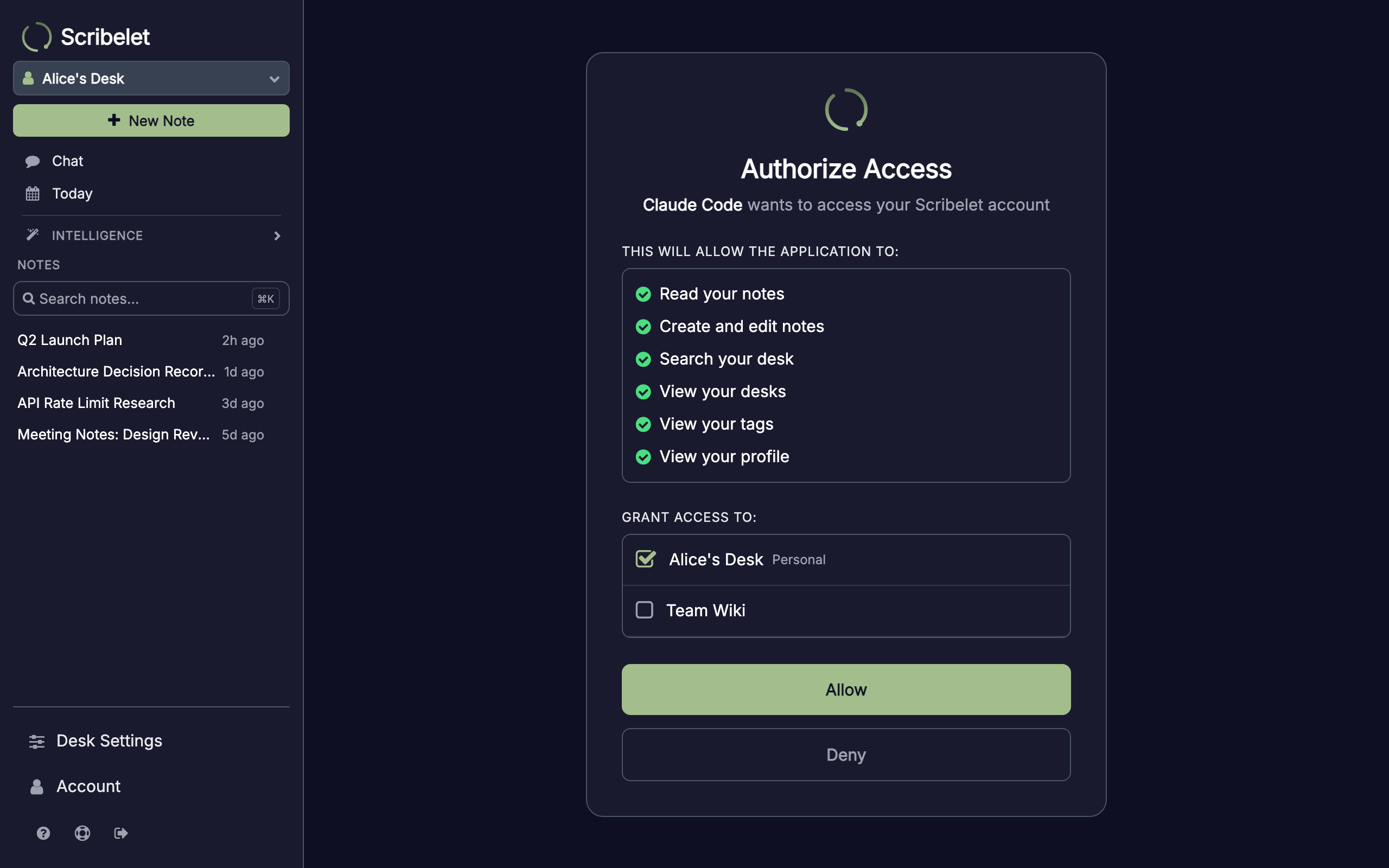
When your agent first tries to use the server, Scribelet opens a consent screen in your browser. You'll see which agent is requesting access, what permissions it needs, and a list of your desks. Select which desks the agent should have access to, then click Allow.
Connect with an API token
If your agent doesn't support OAuth, or you're building a custom integration, you can use an API token instead. API tokens grant full access to all scopes.
Generate a token
- Open Account from the sidebar, then open AI Agent Connections
- Scroll to the For Developers section
- Click Generate MCP Token
- Copy the token immediately (it won't be shown again)
Use the token
Pass the token as a Bearer token in the Authorization header when connecting to the MCP server URL. The exact configuration depends on your agent. Look for an "API token" or "Bearer token" authentication option in its MCP settings.
Available tools
Once connected, your AI agent can use these tools:
Notes
| Tool | Description | Required scope |
|---|---|---|
search_notes | Full-text search across all notes in a desk | search or notes:read |
search | Unified search across content types | search |
get_note | Retrieve a single note's full content by ID | notes:read |
list_recent_notes | List recently modified notes, optionally filtered by tag | notes:read |
create_note | Create a new note with title, content, and optional tags | notes:write |
update_note | Update an existing note's title or content | notes:write |
delete_note | Soft-delete a note (can be restored later) | notes:write |
get_note_links | Get forward links and backlinks (wikilinks) for a note | notes:read |
find_similar_notes | Find semantically similar notes using embeddings | notes:read |
Memories
Memories are facts, preferences, people, projects, and other knowledge you want remembered across conversations. These tools let your AI agent interact with your knowledge base directly.
| Tool | Description | Required scope |
|---|---|---|
list_memories | List memories, optionally filtered by category or text search | memories:read |
retrieve_memories | Semantically search memories by meaning (same engine as in-app chat) | memories:read |
create_memory | Save a new memory (admin role required) | memories:write |
update_memory | Update a memory's text or category (admin role required) | memories:write |
delete_memory | Delete a memory (admin role required) | memories:write |
Organization
| Tool | Description | Required scope |
|---|---|---|
list_desks | List all desks you're a member of | desks:read |
get_desk | Get desk details (member count, tag count) | desks:read |
list_tags | List all tags in a desk with note counts | tags:read |
get_user_profile | Get your account info (email, ID) | profile:read |
Most tools accept an optional desk_id parameter. If omitted, they use your default desk.
Available resources
MCP resources provide read-only, URI-addressable access to your data. Agents can reference these URIs to pull context:
| Resource URI | Description |
|---|---|
note://{desk_id}/{note_id} | Full note as Markdown with YAML frontmatter |
desk://{desk_id}/notes | First page of recent notes (paginated) |
desk://{desk_id}/notes/{cursor} | Subsequent pages using cursor from previous response |
desk://{desk_id}/tags | All tags in a desk with usage counts |
desk://{desk_id}/memories | First page of desk memories (paginated) |
desk://{desk_id}/memories/{cursor} | Subsequent pages using cursor from previous response |
memory://{desk_id}/{memory_id} | A single memory's text content |
Permission scopes
OAuth connections use scopes to limit what an agent can do:
| Scope | What it allows |
|---|---|
notes:read | Read note content, links, and metadata |
notes:write | Create, update, and delete notes |
search | Search across notes |
desks:read | List and view desk info |
tags:read | List tags and usage counts |
profile:read | View your email and account ID |
memories:read | List and search memories |
memories:write | Create, update, and delete memories |
insights:read | View weekly insights |
The default OAuth scope is desks:read notes:read profile:read. Agents may request additional scopes, and the consent screen shows exactly what's being requested before you allow or deny access.
Managing connections
Go to Account > AI Agent Connections to view all connected agents and their permissions, see when each agent last accessed your data, revoke any connection instantly, and generate or manage API tokens.
Troubleshooting
"Not authenticated" error
Your token may have expired or been revoked. For OAuth connections, the agent should automatically re-authorize. For API tokens, generate a new one from Account > AI Agent Connections.
Agent can't find the server
Make sure you're using the full URL including the /mcp path: https://api.scribelet.app/mcp. Some agents need the transport type set to "Streamable HTTP" explicitly.
"Insufficient scope" error
The agent is trying to perform an action its OAuth token doesn't cover. Revoke the connection and re-authorize. The agent may request broader scopes on the next attempt. Alternatively, use an API token which has all scopes.
Connection works but no notes appear
Check that the agent has access to the correct desk. OAuth connections are scoped to the desks you selected during authorization. If you need access to a different desk, revoke and re-authorize.