Chat
Updated 2026-03-31
Table of contents
Scribelet's AI Chat lets you have conversations grounded in your notes. Ask a question, and the AI searches your workspace, retrieves relevant content, and answers with citations pointing back to specific notes. It remembers your AI Memory and follows your preferences automatically.
Starting a conversation
Open Chat from the sidebar and tap New Chat. Type your question and the AI will search your notes for relevant content before responding.
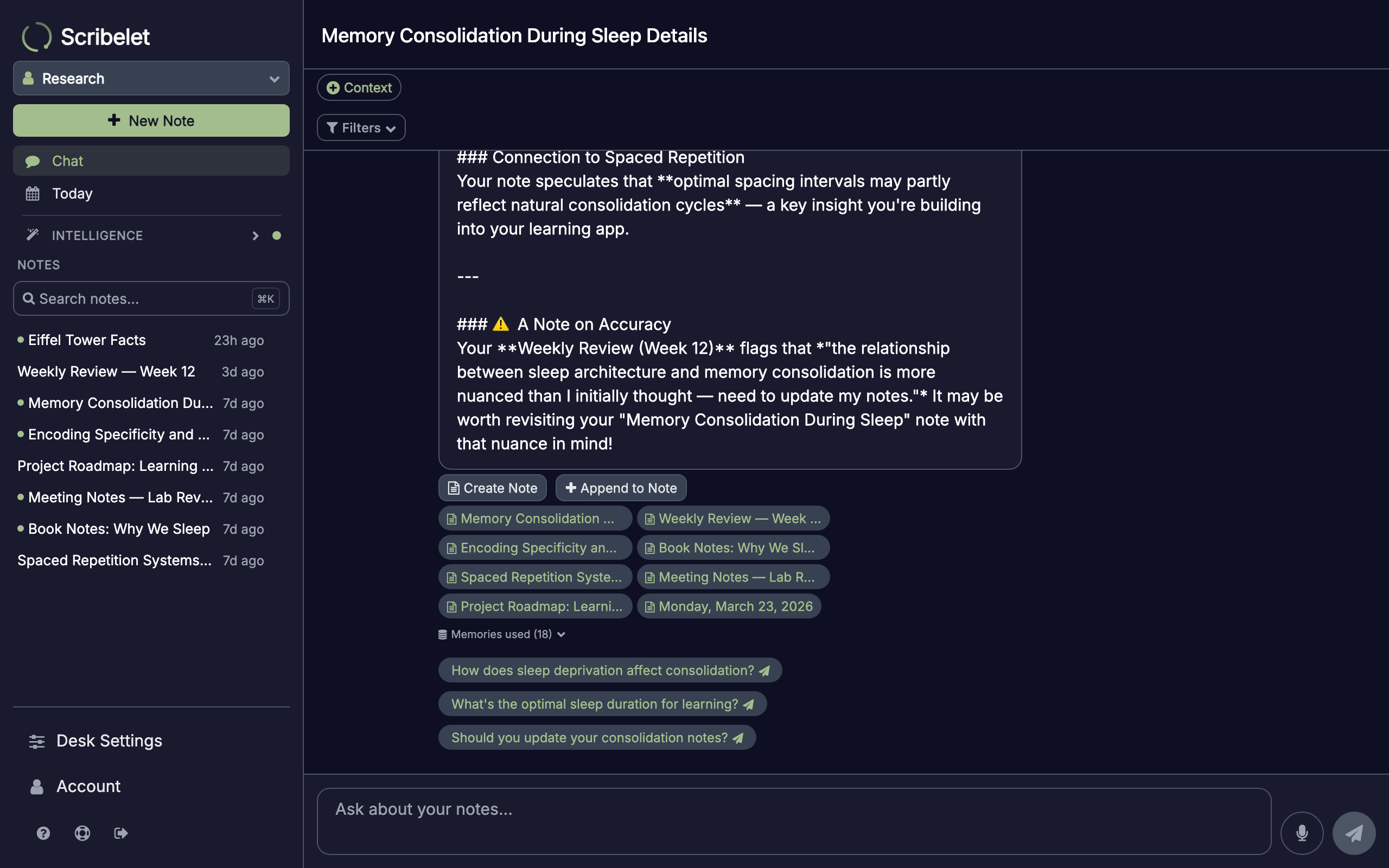
The AI doesn't just quote your notes back to you. It synthesizes information across multiple notes, reasons about it, and produces an answer that ties everything together.
Source citations
Below each AI response, you'll see source citation chips showing the title of every note that contributed to the answer. Tap any citation to jump directly to that note and see the relevant passage in context.
This makes it easy to verify the AI's claims and dig deeper into the source material. In the screenshot above, the green chips ("Memory Consolidation...", "Weekly Review...", etc.) are all clickable citations.
Context notes
For focused conversations, you can pin specific notes as context. Tap Context in the toolbar above the chat, then select up to 10 notes. The AI will prioritize these notes when answering, making responses more targeted.
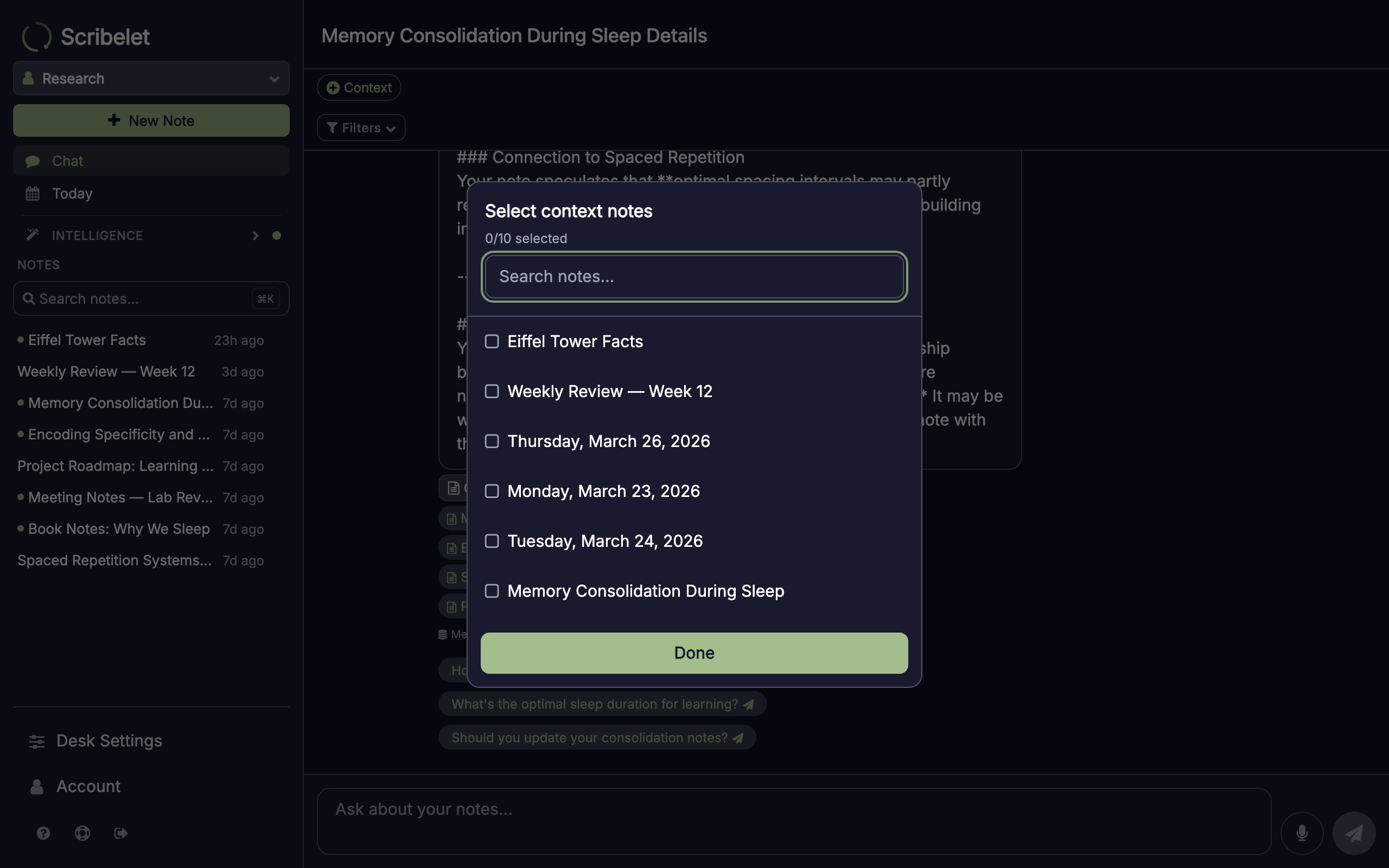
This is useful when you want to discuss a particular topic or set of notes without the AI pulling in unrelated content.
Context filters
Beyond pinning specific notes, you can filter the AI's search scope using tags and date ranges. Tap the filter icon to expand the filter bar.
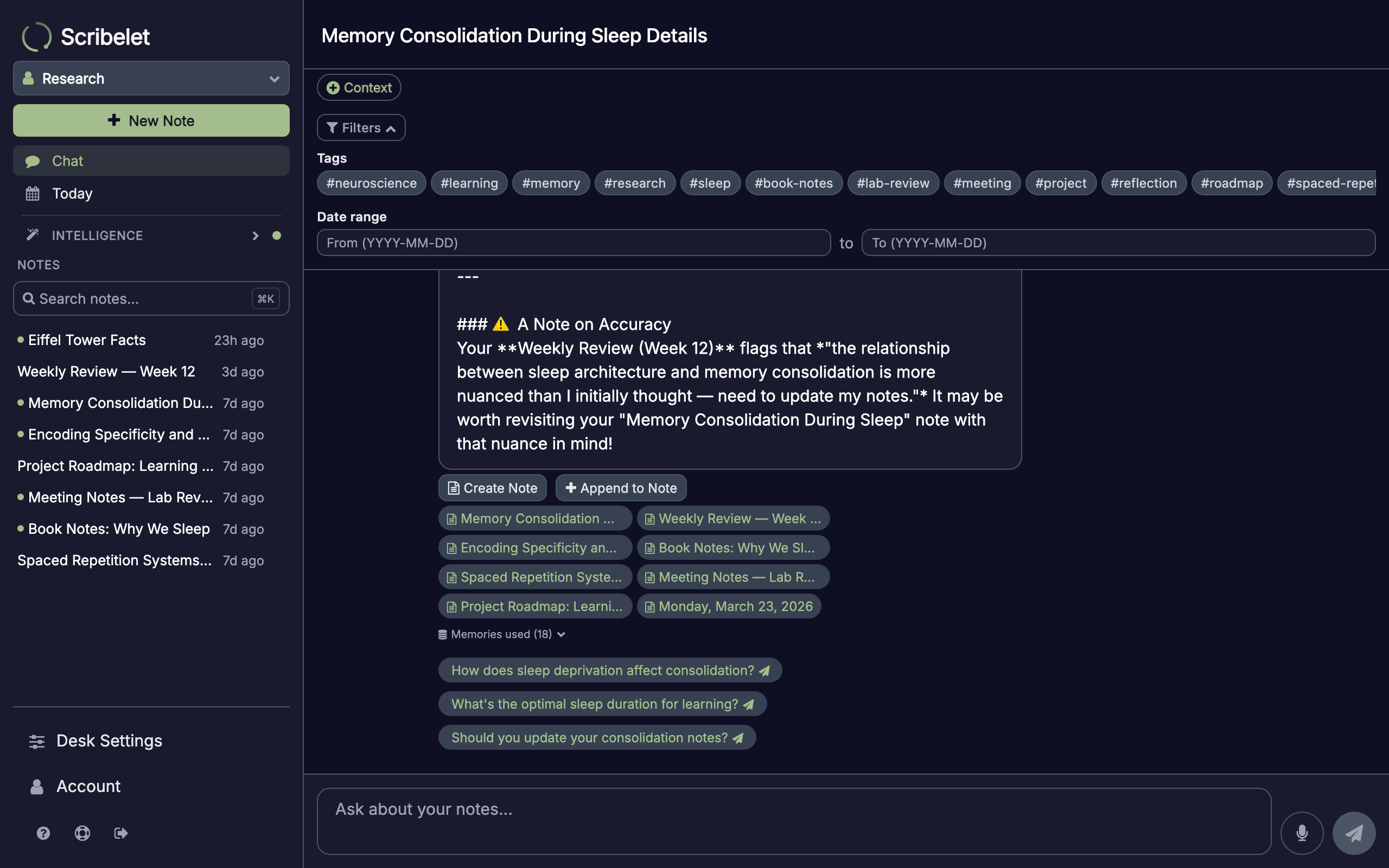
- Tags: select one or more tags to restrict the AI's search to notes with those tags
- Date range: limit the search to notes created or updated within a specific window
Filters apply to every message in the conversation, so the AI consistently stays within the scope you define.
Follow-up suggestions
After each response, the AI suggests follow-up questions based on the conversation so far. Tap a suggestion to send it as your next message.
These suggestions help you explore a topic without having to think of every question yourself. They often surface angles you might not have considered.
AI tools
During a conversation, the AI can use tools to interact with your workspace:
- Search notes: finds relevant notes by semantic and keyword search
- Read a note: retrieves the full content of a specific note
- List by tag: finds all notes with a particular tag
- Suggest an edit: proposes changes to one of your notes, shown as a diff card you can accept or reject
- Create a note: creates a new note from the conversation, shown as a card linking to the new note
When the AI uses a tool, you'll see a status chip (like "Searching notes...") that updates to a checkmark when complete. Tool usage is transparent: you always see what the AI is doing.
Memory citations
The AI draws on your AI Memory when answering questions. When a memory contributes to a response, it appears as a colored chip below the message, labeled by category (person, project, term, preference, etc.).
This gives you visibility into not just which notes the AI used, but which stored facts and preferences influenced its answer.
Managing conversations
Search
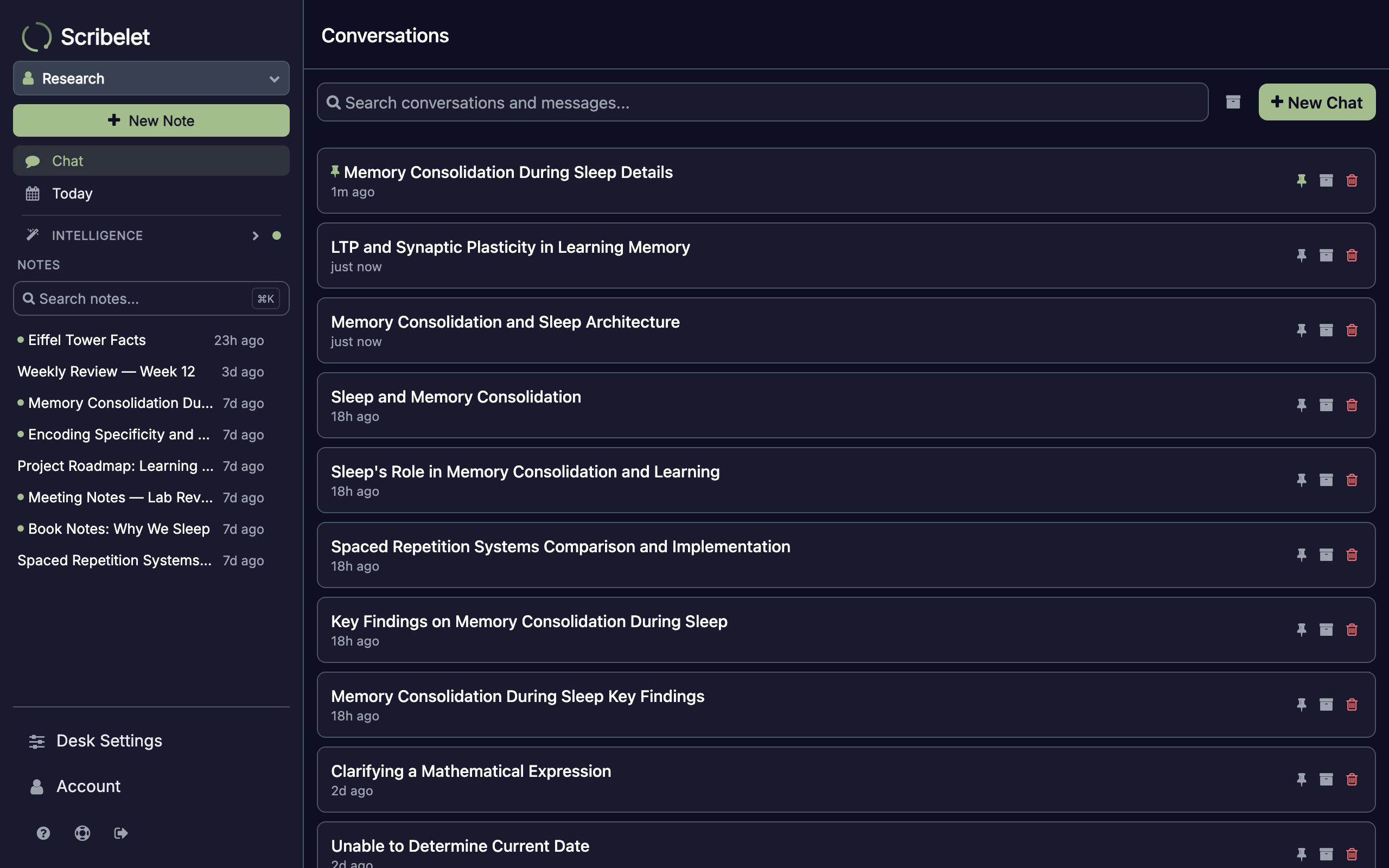
Use the search bar at the top of the conversation list to find past conversations by title or message content.
Pin and archive
- Pin a conversation to keep it at the top of your list, useful for ongoing topics you return to frequently
- Archive a conversation to hide it from the default view without deleting it. Toggle the archive filter to see archived conversations.
Model selection
If you've configured your own API keys (BYOK), you can choose which AI provider and model to use for each conversation. The model selector appears in the toolbar above the chat.