Tags
Updated 2026-03-31
Table of contents
Tags let you categorize notes across topics without rigid folder structures. Type a #hashtag anywhere in a note and Scribelet automatically tracks it, making your notes filterable, searchable, and easier for the AI to work with.
Adding tags to a note
Type # followed by a tag name in the note body. A suggestion popup shows existing tags from your workspace. Select one to reuse it, or keep typing and press Enter to create a new tag.
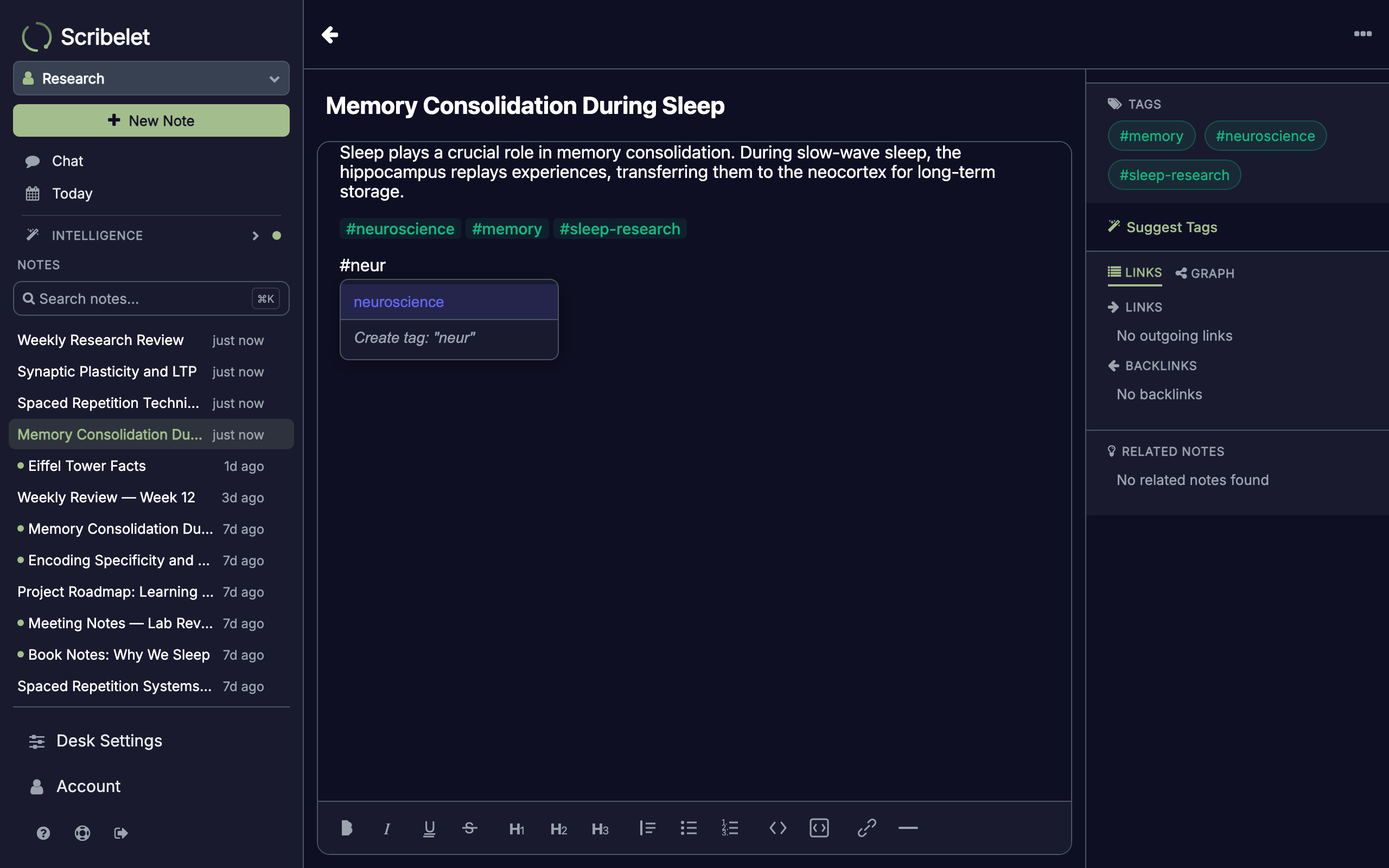
Tag names can contain letters, numbers, hyphens, and underscores. They're case-insensitive: #Research and #research are the same tag.
Tags are saved automatically when you save the note. Add as many as you need. There's no limit.
Viewing a note's tags
The Tags section in the sidebar displays all tags on the current note as green chips. Tap any chip to jump to a list of every note that shares that tag.
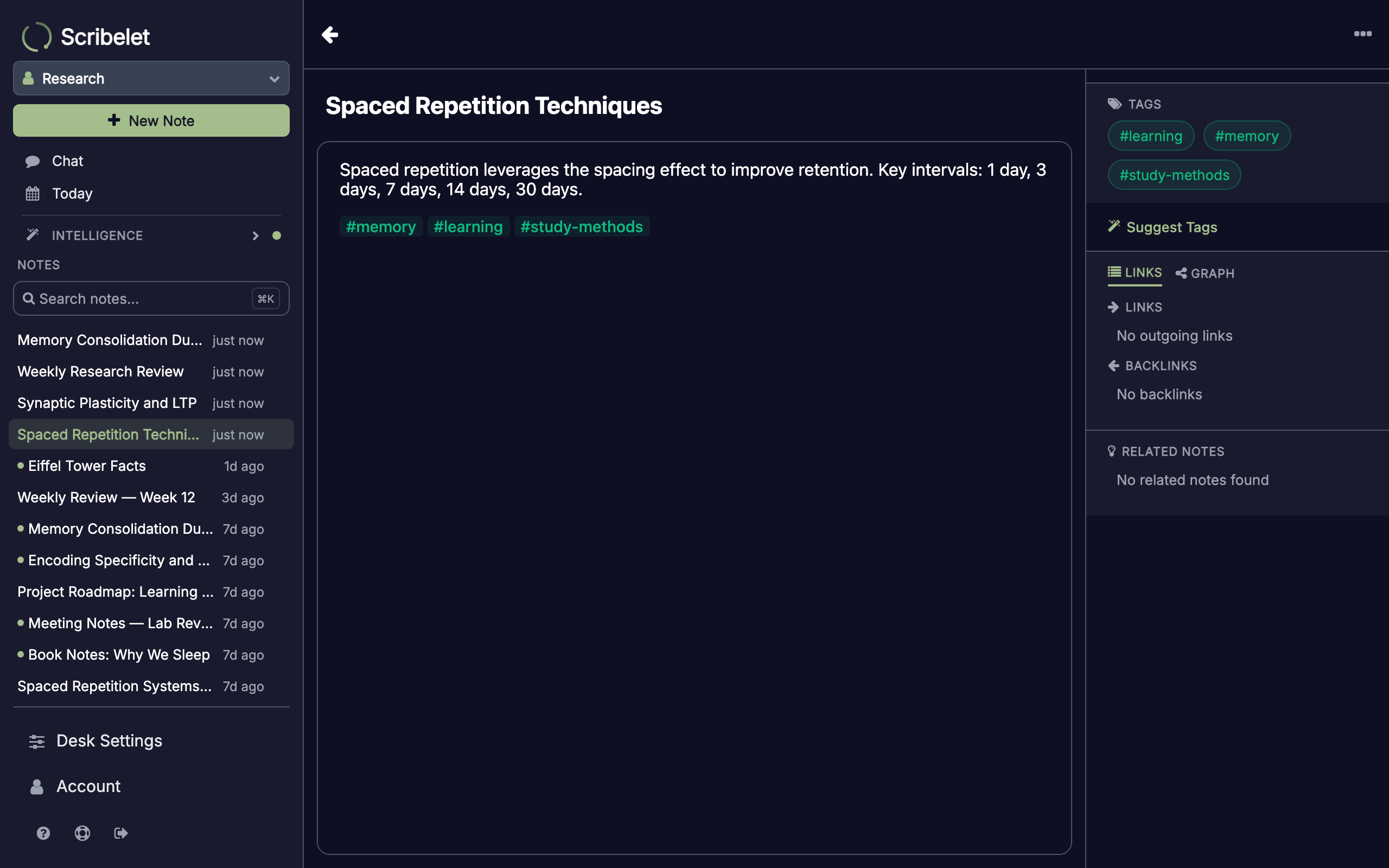
Filtering notes by tag
The notes list includes a tag filter bar at the top, a horizontal row of tag chips showing each tag and its note count. Tap a tag to filter the list instantly. Tap it again to clear the filter.
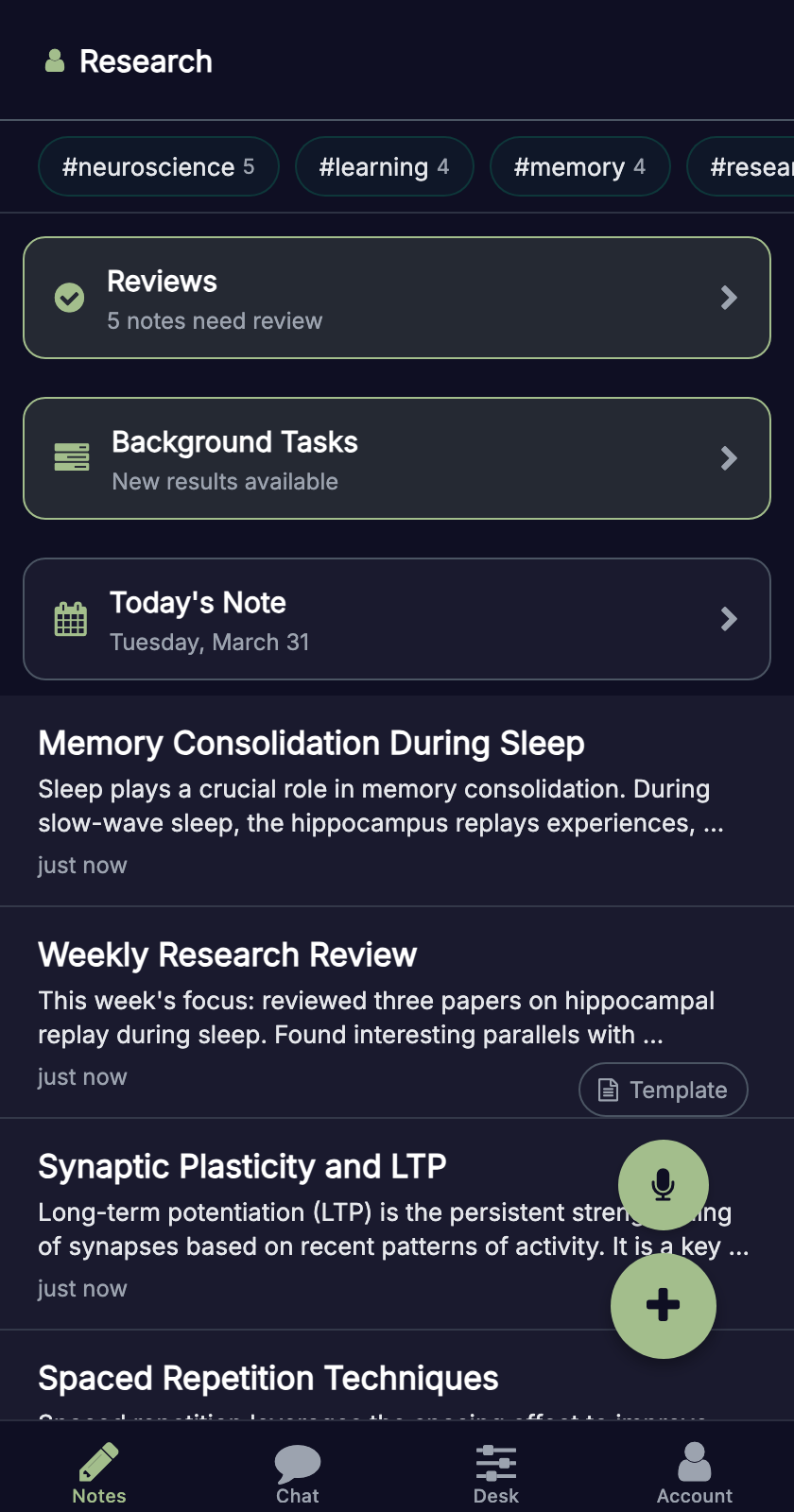
Tags are sorted by usage. The most-used tags appear first, so your primary categories are always within reach.
Tag page
Tapping a tag chip (from the note's Tags panel or the filter bar) opens a dedicated tag page showing every note with that tag, sorted by most recently updated.
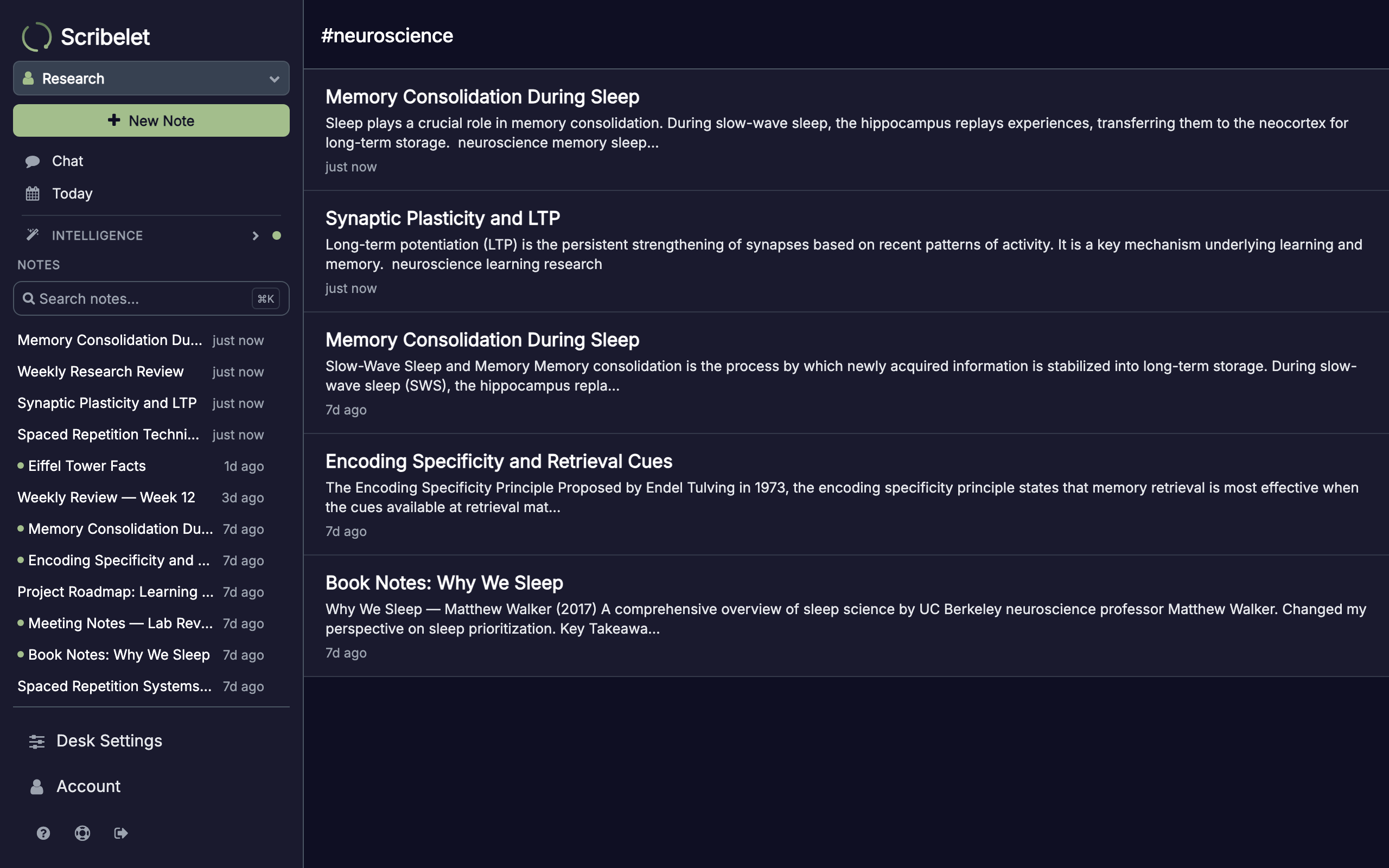
This gives you a focused view of a single topic across your entire workspace.
AI tag suggestions
The AI can suggest tags based on a note's content and your existing workspace tags. Open a note and tap Suggest Tags in the sidebar.
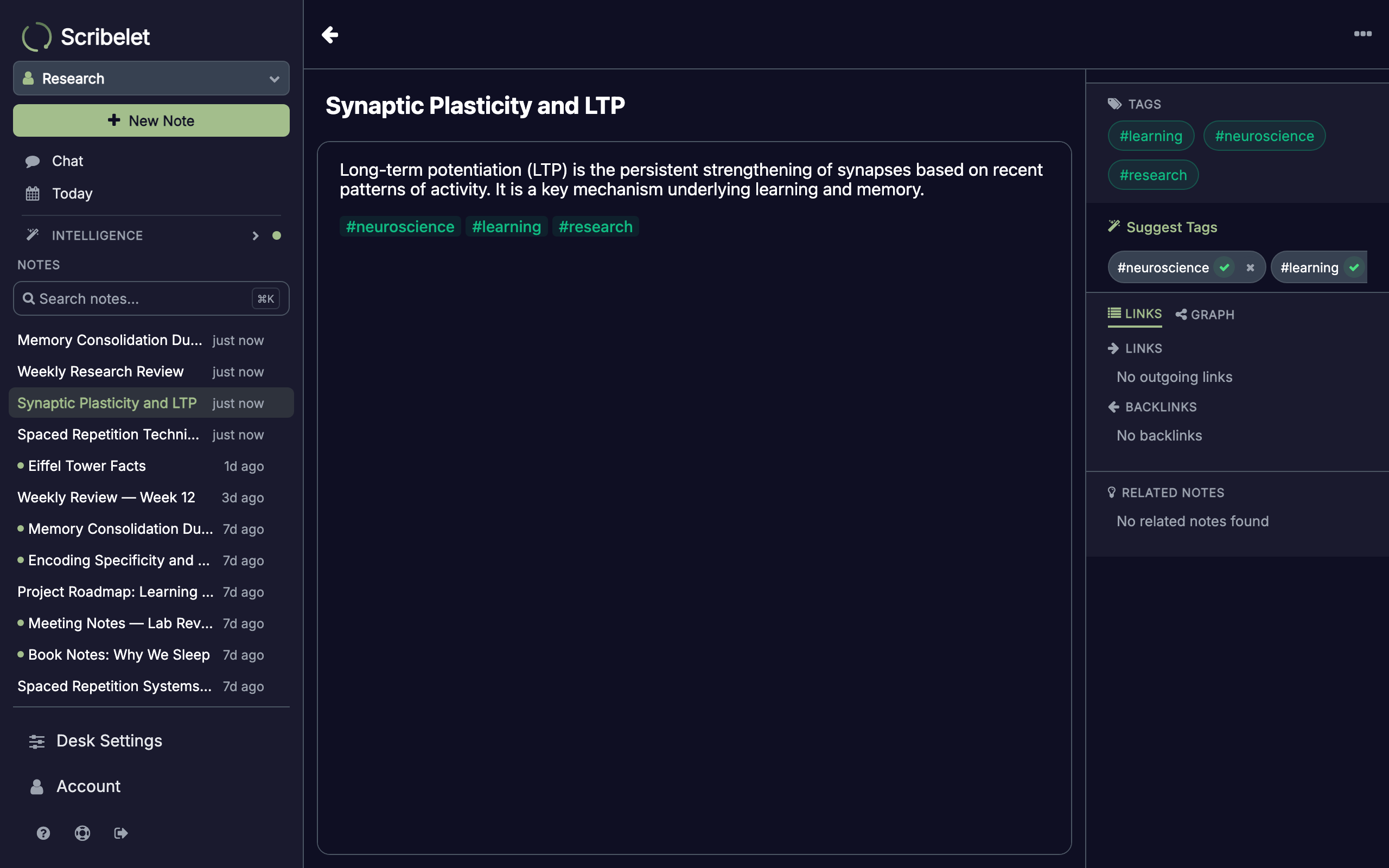
The AI analyzes the note's content, considers your existing tags, and proposes 3-5 relevant tags. For each suggestion:
- Tap the checkmark to accept. The tag is appended to the note body and saved.
- Tap the × to dismiss. The suggestion disappears without changes.
The AI prefers reusing your existing tags to keep your taxonomy consistent, and draws on your workspace's AI Memory for additional context.
How tags work with other features
Tags integrate with several parts of Scribelet:
- AI Chat: filter the AI's search scope by tag using context filters, or ask the AI to list notes by tag
- AI Memory: the AI uses your tag structure to understand how you organize knowledge
- Templates: set default tags on a note template so new notes from that template are pre-tagged
- Search: tags are indexed and searchable. Find any tag by typing part of its name.
Tag tips
- Keep tags short and consistent.
#meeting-notesbeats#notes-from-our-weekly-meeting. - Reuse over create. Select from the autocomplete popup before creating a new tag.
- Use the AI. Let tag suggestions identify patterns you might miss.
- Combine with wikilinks. Tags categorize; wikilinks connect. Use both for a rich knowledge graph.