Wikilinks & Backlinks
Updated 2026-03-31
Table of contents
Wikilinks turn your notes from isolated documents into an interconnected knowledge base. Type [[ to link notes together, and Scribelet tracks every connection automatically, including backlinks, so you always know which notes reference the one you're reading.
Creating a wikilink
Type [[ anywhere in a note's body to open the wikilink popup. As you type, matching notes from your desk appear in a dropdown.
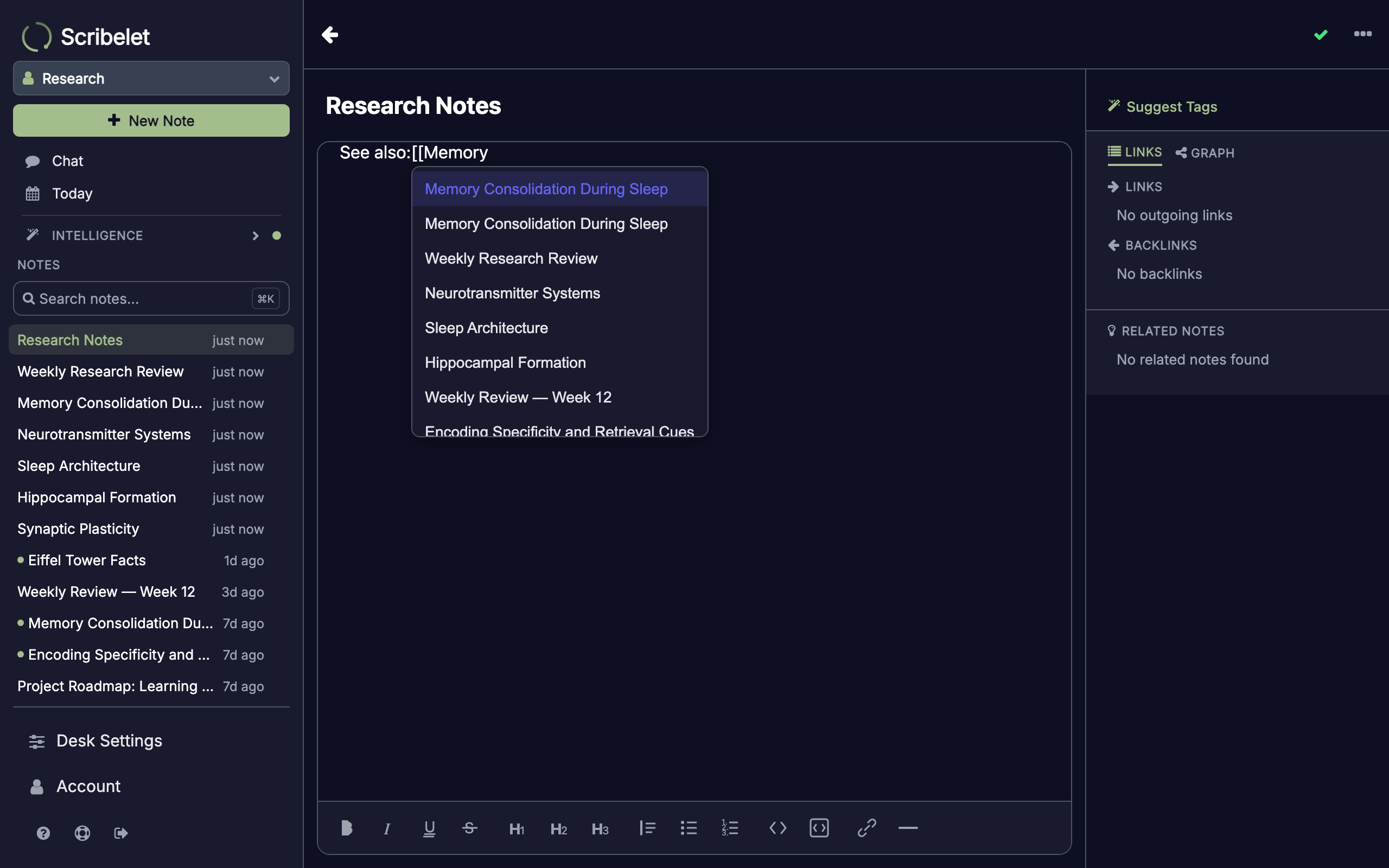
Select a note from the list to insert a clickable link. The wikilink appears inline with your text, styled as a tappable link.
If the note you want doesn't exist yet, select Create note at the bottom of the popup. Scribelet creates the note immediately and links to it. No need to leave your current note.
Reading wikilinks
In read mode, wikilinks appear as clickable links. Tap one to jump straight to the linked note.
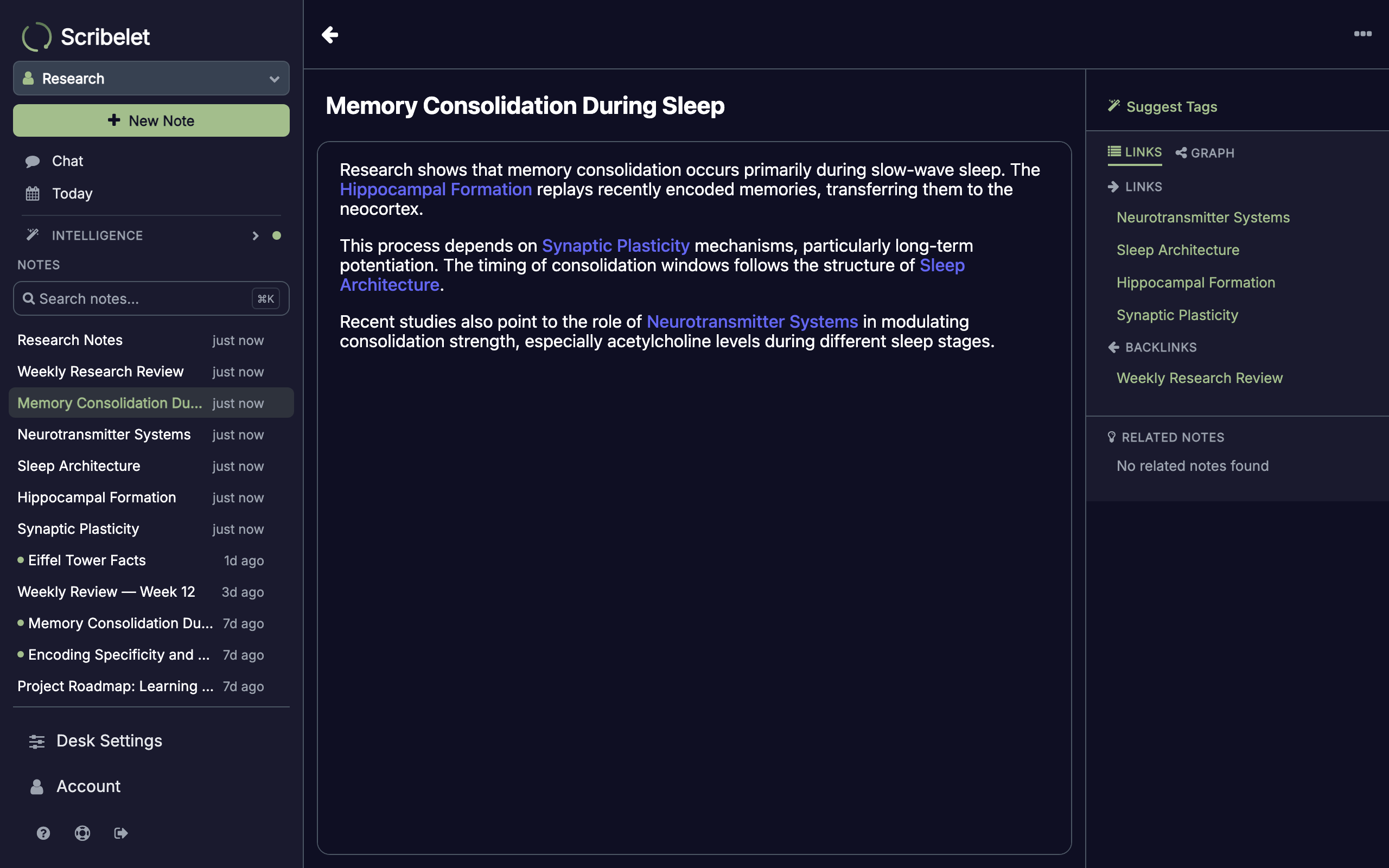
In edit mode, wikilinks display as inline chips. You can delete them with backspace or add new ones with [[.
The Links panel
Every note has a Links panel that shows all connections at a glance, visible in the right sidebar on desktop or below the note body on mobile. It's organized into sections:
- Links: notes this note links to (outgoing wikilinks)
- Backlinks: notes that link back to this note
- Linked Chats: AI Chat conversations that reference this note
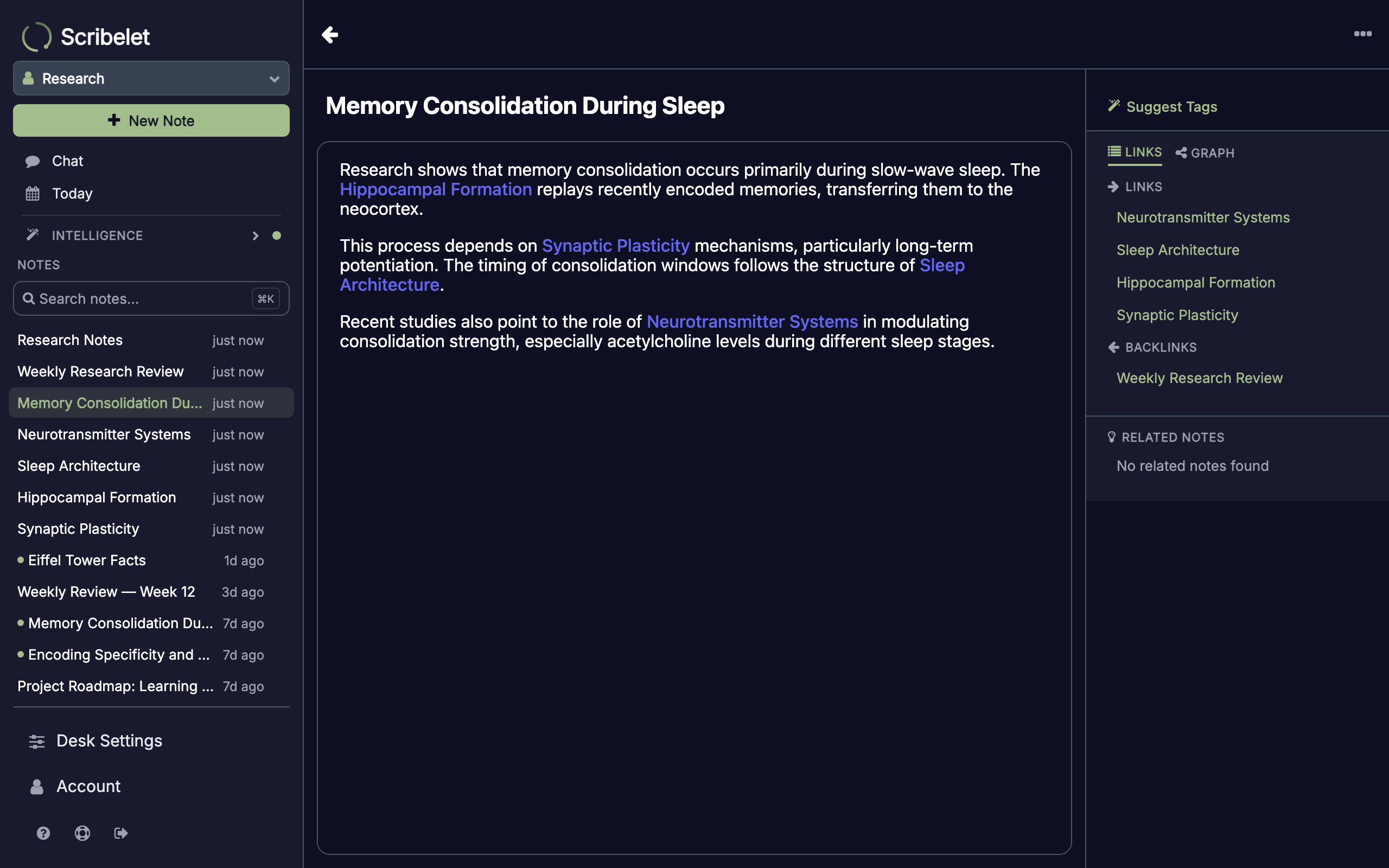
Tap any entry to navigate to that note or conversation. Backlinks are especially powerful: they let you discover connections you didn't explicitly create. If you mention "Database Optimization" in three different project notes, the backlinks on that note show all three references without you having to track them manually.
Knowledge graph
Switch to the Graph tab in the Links panel to see a visual map of how your current note connects to others.
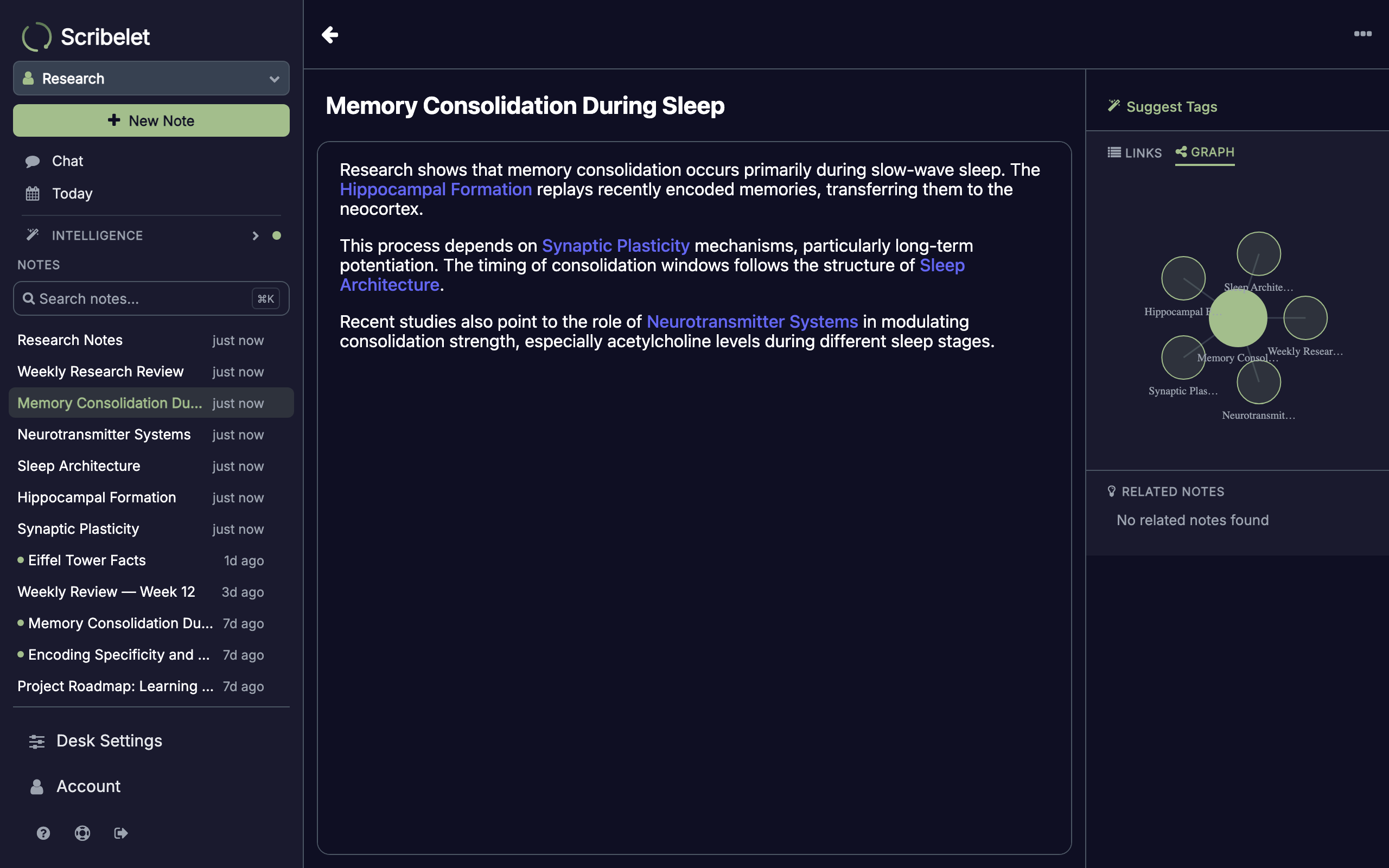
The center node is the note you're viewing. Connected notes orbit around it, with lines showing the links between them. Tap any node to navigate to that note.
The graph shows one level of connections: the notes directly linked to or from the current note. As you add more wikilinks across your desk, each note's graph grows richer, giving you an at-a-glance view of where it sits in your knowledge base.
How wikilinks are stored
Wikilinks are stored as unique identifiers, not titles. This means you can safely rename a note and every wikilink pointing to it stays connected. You never have to worry about broken links after a title change.
Each wikilink also creates a record in Scribelet's link index, which powers backlinks, the knowledge graph, and AI features like context-aware search in AI Chat.
Auto-linker
The auto-linker is an AI feature (Pro) that discovers connections you might have missed. It scans your notes for semantic relationships and suggests new wikilinks between related content.
For example, if you have a note about "PostgreSQL Performance" and another about "Database Indexing Strategies," the auto-linker notices the overlap and suggests linking them, even if you never typed [[ yourself.
You can accept or dismiss each suggestion. Accepted suggestions insert a wikilink just like a manual one.
Tips for building a connected knowledge base
- Link as you write. When you mention a concept that has its own note, link it with
[[. Don't wait to organize later. - Check backlinks. Before writing a new note, check if related notes already link to the topic. The backlinks panel surfaces connections you may have forgotten.
- Use the graph to spot gaps. If a central concept has only one or two connections, there might be related notes waiting to be linked.
- Let the auto-linker help. If you're on Pro, review auto-linker suggestions periodically. It catches relationships that are easy to miss when you're focused on writing.
Next steps
- Creating & Editing Notes: formatting, markdown shortcuts, and keyboard shortcuts
- AI Chat: ask questions grounded in your linked notes
- Core Concepts: desks, tags, and the bigger picture