Creating & Editing Notes
Updated 2026-03-31
Table of contents
Scribelet's note editor combines the simplicity of markdown with the convenience of a rich text toolbar. Write anything from quick thoughts to structured research notes with headings, lists, code blocks, and links between notes.
Creating a note
Tap + New Note in the sidebar (or the + button on mobile). You'll see a title field and the body editor. Type your title, write your content, then tap Save.
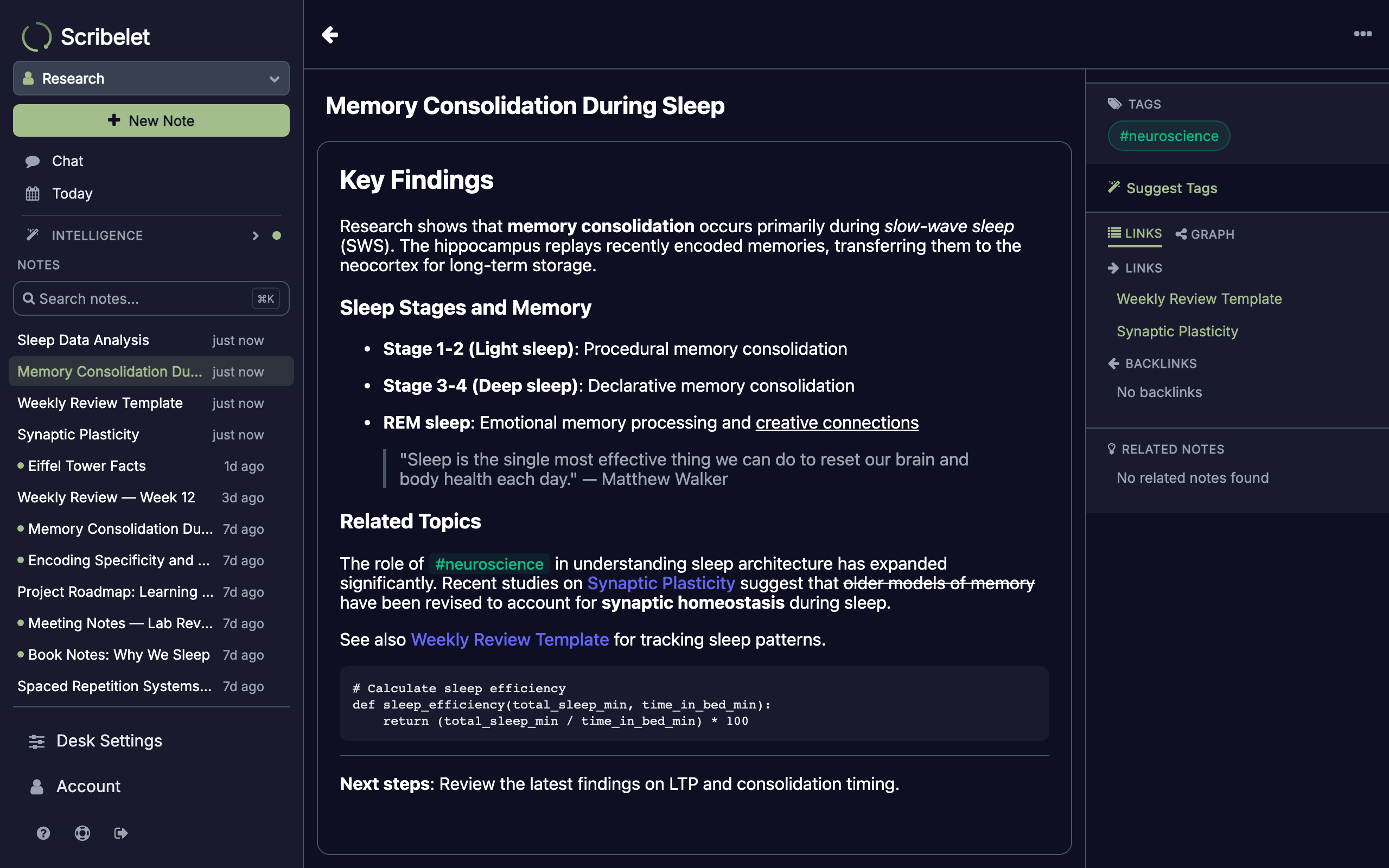
Once saved, the note appears in your notes list. Every subsequent edit auto-saves after a two-second pause, so you never lose work.
Formatting toolbar
Tap anywhere in the body to enter edit mode. A toolbar appears at the bottom with formatting options organized into groups.
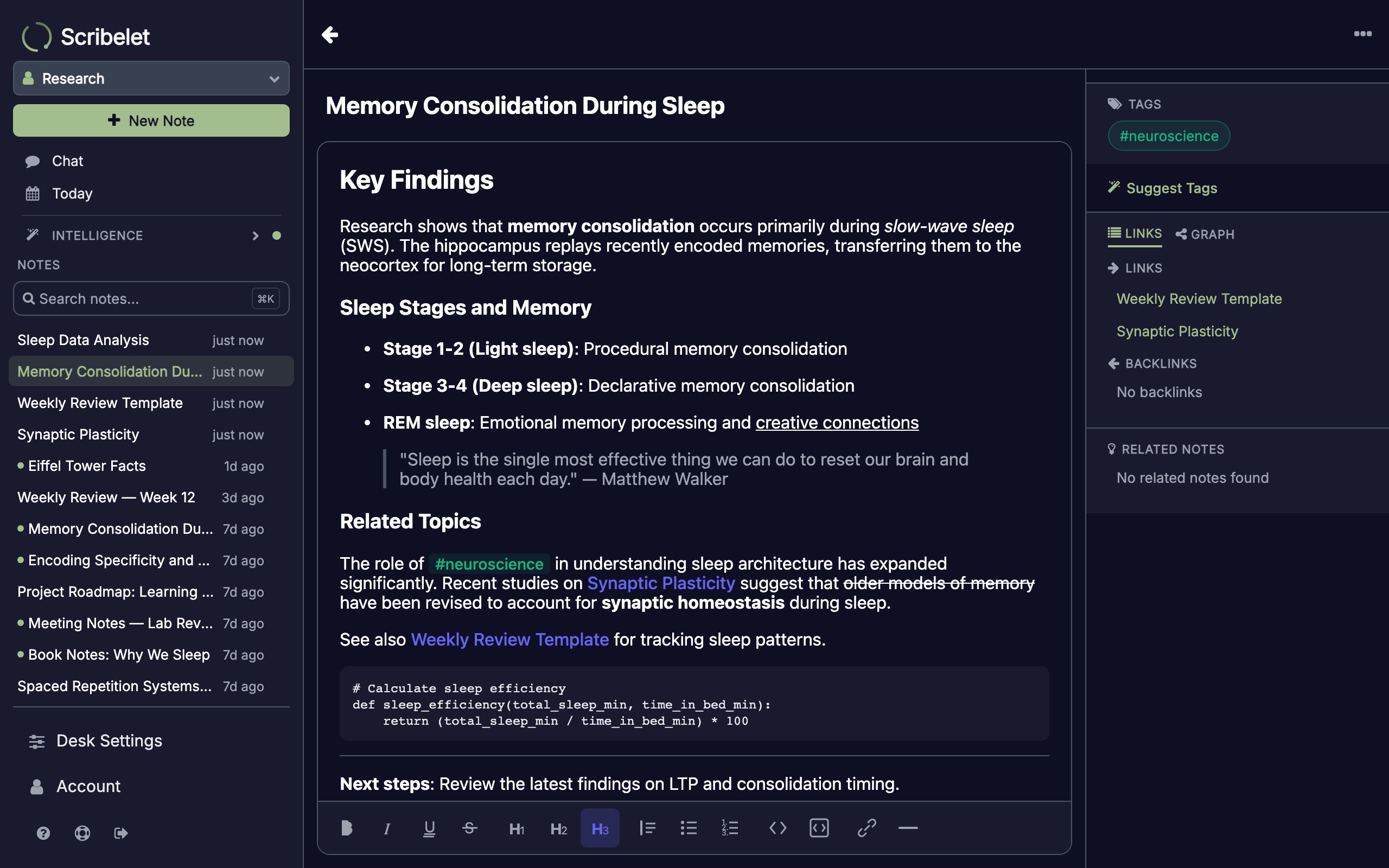
| Group | Buttons | What they do |
|---|---|---|
| Text | B · I · U · | Bold, italic, underline, strikethrough |
| Headings | H1 · H2 · H3 | Section headings at three levels |
| Structure | ❝ · • · 1. | Blockquote, bullet list, ordered list |
| Code | <> · [<>] | Inline code, code block |
| Insert | 🔗 · — | Link (opens URL input), horizontal rule |
Active formatting is highlighted in the toolbar, so you always know what's applied at the cursor.
Markdown shortcuts
You don't need the toolbar for everything. Type markdown syntax directly and it converts to rich text on the fly:
| Type this... | To get... |
|---|---|
# Heading | Heading 1 |
## Heading | Heading 2 |
### Heading | Heading 3 |
- item or * item | Bullet list |
1. item | Numbered list |
> quote | Blockquote |
``` | Code block |
--- | Horizontal rule |
**bold** | Bold text |
*italic* | Italic text |
`code` | Inline code |
These input rules trigger as you type, so ## at the start of a line immediately becomes a heading.
Keyboard shortcuts
For faster editing on desktop:
| Shortcut | Action |
|---|---|
Cmd-B | Bold |
Cmd-I | Italic |
Cmd-U | Underline |
Cmd-Shift-X | Strikethrough |
Cmd-E | Inline code |
Cmd-Alt-1/2/3 | Heading 1/2/3 |
Cmd-Shift-B | Blockquote |
Cmd-Shift-7 | Ordered list |
Cmd-Shift-8 | Bullet list |
Cmd-Shift-C | Code block |
Tab / Shift-Tab | Indent / outdent list item |
Cmd-Z / Cmd-Shift-Z | Undo / redo |
Wikilinks
Connect notes by typing [[ followed by a note title. A suggestion popup appears with matching notes from your desk. Select one to insert a clickable link.
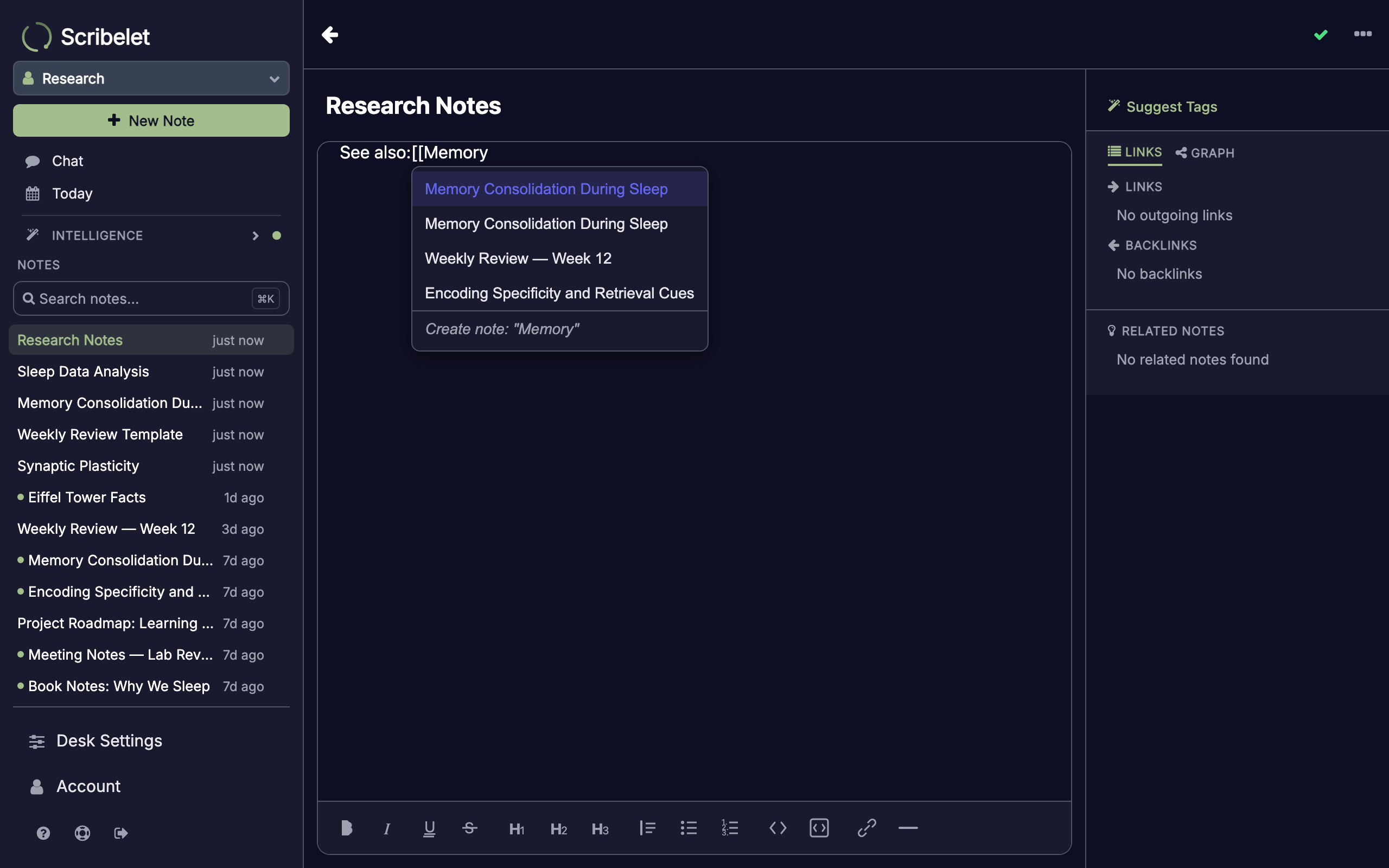
If the note doesn't exist yet, choose Create note from the popup to create it on the spot. The wikilink turns into a live connection between the two notes.
Wikilinks power several AI features automatically: auto-linking, backlink discovery, and the knowledge graph that AI Chat uses to find related content.
Tags
Type # followed by a tag name (letters, numbers, dashes, underscores). A suggestion popup shows existing tags. Select one or press Enter to create a new tag.
Tags help you organize notes across topics and are used by context filters in AI Chat to narrow search scope.
Code blocks
Insert a code block via the toolbar button, the ``` markdown shortcut, or Cmd-Shift-C. A dedicated toolbar appears inside the code block with:
- Language selector: choose from 60+ languages (JavaScript, Python, Rust, SQL, and more) for syntax awareness
- Copy Code: copies the block contents to your clipboard
- Exit: moves the cursor below the code block
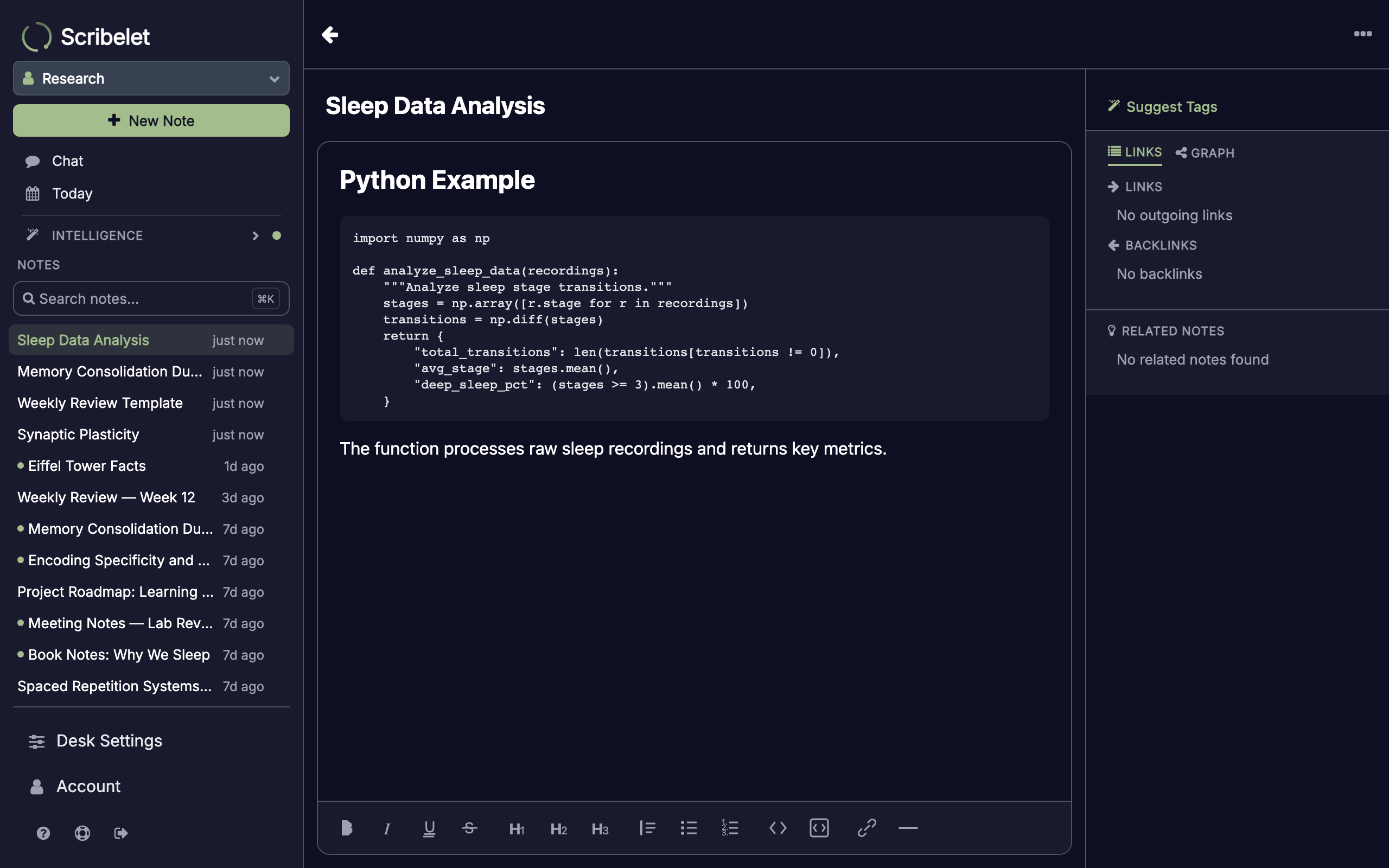
Press Cmd-Enter or arrow down from the last line to exit the code block.
Read and edit modes
Notes open in read mode, a clean view with clickable wikilinks, tags, and formatted content. Tap the body to switch to edit mode, which activates the toolbar and cursor.
Edit mode exits automatically when you tap outside the editor, returning to the clean read view. This keeps things distraction-free while reading and full-featured while writing.
Auto-save
After you save a note for the first time, every edit auto-saves with a two-second debounce. A status indicator in the header shows the sync state:
- Saving...: changes are being sent to the server
- Saved: everything is up to date
- Queued: you're offline; changes will sync when you reconnect
If someone else edits the same note while you're editing, you'll see a conflict notification with options to Refresh (load their version) or Keep Local (overwrite with yours).
Next steps
- Core Concepts: desks, wikilinks, tags, and how they connect
- AI Chat: ask questions grounded in your notes
- AI Memory: how AI learns from your workspace