GitHub Connector
Updated 2026-04-16
Table of contents
The GitHub connector lets verification search a specific repository via GitHub's Code Search API. When you keep notes about your own project, architecture decisions, runbooks, release docs, API references, the AI can now check them against the actual code before suggesting changes.
Connection happens through a GitHub App, not a personal access token. That means you approve a specific repository, and Scribelet receives short-lived, scoped read access to its code search, nothing else.
Before you start
- You need to be a desk owner or admin to add a connector.
- You need push access (or equivalent) on the GitHub repository you want to connect, so you can install the app or accept an existing installation.
- On GitHub Enterprise Server, the connector requires the standard code search API to be available in your instance.
Connect a repository
- Open Desk Settings from the sidebar and scroll to Search Connectors.
- Tap Connect GitHub Repository.
- If this is the first time you're using the GitHub connector on this account, tap the First time? Install the GitHub App first link. GitHub will ask you which repositories to grant access to, pick one or more and confirm. Otherwise, the Connect GitHub Repository button starts the standard authorization flow directly.
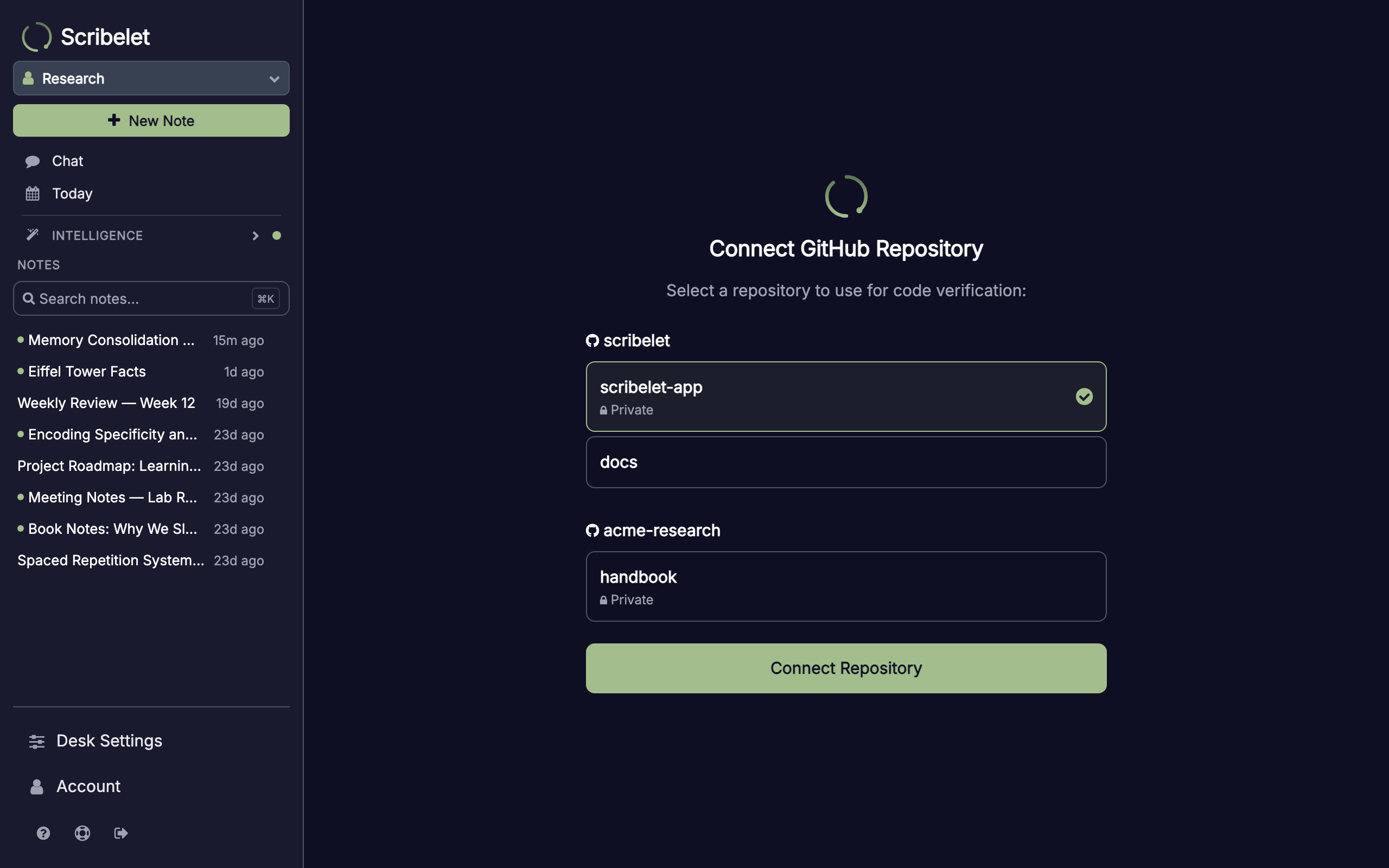
- Back in Scribelet, you land on the GitHub callback screen. Pick the installation (your personal account or an organization) and then the repository to connect.
- Tap Connect Repository. Scribelet creates the connector and runs a quick test query.
The indexing caveat
GitHub's Code Search API only returns results for repositories that have been indexed. For new, small, or previously-private repos, indexing can lag by a few minutes.
If the test after setup reports zero results and offers a Trigger Indexing on GitHub link, tap it. This opens github.com's code search for your repo, which prompts GitHub to schedule indexing. Wait a minute or two, then tap Test again in Desk Settings.
Link it to a note
Adding the connector makes it available at the desk level, but each note opts in individually.
- Open the note.
- Tap the kebab menu (three dots) and choose Settings.
- In Search Connectors, tap + next to the GitHub connector to link it.
From that point on, verification runs on the note will include GitHub code search results alongside any other sources you've configured. See the connectors overview for more on linking and limits.
What Scribelet can and can't see
The GitHub App asks for read-only code search on the repositories you select. It does not:
- Write to your repositories, issues, pull requests, or wikis.
- Access private repositories you didn't grant to the installation.
- Clone your repository, only per-query search snippets are retrieved, up to a few results per verification run.
Access tokens are generated on demand from the GitHub App's private key and expire within an hour. Scribelet stores only the installation ID, repository owner, and repository name in your desk configuration.
Disconnect a repository
To stop using the connector on a desk, tap the trash icon next to it in Desk Settings → Search Connectors. This removes the connector from every note that linked it.
To also revoke GitHub's side of the connection:
- Go to github.com → Settings → Applications → Installed GitHub Apps.
- Find the Scribelet app and either configure which repositories it can access, or uninstall it entirely.
Troubleshooting
- Test returns zero results and no indexing link appears, the probe query happens to not match any code in your repo. Link the connector to a note, run verification, and check whether real queries return results.
- Authorization redirects to an error page, your OAuth state may have expired. Restart the flow from Connect GitHub Repository.
- Installation picker is empty, the GitHub App isn't installed on any account you can access. Use the First time? install link first.