Desks
Updated 2026-03-31
Table of contents
A desk is a self-contained workspace in Scribelet. Each desk has its own notes, tags, AI memory, chat history, templates, and encryption key. Nothing crosses desk boundaries: notes in one desk can't link to notes in another, and AI features only see content within the current desk.
Think of desks like separate notebooks. Keep one for work, one for a research project, one for personal notes. Each stays focused and independent.
Your personal desk
When you sign up, Scribelet creates a personal desk for you automatically. This is your private workspace: only you can access it, and it can't be deleted or renamed.
Your personal desk is a good home for notes that don't belong to a team: journal entries, reading notes, personal projects.
Creating a new desk
To create a team desk, open the desk switcher in the sidebar and tap Create Desk. Give it a name and you're done. The app switches to the new desk immediately.
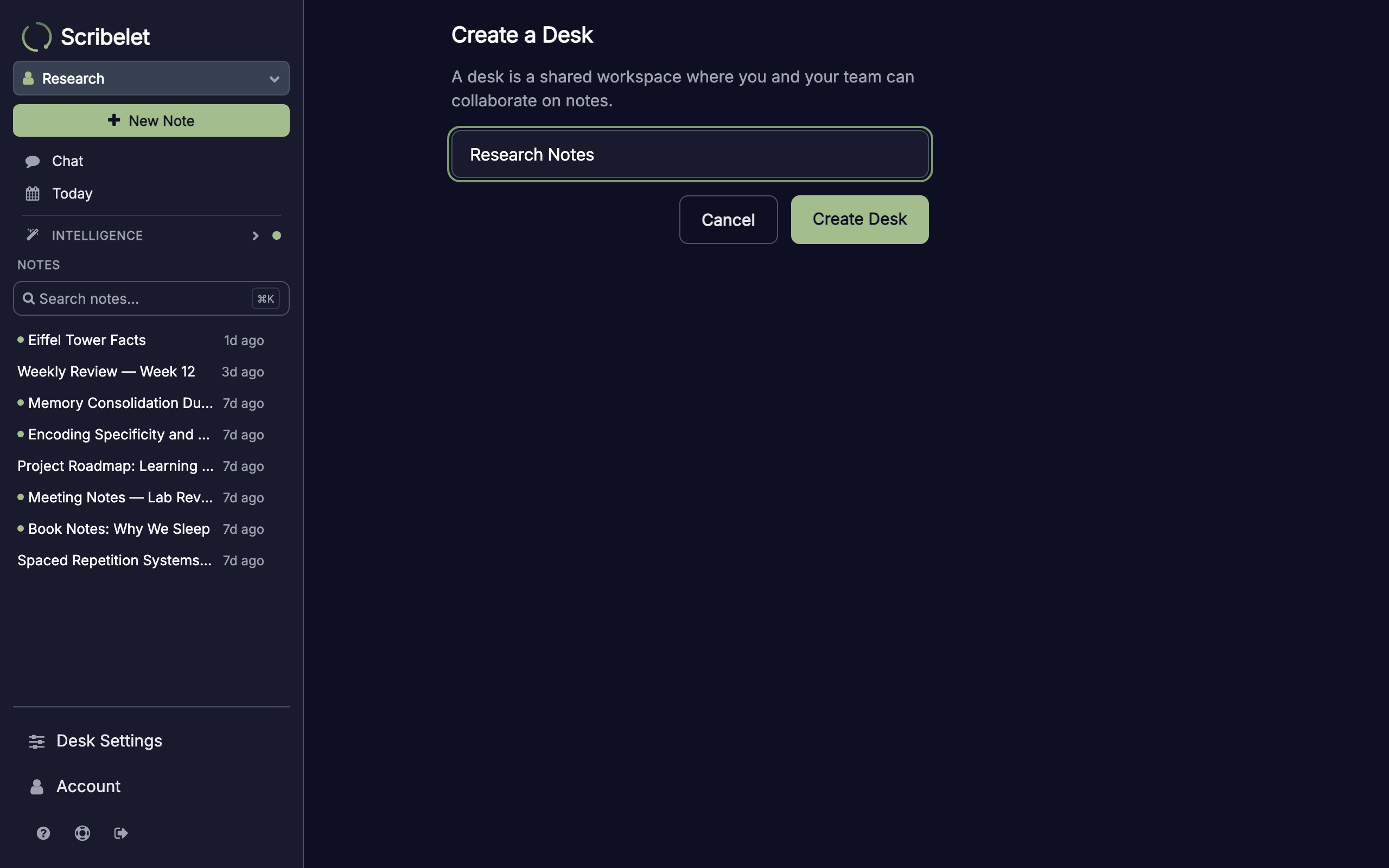
You can create as many desks as you need. Each one starts with a set of default templates and its own encryption key.
Switching between desks
The desk switcher sits at the top of the sidebar. It shows your current desk name and an icon indicating whether it's personal (single user) or shared (team). Tap it to see all your desks.
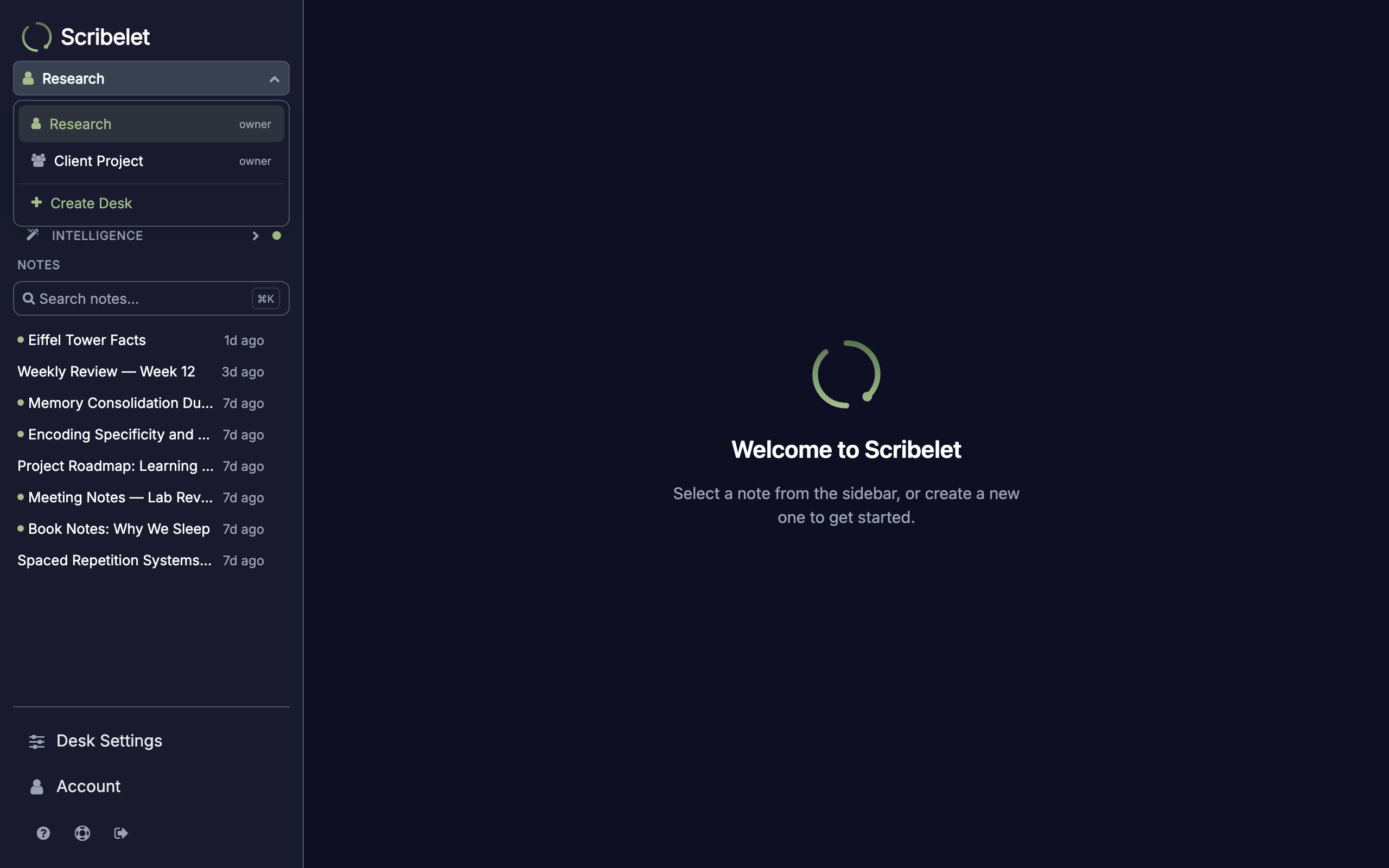
Each desk in the dropdown shows your role (owner, admin, editor, or viewer). Select a desk to switch to it. The app remembers your last active desk, so you'll return to it next time you open Scribelet.
Data isolation
Everything inside a desk is scoped to that desk:
- Notes and their content, tags, and wikilinks
- AI memory: facts, procedural rules, and episode summaries
- Chat conversations and their context
- Templates for quick note creation
- Encryption keys: each desk has its own data encryption key (AES-256-GCM)
This means AI Chat in your work desk won't surface notes from your personal desk, and the auto-linker only finds connections within the same desk. The separation is enforced at the database level, not just in the UI.
Team desks and roles
Team desks support multiple members. Each member has a role that controls what they can do:
| Role | Notes | Settings | Members | Delete desk |
|---|---|---|---|---|
| Owner | Full access | Full access | Manage all | Yes |
| Admin | Full access | Full access | Manage editors & viewers | No |
| Editor | Full access | View only | View only | No |
| Viewer | Read only | View only | View only | No |
The desk creator is automatically the owner. Ownership can't be removed; it must be transferred.
Inviting members
Admins and owners can invite new members from the General tab in desk settings. Enter an email and choose a role (editor, admin, or viewer). The invitee receives an email with a 7-day link to join.
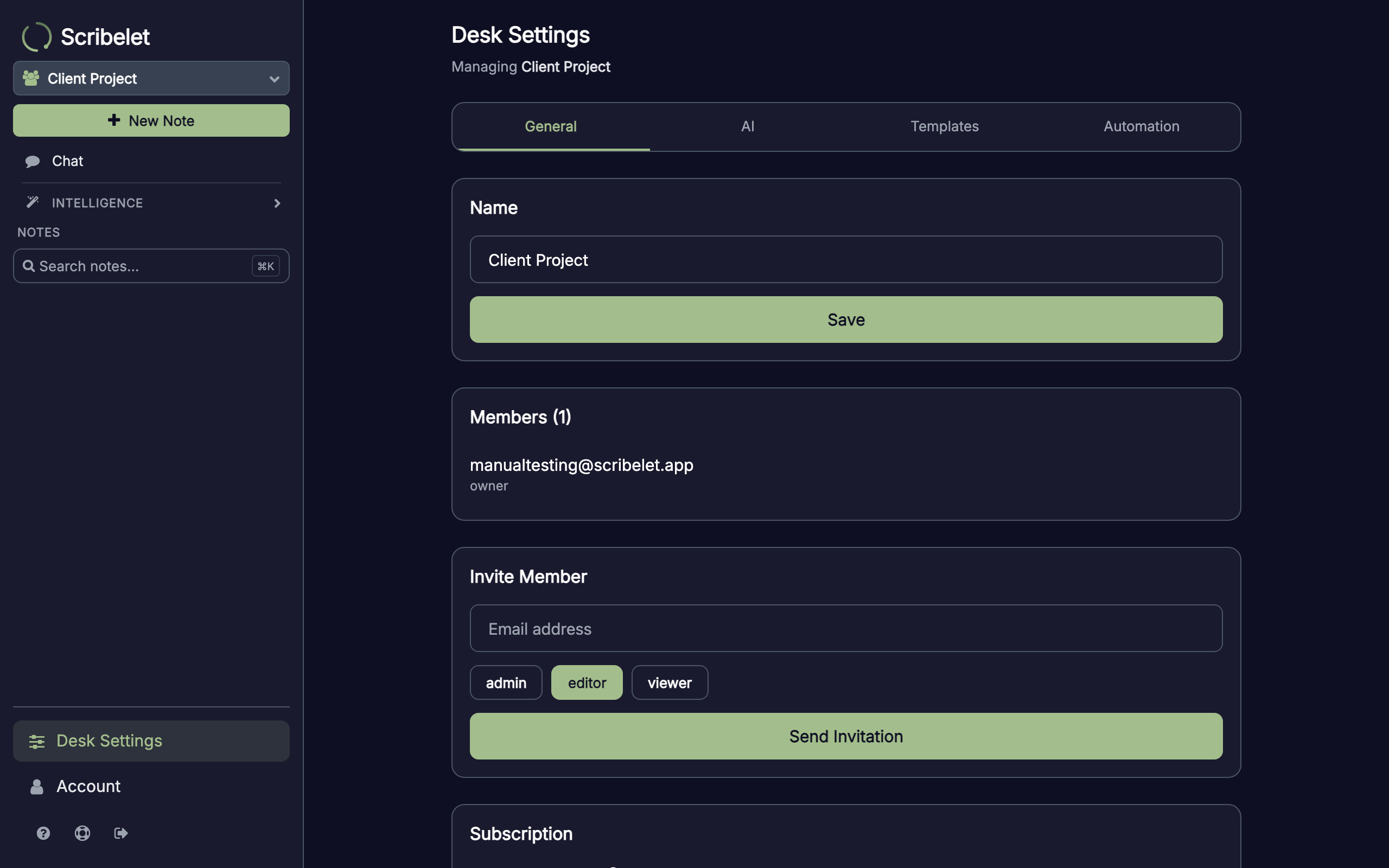
Pending invitations appear below the member list. You can revoke them before they're accepted.
Desk settings
Open Desk Settings from the sidebar to configure your desk. Settings are organized into tabs:
General
- Desk name and slug: rename the desk (admin+ only, not available for personal desks)
- Members: view current members, change roles, invite new members, revoke invitations
- Streaming transcription: toggle real-time voice transcription (Pro feature)
- Subscription: manage your Pro plan, view billing period, adjust seats
AI
- API keys (BYOK): bring your own API key from Anthropic, OpenAI, or Google Gemini. The key is stored encrypted and used for all AI features in this desk.
- Usage: last 30 days of API usage broken down by operation (chat, memory extraction, digest, etc.) with token counts and costs
- Budget: set a monthly spend limit to control costs
Templates
- Browse and manage note templates by category (Meeting, Planning, Journal, Research, General)
- Create, edit, pin, or delete templates
- Generate templates with AI from a description
Automation
- Daily Digest: processes recent notes into structured insights
- Auto-Linker: finds and suggests connections between notes
- Stale Note Checker: resurfaces forgotten but relevant notes
- Enable or disable each task, run them manually, and view their last run status
Personal vs team desks at a glance
| Personal desk | Team desk | |
|---|---|---|
| Created | Automatically on signup | Manually by any user |
| Members | You only | Multiple, with roles |
| Renamable | No | Yes (admin+) |
| Deletable | No | Yes (owner only) |
| Invite members | No | Yes (admin+) |
| AI & automation | AI free with limits; automation is Pro | AI free with limits; automation is Pro |
Next steps
- Core Concepts: how desks fit into the bigger picture with notes, wikilinks, tags, and AI memory
- AI Chat: ask questions about notes within a desk
- AI Memory: how desk-scoped memory works