Authentication
Updated 2026-03-31
Table of contents
Scribelet supports multiple ways to authenticate and protect your account. You can use a traditional password, go passwordless with passkeys, add a second factor with an authenticator app, or plug in a hardware security key. This guide walks through each method and how to set it up.
Password login
Every Scribelet account starts with an email and password. Passwords must be between 8 and 128 characters; there are no complexity rules, so pick something strong and unique.
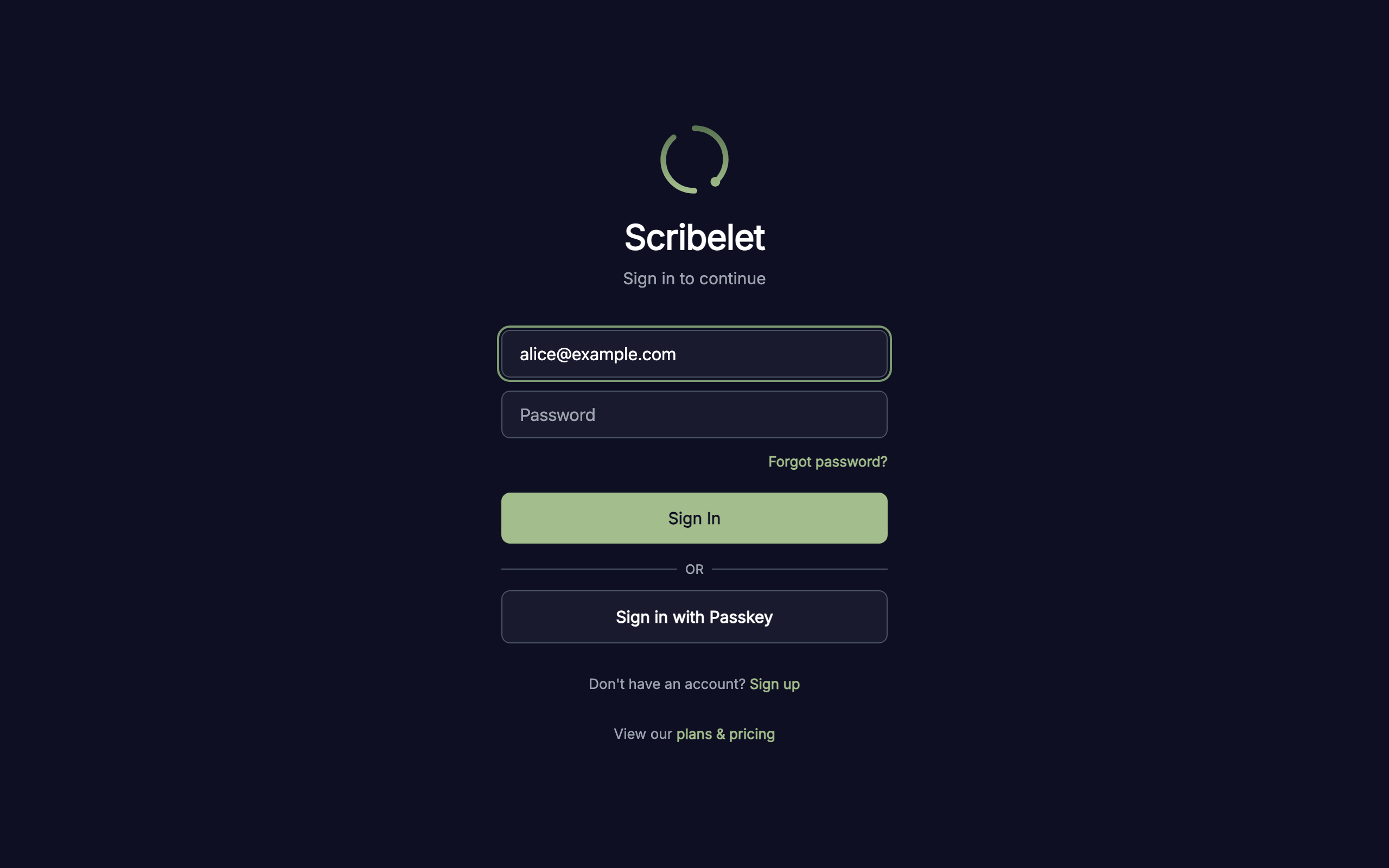
If you forget your password, use the Forgot password? link on the login page. You'll receive an email with a time-limited reset link.
Passkeys
Passkeys let you sign in without a password using biometrics (Face ID, fingerprint) or your device's screen lock. They're built on the WebAuthn standard and work across devices that support FIDO2.
To add a passkey, go to Account in the sidebar and scroll to the Passkeys section. Tap Add Passkey, verify your identity, and follow your device's prompt to create the passkey. You can name it for easy identification (e.g. "MacBook Pro" or "iPhone").
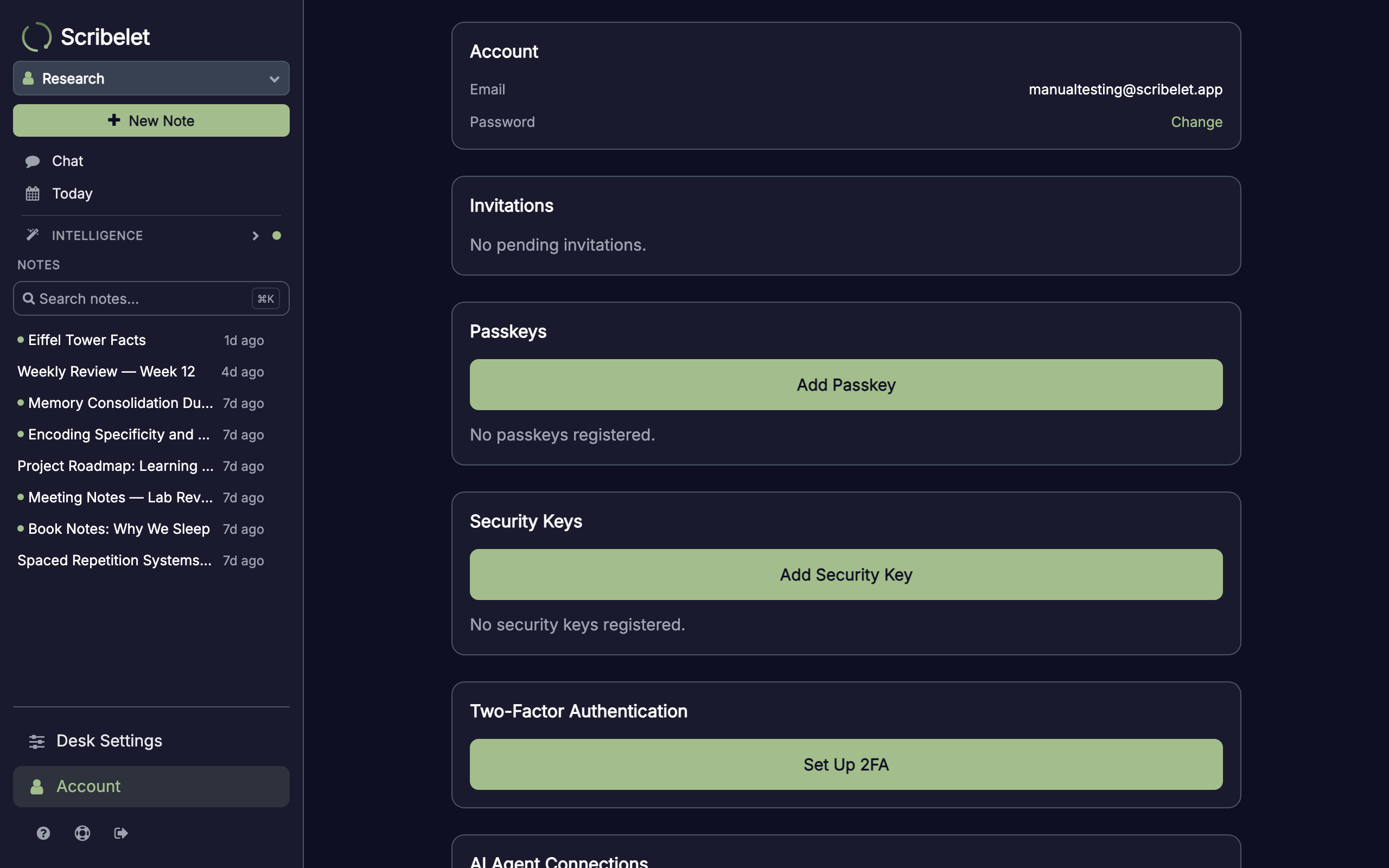
Once registered, the Sign in with Passkey button on the login screen lets you authenticate with just a tap or glance, no password needed.
Passkeys can be synced across your devices (via iCloud Keychain, Google Password Manager, etc.) or stored on a single device. Scribelet shows a Backed up badge for synced passkeys so you know which ones are recoverable.
Two-factor authentication (TOTP)
Two-factor authentication adds a second step to your login: after entering your password, you enter a 6-digit code from an authenticator app like Google Authenticator, Authy, or 1Password.
Setting up 2FA
- Go to Account and find the Two-Factor Authentication section
- Tap Set Up 2FA
- Verify your identity by entering your password
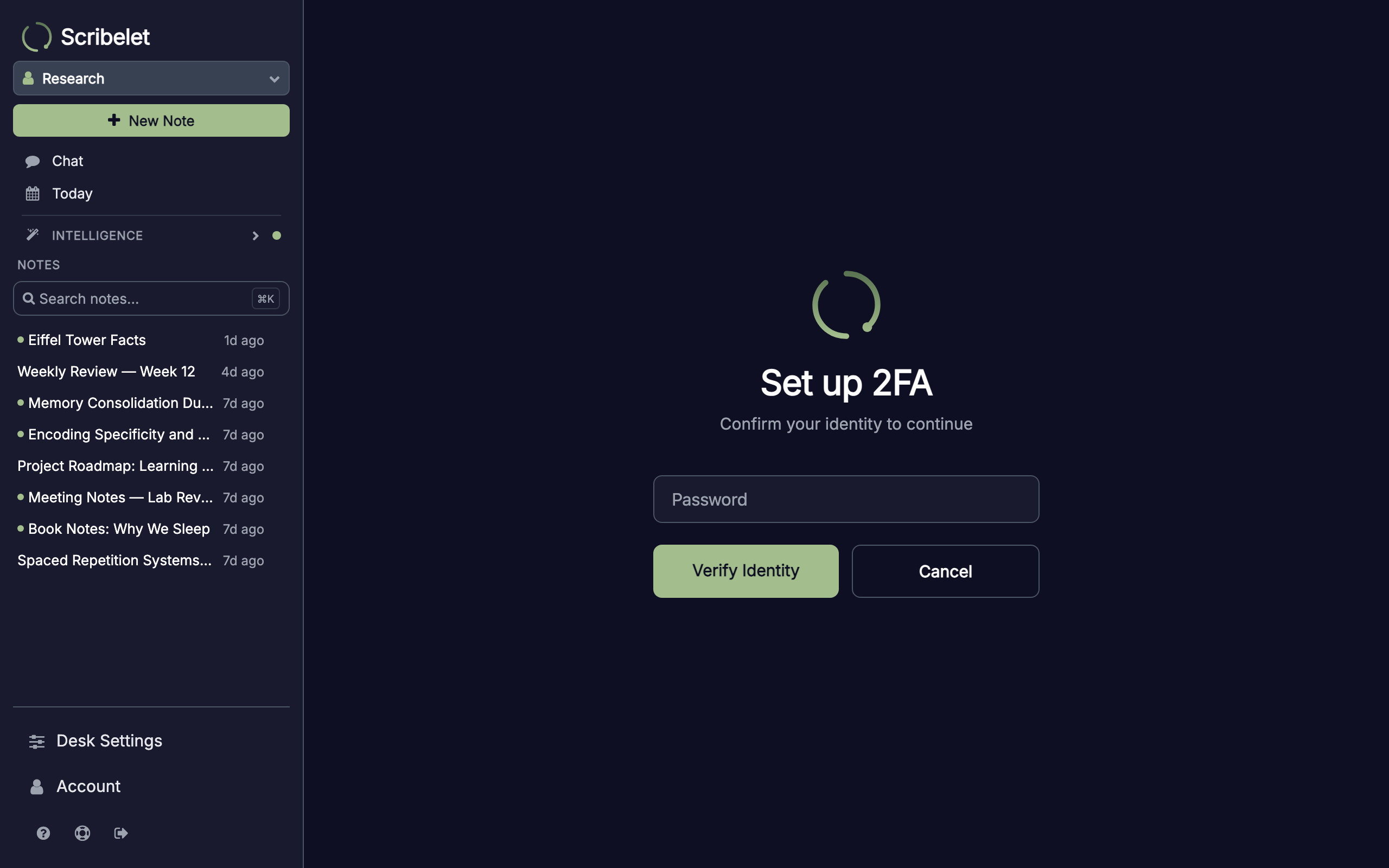
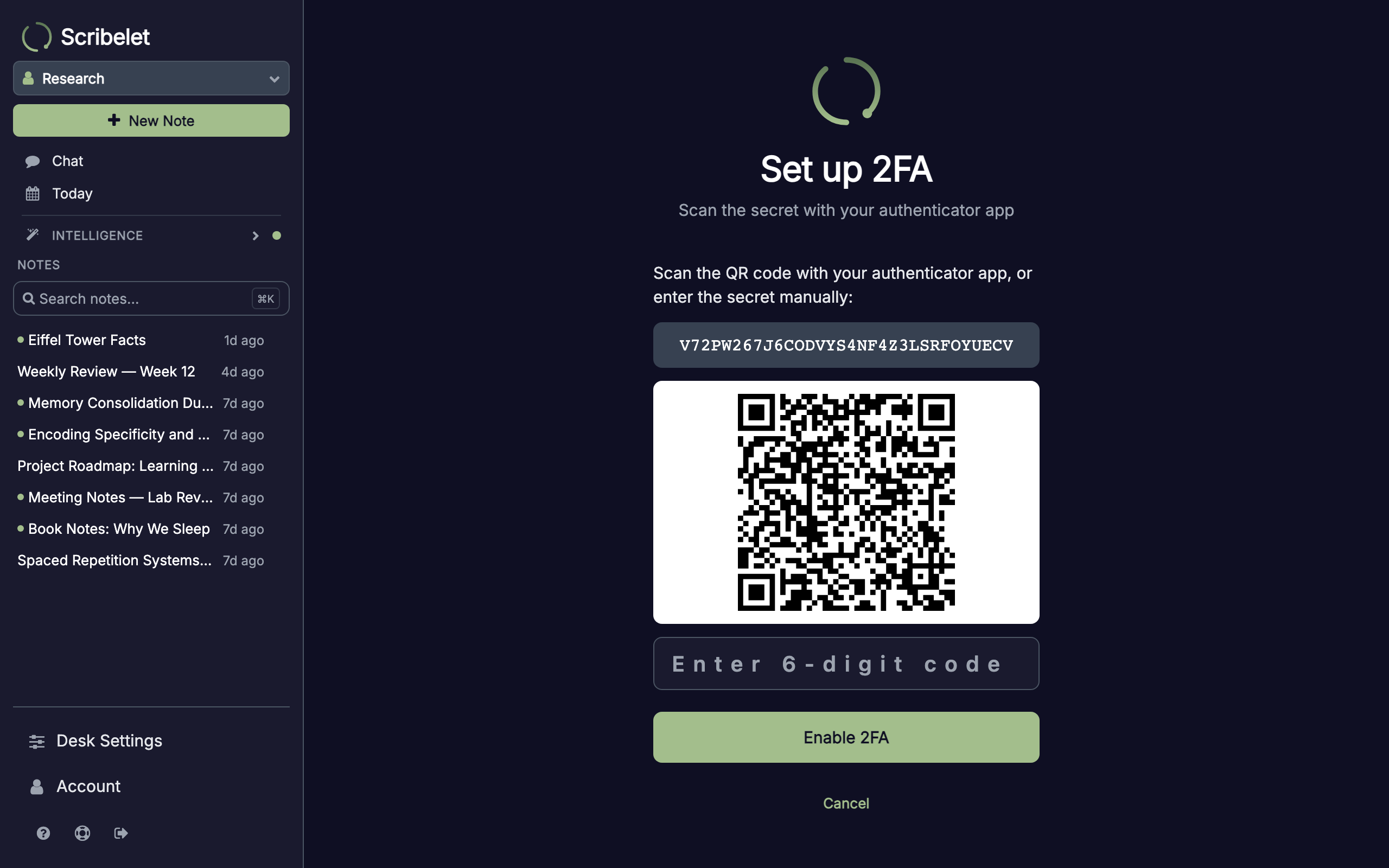
- Scan the QR code with your authenticator app, or copy the secret key manually
- Enter the 6-digit code from your app to confirm
- Tap Enable 2FA
From now on, every password login will prompt for a 6-digit code before granting access.
Disabling 2FA
To turn off two-factor authentication, go to Account, find the Two-Factor Authentication section, and tap Disable 2FA. You'll need to verify your identity again before the change takes effect.
Security keys
Hardware security keys (YubiKey, Titan, SoloKeys) provide phishing-resistant second-factor authentication. Unlike passkeys, security keys are always physical devices; they don't sync to the cloud and require you to tap the key during login.
Adding a security key
- Go to Account and scroll to Security Keys
- Tap Add Security Key
- Verify your identity with your password
- Insert your security key and tap it when prompted
- Give it a name (e.g. "Blue YubiKey" or "Backup key")
Once added, logging in with your password will prompt you to tap your security key instead of (or in addition to) entering a TOTP code.
Step-up verification
Sensitive account actions require you to re-confirm your identity, even if you're already logged in. This is called step-up verification and protects against session hijacking.
Actions that require step-up verification:
- Changing your password or email
- Adding or removing passkeys
- Adding or removing security keys
- Enabling or disabling 2FA
When triggered, you'll see a prompt to enter your password (and TOTP code or security key tap, if configured). The verification is valid for 10 minutes, so you won't be prompted again if you make multiple changes in quick succession.
Connected AI agents
If you use AI agents or MCP clients that integrate with Scribelet, you can manage their access from Account > AI Agent Connections. Each connection shows which agent has access and what permissions it has.
You can revoke an agent's access at any time, which immediately invalidates all its tokens.
Choosing the right setup
| Security level | Setup |
|---|---|
| Basic | Strong password + password manager |
| Good | Password + TOTP authenticator app |
| Better | Password + hardware security key |
| Best | Passkey + hardware security key as backup |
All methods work together. You can have a passkey for convenient daily login, TOTP as a fallback when you don't have your device, and a security key in a drawer for emergencies.
Next steps
- What is Scribelet?: full feature overview
- Quick Start: create your first note in five minutes