Note Templates
Updated 2026-03-31
Table of contents
Templates give your notes a consistent structure from the start. Instead of formatting the same meeting agenda or research outline every time, pick a template and begin writing immediately.
Built-in templates
Every desk comes with five templates ready to use:
| Template | Category | Default tags | What it includes |
|---|---|---|---|
| Meeting Notes | Meeting | #meeting | Attendees, agenda, discussion, decisions, action items |
| Project Plan | Planning | #project #planning | Objective, scope, milestones, resources, risks |
| Daily Journal | Journal | #journal #daily | Highlights, challenges, lessons, tomorrow's priorities |
| Research Notes | Research | #research | Topic, sources, key findings, questions, next steps |
| Brainstorm | General | #brainstorm | Topic, ideas, evaluation, selected ideas, next steps |
These system templates can't be deleted, but admins can hide any that aren't relevant to the workspace.
Using a template
When you create a new note, the template picker appears as a horizontal strip of cards. Tap one to start with its structure pre-filled.
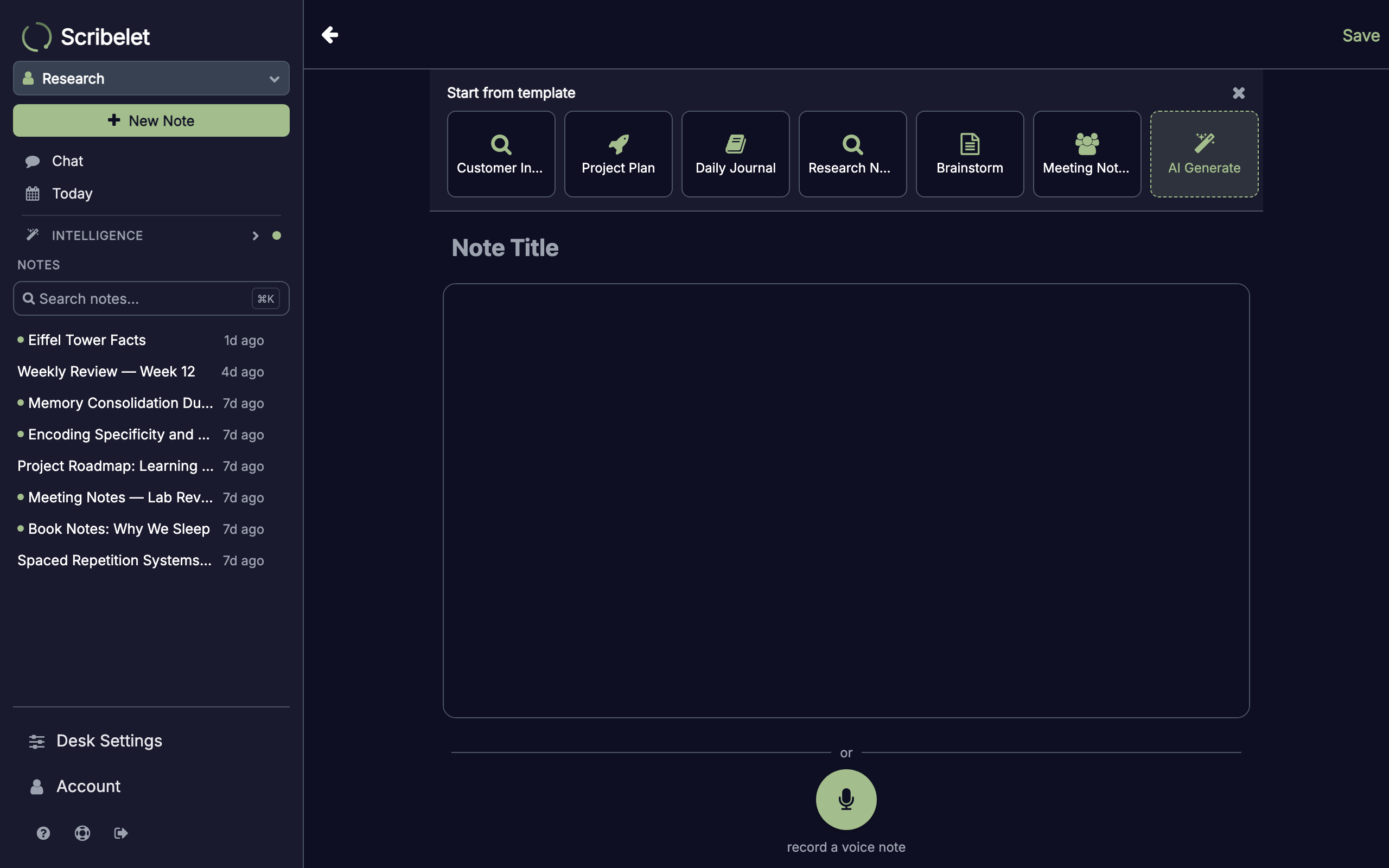
The template's body is inserted into the new note with all sections ready to fill in. Any default tags are automatically appended, so the note is categorized from the moment it's created.
Template variables
Templates can include dynamic variables that are resolved when you create the note:
| Variable | Replaced with | Example |
|---|---|---|
{{date}} | Today's date | 2026-03-31 |
{{time}} | Current time | 14:30 |
{{datetime}} | Date and time | 2026-03-31 14:30 |
{{title}} | The note's title | Weekly Standup |
{{author}} | Your username | maria |
{{desk_name}} | Current desk name | Research |
So a meeting template with **Date:** {{date}} becomes **Date:** 2026-03-31 automatically.
Browsing and managing templates
Open Desk Settings and navigate to the Templates tab to see all templates in your workspace. Filter by category using the chips at the top: General, Meeting, Planning, Journal, or Research.
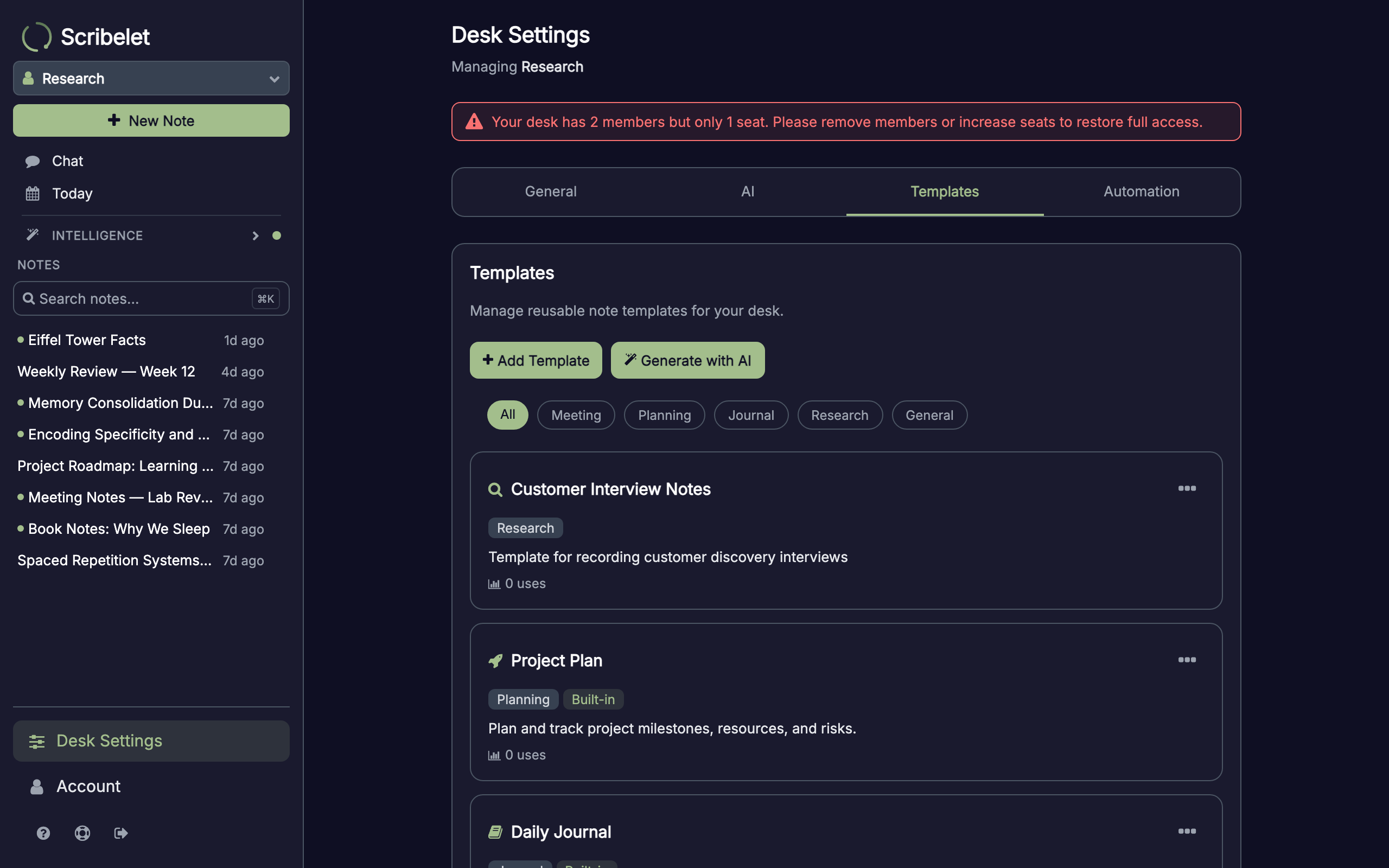
Templates are sorted with pinned templates first, then by usage count. Each card shows the title, category, description, and how many times it's been used.
Creating a custom template
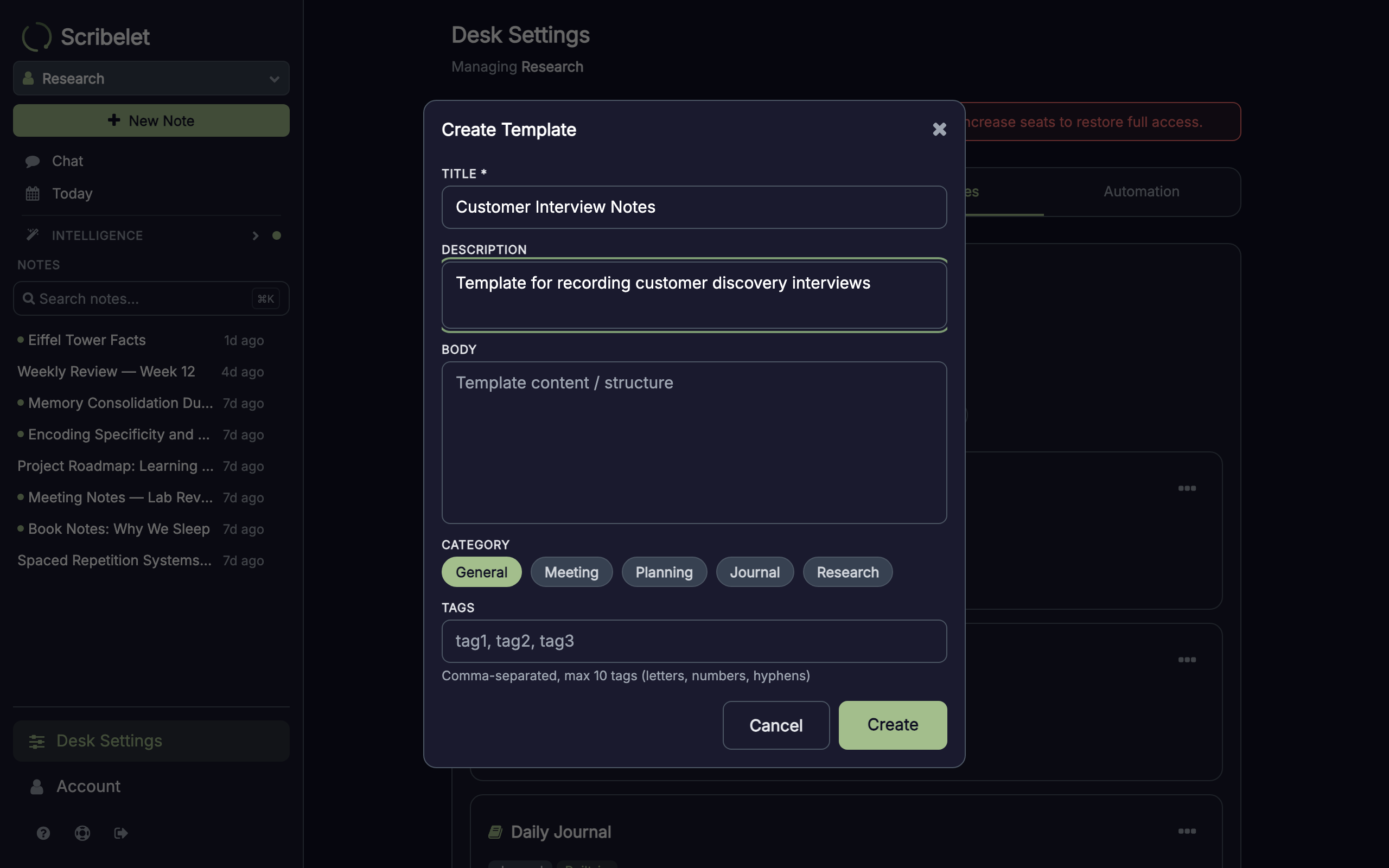
Tap Add Template in the Templates tab. Fill in:
- Title (required) -- the name that appears in the template picker
- Body -- the note structure, using markdown and template variables
- Description -- a short summary shown on the template card
- Category -- Meeting, Planning, Journal, Research, or General
- Default tags -- tags automatically added to notes created from this template
Generating templates with AI
Tap Generate with AI to describe the kind of template you want in plain language. The AI creates a structured template with sections, bullet points, and template variables tailored to your description.
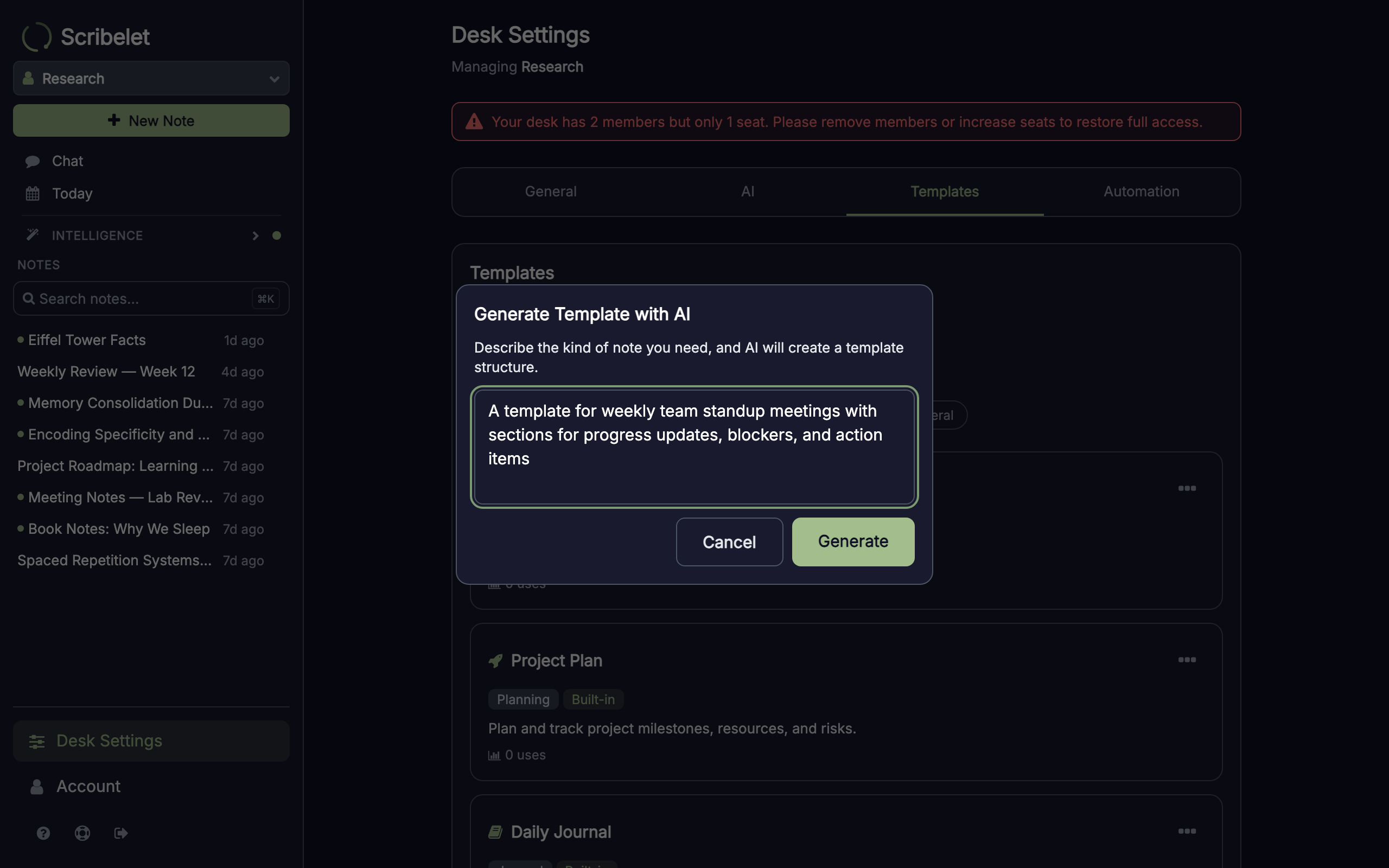
The AI considers your workspace's memory context to generate templates relevant to your domain. For example, describing "customer discovery interview" in a product research desk produces sections that reflect your team's terminology and workflow.
After generation, the result opens in the template editor so you can review and adjust before saving.
Pinning favorites
Admins can pin templates to keep them at the top of the template picker and the settings list. Open the template's menu and choose Pin. Pinned templates show a pin badge and always appear first, making your most-used templates easy to find.
Editing and deleting templates
From the Templates tab, tap the menu on any template card:
- Edit -- opens the template editor with the current content
- Pin / Unpin -- moves the template to the top or back to its normal position (admin only)
- Hide / Unhide -- hides built-in templates from the picker without deleting them (admin only)
- Delete -- removes user-created templates permanently
System templates can be hidden but not deleted. You can only edit or delete templates you created, unless you're an admin.
Default tags
Each template can define tags that are automatically added to every note created from it. This keeps categorization consistent without manual effort.
Set default tags when creating or editing a template. When someone uses the template, the tags appear in the note body as #hashtags and are immediately indexed for filtering and AI context.
Next steps
- Creating & Editing Notes -- editor basics, formatting, and shortcuts
- Tags -- organize notes with hashtags and AI suggestions
- AI Chat -- ask questions grounded in your notes